User Manual: WaveLinx Lite (4.0)
96
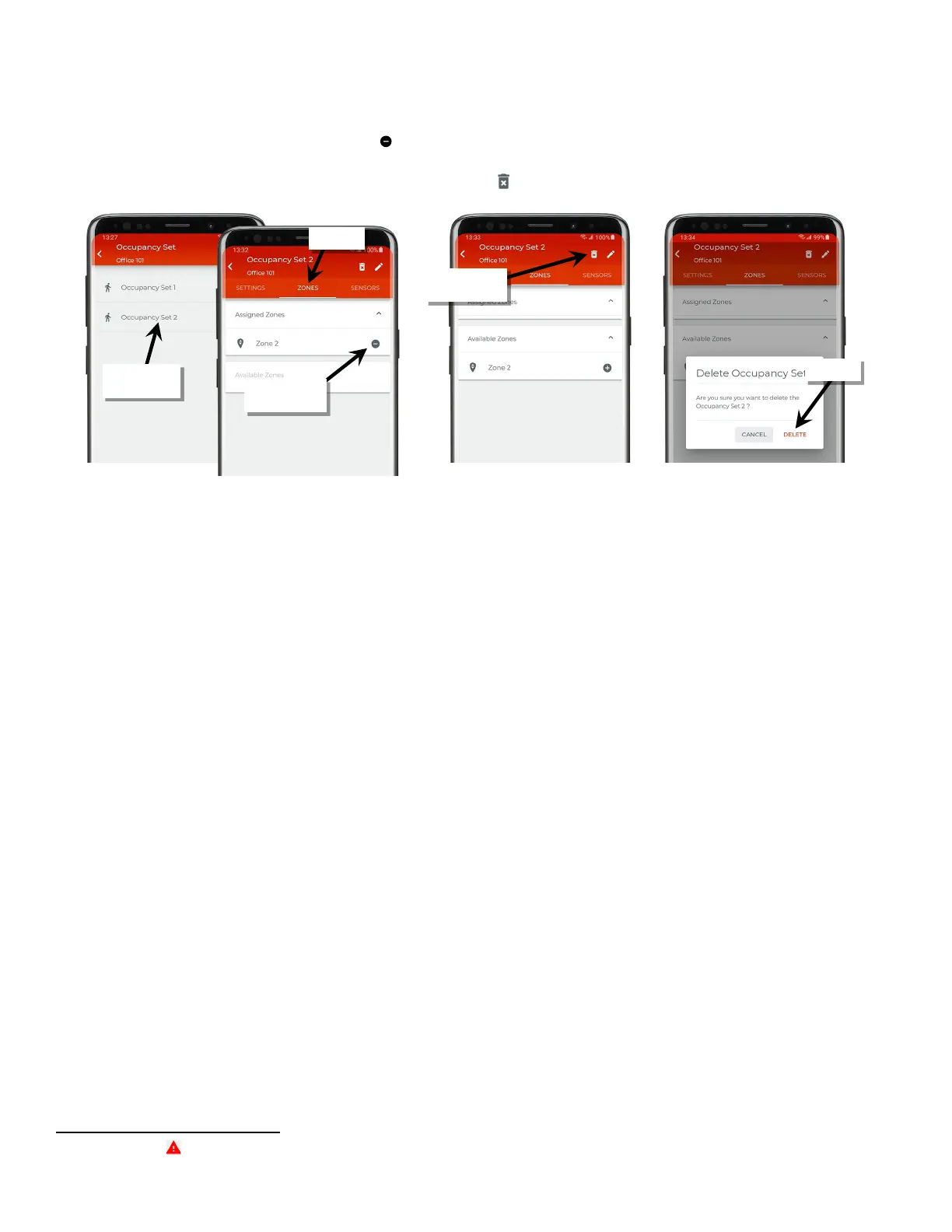
6. Tap on the desired occupancy set to open the occupancy set details, and then tap on ‘Zones’.
7. If any zones are in the ‘Assigned Zones’ section, tap ‘ ‘ next to each zone to remove zone assignment. Informational messages will scroll
across the screen as the zone is removed. Wait a few minutes after zones are removed before moving on to the next step.
74
8. Next, at the top of the occupancy set details page, select the delete icon ‘ ’ and then confirm the deletion.
74
If errors or alert icons ‘ ’ display after this step, refer to the section “Resolve Mobile Application Communication Issues” on page 164 to resolve the errors before
proceeding.
occupancy set
zones
icon



 To Next Page