User Manual: WaveLinx Lite (4.0)
112
Step 2: Enable/Disable the Open Loop Set
During creation, an open loop set is enabled by default. It is possible to disable the set to prevent the daylighting from affecting the controlled
lighting loads. Ensure that the desired open loop daylight sets are enabled for daylight operation.
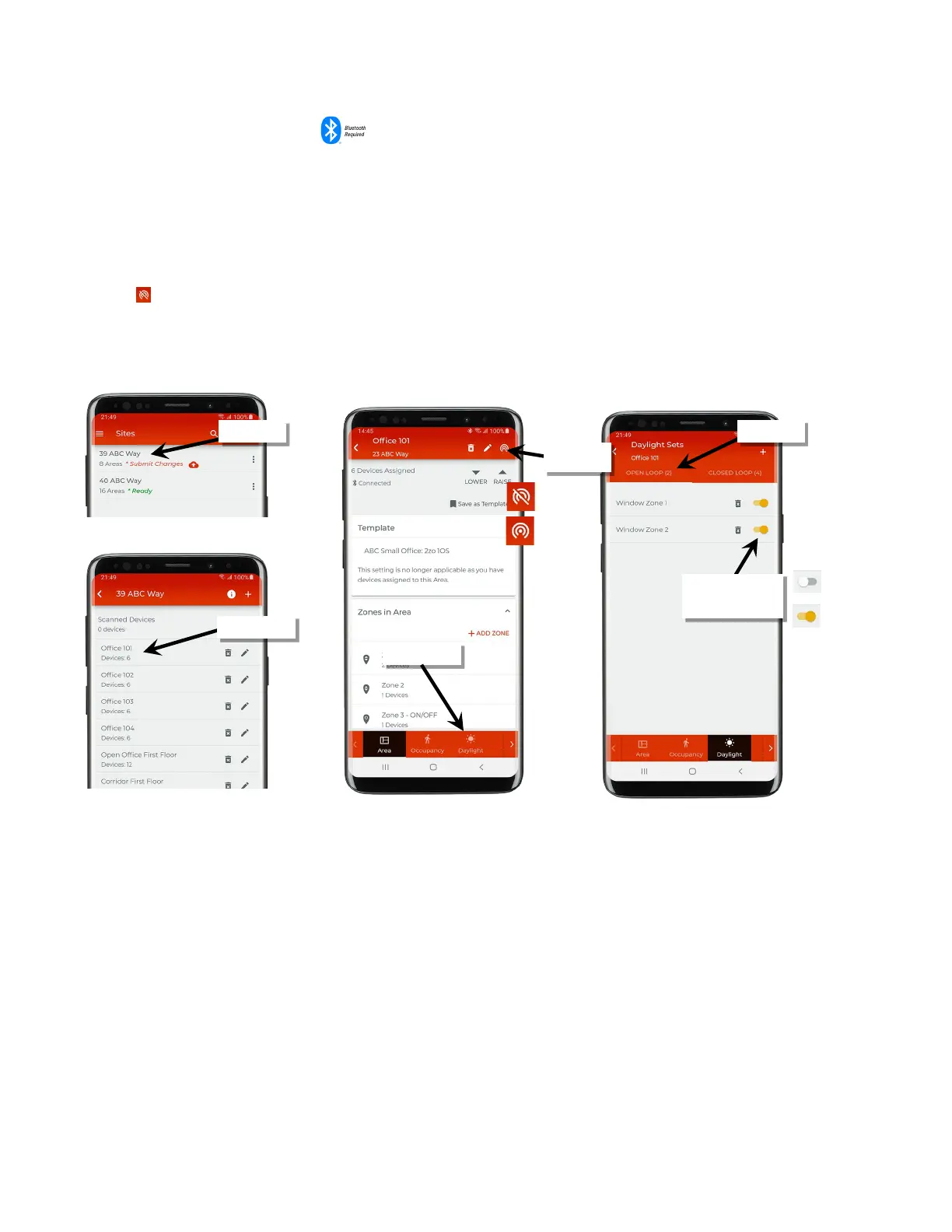
To disable or enable daylighting for an open loop daylight set:
1: Bring the mobile device within range (within 60 feet) of any line voltage powered provisioned WaveLinx Lite device in the desired area.
2: Ensure that the mobile device Bluetooth is turned on, and then open the WaveLinx Lite Mobile Application.
3: In the site list, select a site.
4: In the area list, select the desired area. After a short delay, verify that the area shows that the mobile application is connected to the network.
Tap on the icon if it is necessary to refresh the connection.
5: Tap ‘Daylight’ to open the daylight set list.
6: Tap ‘Open Loop’ and locate the desired daylight set. Once located, slide the switch to disabled or enabled.
7: Repeat for any additional open loop daylight sets until only the open loop daylight sets that should operate are enabled.
Verify network
connection
enable or disable the
sensor



 To Next Page