User Manual: WaveLinx Lite (4.0)
113
Step 3: Assign/Remove Controlled Lighting Loads
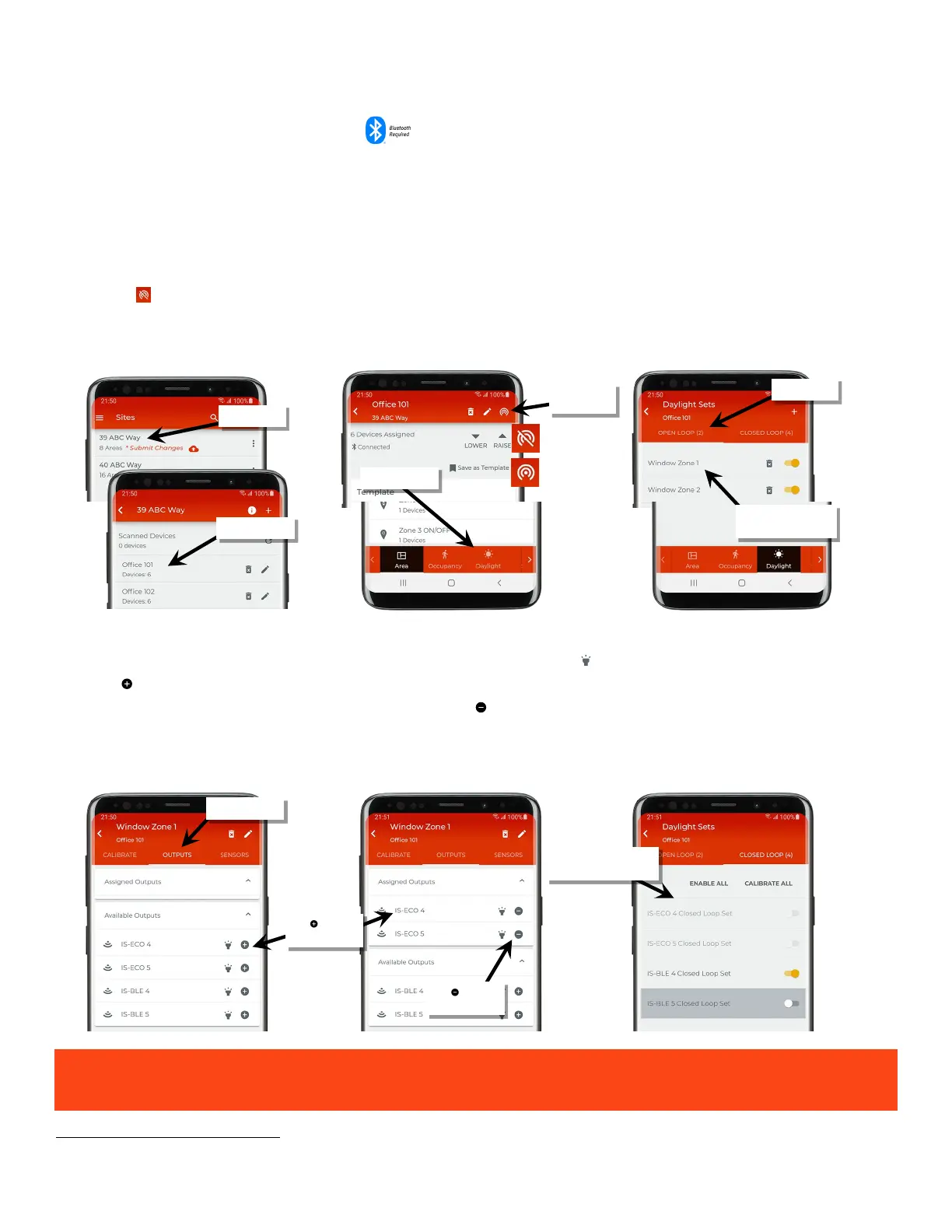
After the open loop daylight set is created, assign the lighting loads that need to respond to the daylight signals. Once assigned, use these
same steps to remove a lighting load that no longer needs to respond.
To assign or remove a controlled lighting load:
1: Bring the mobile device within range (within 60 feet) of any line voltage powered provisioned WaveLinx Lite device in the desired area.
2: Ensure that the mobile device Bluetooth is turned on, and then open the WaveLinx Lite Mobile Application.
3: In the site list, select a site.
4: In the area list, select the desired area. After a short delay, verify that the area shows that the mobile application is connected to the network.
Tap on the icon if it is necessary to refresh the connection.
5: Tap ‘Daylight’ to open the daylight set list.
6: Tap ‘Open Loop’ and locate the desired daylight set.
7: Select the ‘Outputs’ tab.
8: In the ‘Available Outputs’ list, locate the desired device. If needed, use the identify icon ‘ ‘ to flash the device until the correct one is found.
83
9: Tap the ‘ ’ next to the desired device to add it to the ‘Assigned Outputs’. Repeat for additional devices.
To remove an already assigned device, in ‘Assigned Outputs’ tap the ‘ ‘ to remove the device. The device will show as an available output
again.
When a device is added to the outputs, if there is a closed loop daylight set associated with the device, it is automatically disabled. The
closed loop daylight set will appear grayed out and will not allow configuration.
When a device is removed from an open loop daylight set, the closed loop set associated with the device is enabled. If
daylight operation is not desired, disable the closed loop daylight set. See page 103 for instructions.
83
The output assignment screen will allow devices that are provisioned in non-dimmable and receptacle zones to be assigned. If these devices are assigned to an open loop
daylight set, they will ignore all daylight commands.
Verify network
connection
open it
Tap ‘ ’ to add
remove a device
an open loop set



 To Next Page