82
44000-UG-01-01-EN_CPI_Paypod Embedded Pay Station_User Guide_V1.1.pdf
Paypod™ Embedded Pay Station
Handling Cash
Published by CPI
The screen only displays those coins and banknotes with an actual stock.
Denominations which have no stock are not listed.
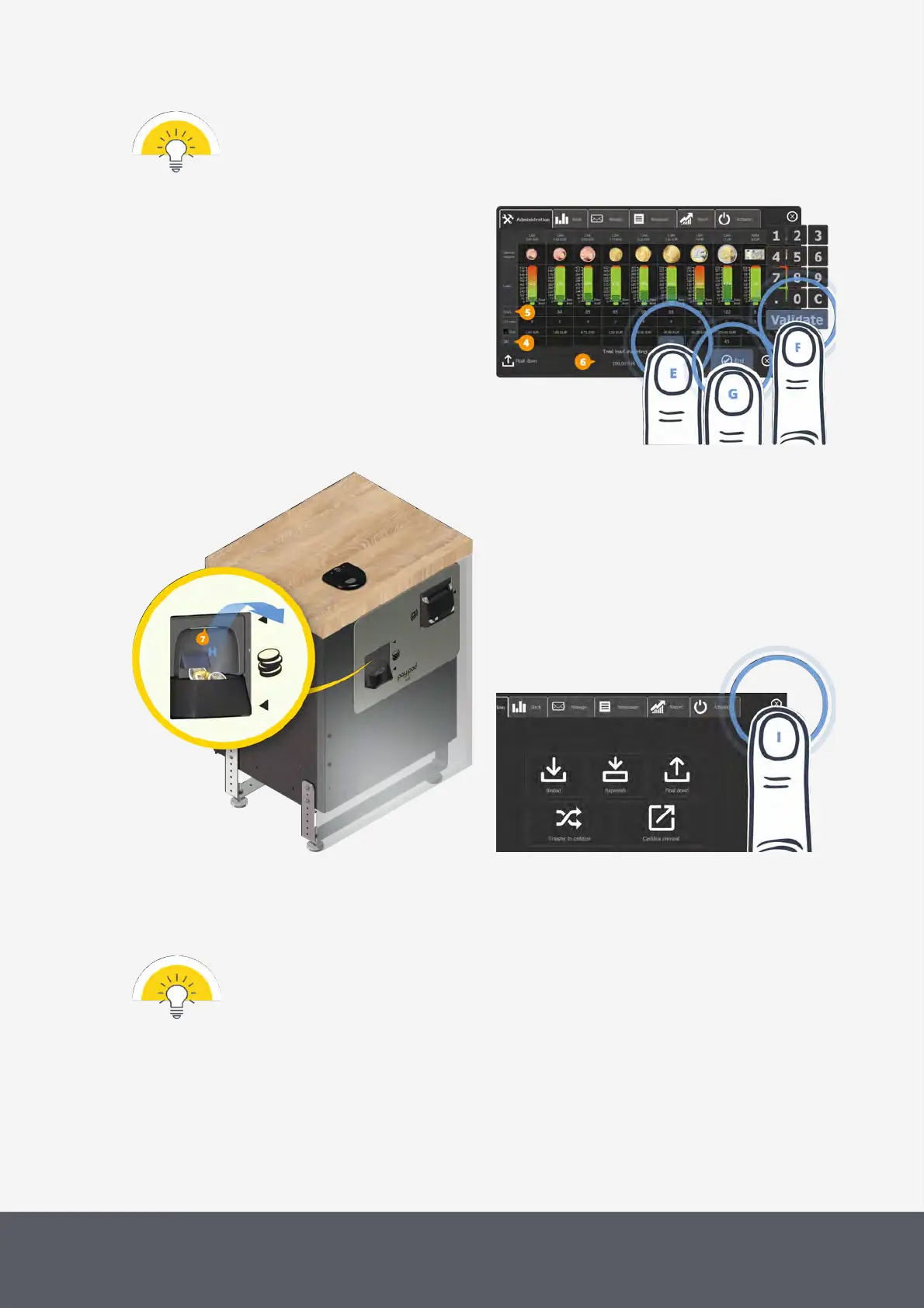
6 Tap the Quantity box[4] in the relevant denomina-
tion column[E] and use the numeric pad to enter
the number of coins to be dispensed. Enter the num-
ber of coins showed in each Stock field[5] for dis-
pensing all coins.
The total amount of all coins to be dispensed is ad-
ded up in the Total Load Shedding field[6] at the
bottom of the screen.
Entering Coins to be Dispensed and Closing Float Down Screen
Collecting Coins Dispensed
Closing Administration Screen
7 Confirm number with Validate[F].
The numeric pad jumps to the next coin's/banknote's Quantity box or closes.
8 Repeat last two steps for all denominations to be dispensed.
The pay station does not dispense denomination by denomination but a mixture of coins. In case
you want the Paypod to dispense coins sorted by denomination, repeat steps6 and 7 for all de-
nominations to be dispensed.
9 Select End[G] to float down the coins.
The coin return cup LED[7] is flashing white indicating that the pay station dispenses the number of coins
entered. All coin counters will be reset accordingly. The middleware returns to the administration screen.
10 Collect coins dispensed[H].



 To Next Page