128 • Appendix B: Troubleshooting Installation Problems Xtium-CL MX4 User's Manual
Sapera and Hardware Windows Drivers
Any problem seen after installation, such as an error message running CamExpert, first make
certain the appropriate Teledyne DALSA drivers have started successfully during the boot
sequence. Example, click on the Start • Programs • Accessories • System Tools • System
Information • Software Environment and click on System Drivers. Make certain the following
drivers have started for the Xtium-CL MX4.
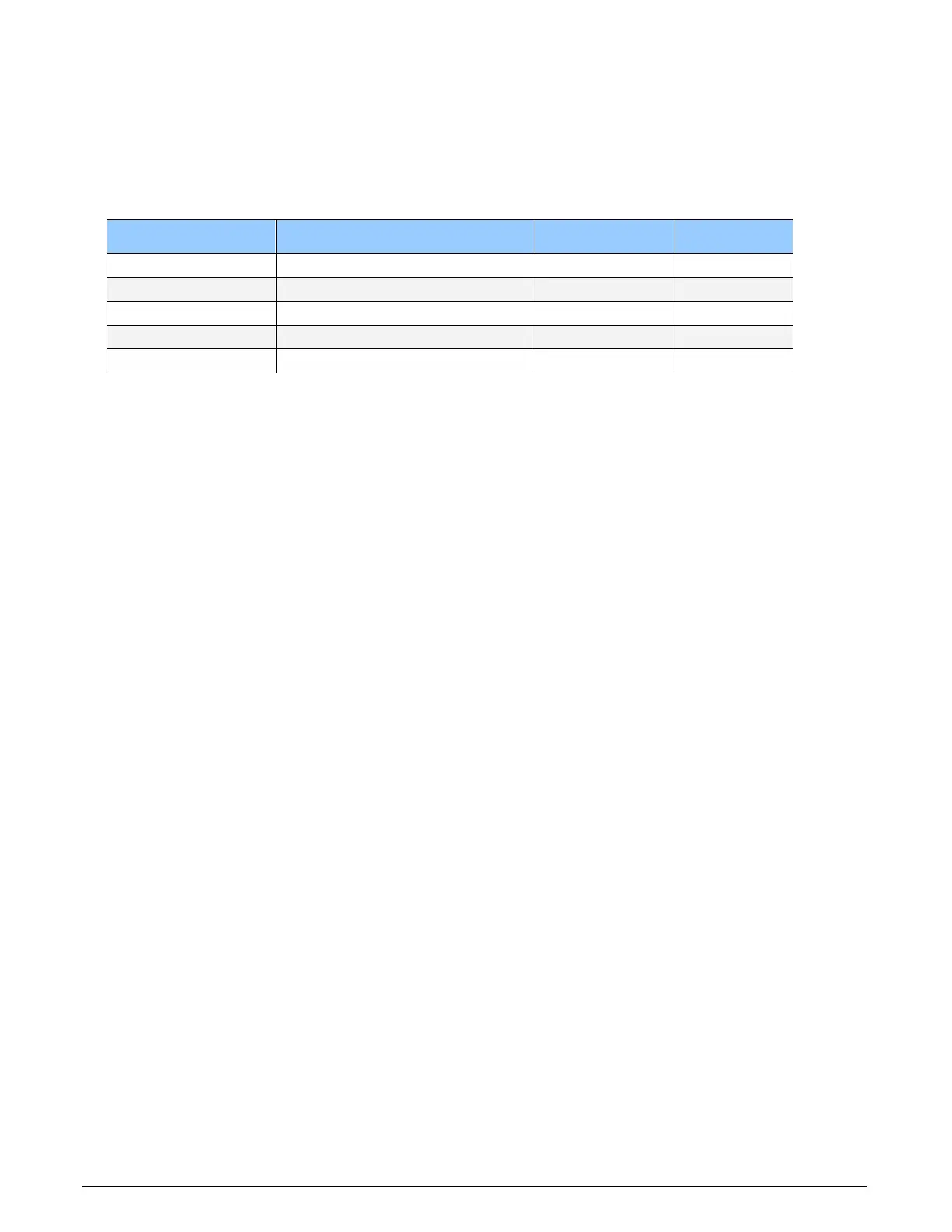
Device Description Type Started
CorXtiumCLMX4 Xtium-CL MX4 messaging Kernel Driver Yes
CorLog Sapera Log viewer Kernel Driver Yes
CorMem Sapera Memory manager Kernel Driver Yes
CorPci Sapera PCI configuration Kernel Driver Yes
CorSerial Sapera Serial Port manager Kernel Driver Yes
Teledyne DALSA Technical Support may request that you check the status of these drivers as part
of the troubleshooting process.
Recovering from a Firmware Update Error
This procedure is required if any failure occurred while updating the Xtium-CL MX4 firmware on
installation or during a manual firmware upgrade. If on the case the board has corrupted firmware,
any Sapera application such as CamExpert or the grab demo program will not find an installed
board to control.
Possible reasons for firmware loading errors or corruption are:
• Computer system mains power failure or deep brown-out
• PCI bus or checksum errors
• PCI bus timeout conditions due to other devices
• User forcing a partial firmware upload using an invalid firmware source file
When the Xtium-CL MX4 firmware is corrupted, the board will automatically run from the Safe load
after a board and/or PC reset.
Solution: Update the board using the standard method described in section Firmware Update:
Automatic ModeFirmware Update: Automatic Mode


 To Next Page