GUIDE TO INSTALLATION
PRODUCT REFERENCE GUIDE
18
GUIDE TO INSTALLATION
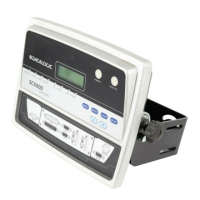
The following can be used as a checklist to verify all the steps necessary to complete
installation of the SC5100 Controller.
1. Read all information in the section Compliance section of this manual
"Compli-
ance" on page xiii
.
2. Correctly mount the SC5100. (
See Chapter 2)
3. Connect complete system cabling according to the signals required for the applica-
tion. This includes - EBC cluster cabling, encoder, package present sensor, host
communications connections, power, etc. (
See Chapter 3)
4. Power up the system.
5. Connect a PC to the SC5100 CFG port (Eth2) and access e-Genius. (
See On-line
Help
)
6. If setting up EBC Devices, perform a “
Discover EBC Devices” on the SC5100 inter-
face.
7. If setting up SyncNet devices, perform a “
Discover SyncNet Devices” on the
SC5100 interface.
8. Rearrange the numbering of system devices as desired.
9. For EBC devices, perform Packtrack calibration and other setup required using the
SC5100 interface or the application appropriate to the device.
10. For cameras on a SyncNet, perform initial configuration using the camera inter-
face. Access via ‘hyperlinks’ in the SC5100 interface to ‘pass-thru’ to the cameras.
OR, Connect to any camera in the SyncNet network via the Host port (Default IP
192.168.3.10). Using the camera interface, configure the following:
• Camera cluster must be configured so cameras can share settings
•
Operating Mode should be set to match the SC5100 (normally Packtrack).
• If Packtrack mode, the
Encoder Steps should be the same.
• Camera
Barcode Settings should be configured to enable all barcodes the cam-
era is to read. Configuration filters and groups are not necessary.
11. Setup
Image Saving and Mounting in the camera interface.
12. Verify the frame rate and/or maximum lines per inch is set correctly. These values
appear on the SC5100 SyncNet Devices page. For some older camera software
they are settable on the SC5100; if they are grayed out they are set on the camera
(as in a normal camera installation).
13. Setup all
Communications via Controller Settings in the SC5100 interface.
14. Execute the
Backup procedure for both the SC5100 and camera cluster.
15. Exit the configuration program for both the SC5100 and cameras and run your
application.
16. The installation is now complete.


 To Next Page