REDUNDANT AND BIDIRECTONAL SYSTEMS
69
SC5100 CONTROLLER
Load Parameter File to Backup SC5100
1. Disconnect the Primary SC5100 from your laptop.
2. Connect the
Eth 4 port of the Backup SC5100 to your laptop.
3. Enter e-Genius of the Backup SC5100.
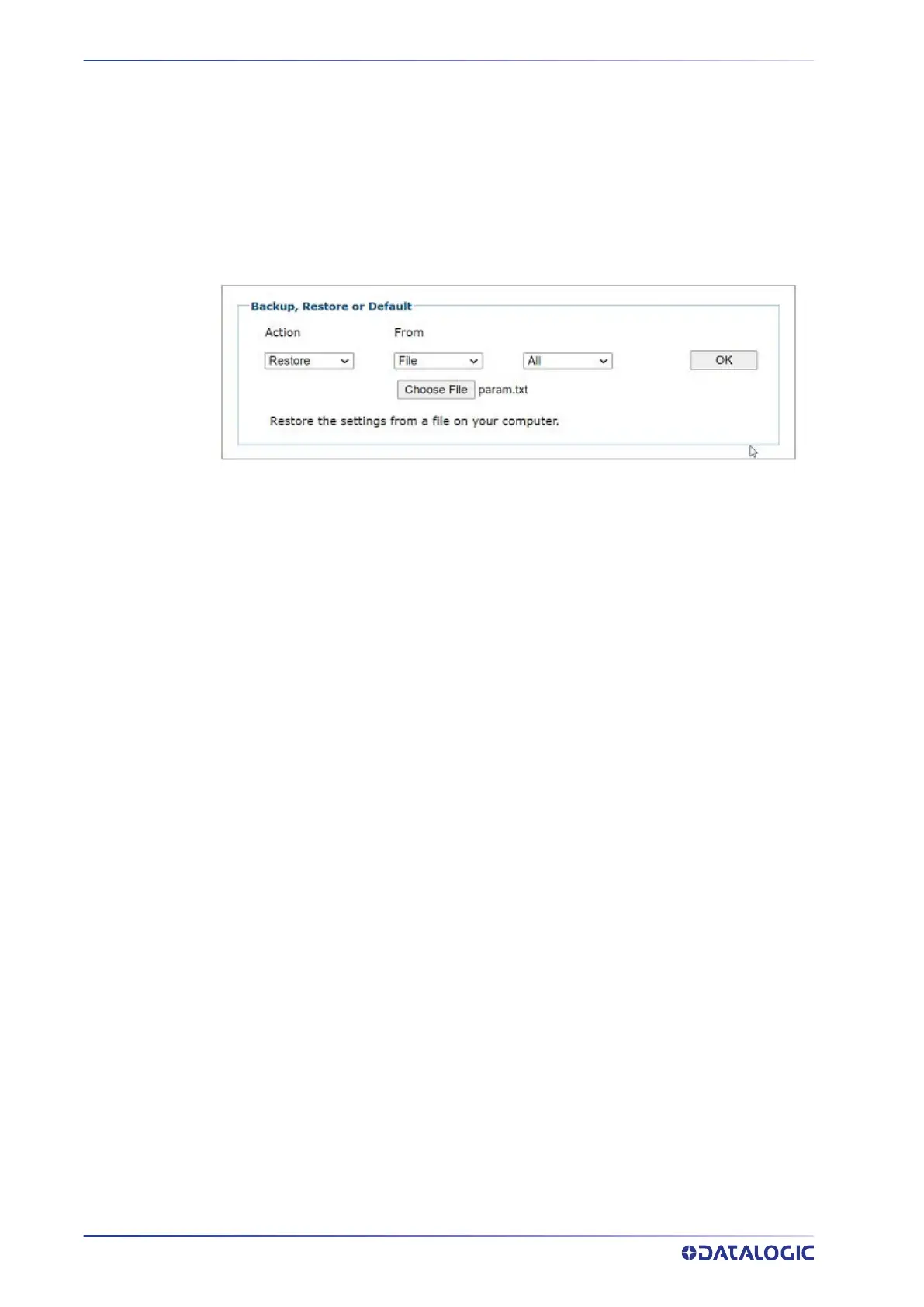
4. In e-Genius select Utilities > Backup or Restore.
5. Select
Restore from the Action drop-down and File from the From drop-down.
Choose the parameter file you saved.
6. Make sure to choose
All from the Application drop-down.
7. Click
OK to save these parameter settings to your Backup SC5100.
Enter REDS Settings on SC5100 Keypads
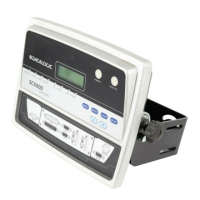
On the keypad of each SC5100 you must specify which is the Primary controller and
which is the
Backup controller.
1. Press
DOWN to scroll down through the menu options until you get to Utilities.
The menu selection you are on appears in blue.
2. Press
ENTER to access the Utilities option’s.
3. Press
DOWN to scroll down through the Utilities options until you get to REDS
Cfg
.
4. Press
UP to scroll up through the options and DOWN to scroll down through the
REDS Cfg options until you get to Primary on the Primary Controller and Backup
on the Backup Controller.


 To Next Page