EasyManua.ls Logo

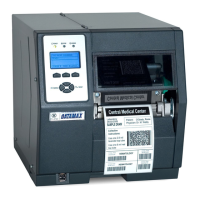
Datamax H Class - User Manual

Datamax H Class
160 pages
Print Icon
To Next Page IconTo Next Page
Loading...
Operator’s Manual

Table of Contents

Other manuals for Datamax H Class

Questions and Answers

  • J
    Joy LeeAug 15, 2025
    How to fix ‘RIBBON FAULT’ on Datamax Printer?
    • N
      Nancy FryAug 15, 2025
      If the ‘RIBBON FAULT’ is showing on your Datamax Printer, make sure the ribbon is correctly installed and the printhead is latched. Check the ribbon hubs for anything blocking movement and confirm the ribbon core fits tightly on the Supply Hub. Also, ensure the media isn't slipping under the ribbon, which can happen if the ribbon and media aren't a good match.
  • C
    Christy BarnesAug 18, 2025
    What to do if my Datamax H Class prints labels and ribbon but no image?
    • S
      Stephen WilliamsAug 18, 2025
      If labels and ribbon advance normally on your Datamax Printer, but no image is printed, examine the used ribbon. If there is an image, verify the ribbon was loaded correctly with the inked side facing the media. Clean the printhead. You might also try flipping the ribbon roll on the Supply Hub. If there's no image on the used ribbon, the heat setting may be too low, so adjust it in your software or printer's menu. Also, the media and ribbon combination may be incorrect.
  • V
    Victoria CobbAug 25, 2025
    Why is my Datamax Label Maker not cutting labels?
    • N
      Nicole ClarkAug 25, 2025
      If your Datamax Label Maker isn't cutting, there are a couple of potential reasons. First, the cutter cable might not be properly connected to the hinge plate jack. Ensure it is securely connected. Secondly, the cutter might not be enabled in your software or the printer's menu. You should verify your software settings and enable the cutter in the menu.
  • H
    hunterholmesAug 27, 2025
    How to fix incorrect label size on Datamax Label Maker?
    • J
      Jeffery GarciaAug 27, 2025
      If the cut labels from your Datamax Label Maker are not the correct size, the label size may not be correctly set in your software or in the printer’s menu. You should change your software settings and the printer’s label size settings.
  • J
    Joshua DavisAug 30, 2025
    What to do if Cutter Fault is displayed on Datamax Label Maker?
    • T
      thomasdebraAug 31, 2025
      If you see a 'Cutter Fault' message on your Datamax Label Maker, it could mean that the cutter cable isn't properly connected. You should connect the cutter cable to the hinge plate jack.
  • M
    Matthew SmithSep 2, 2025
    What to do if Datamax Label Maker is unable to capture feedback data?
    • J
      Joan WilliamsSep 2, 2025
      If your Datamax Label Maker is failing to capture feedback data, consider the following: * Ensure that OPTION FEEDBACK (Host Settings) is enabled. * Verify a bi-directional cable is being used. * Confirm that BI-DIRECTIONAL (Communications) is enabled. * Check that your host device settings match those of the printer and that your software program is set to parse the received data.
  • L
    Lisa BurnettSep 5, 2025
    Why Datamax Label Maker generates scanner fault as soon as printer power is applied?
    • K
      Kimberly GreenSep 5, 2025
      If a Scanner Fault is generated as soon as power is applied to the Datamax Label Maker, it could be due to these reasons: * The scanner may be disconnected while Enabled. To resolve this, turn OFF the printer and ensure the Connector Cable is attached (look for the red glow on power-up). * Alternatively, change the MODE setting to Auto, or Disabled.
  • S
    Shelby HarveySep 8, 2025
    How to fix scanner faults on Datamax Label Maker so VOID is printed on faulted labels?
    • A
      ajonesSep 8, 2025
      To ensure that the Datamax Label Maker prints 'VOID' on faulted labels, make sure that: * The FAULT HANDLING – LEVEL is set to VOID AND RETRY. * Sufficient text space exists by adjusting the VOID DISTANCE.
  • A
    Allison PriceSep 12, 2025
    How to fix Datamax Label Maker when no faults are generated when scanning?
    • A
      Amy WoodsSep 12, 2025
      If the Datamax Label Maker isn't generating any faults during scanning, check these: * Ensure that the MODE is set to Auto, or Enabled. * Verify that the Connector Cable is properly attached (look for the red glow at power-up).
  • A
    andrew60Nov 21, 2025
    What to do if Datamax Label Maker generates scanner faults when scanning?
    • J
      Jasmine Smith DVMNov 21, 2025
      If the Datamax Label Maker generates scanner faults while scanning, several factors could be at play. Here's what you can do: * **Print Quality:** Adjust the heat and/or print speed settings to improve print quality. Examine the print quality of the failed label. * **Scanner Window:** Turn off the printer and check the scanner window for any dirt or debris. Clean if necessary. * **Bar Code Spacing:** Ensure sufficient white space between rows if bar codes are too close together. * **Lighting:** Reduce or redirect bright light sources, or increase light in dim areas if ambient lighting is affecting readability. * **Label Stock:** Make sure the label stock has a matte finish to avoid reflected light blinding the optics. * **Label Pathway:** Ensure that the Tear Bar, Peel Mechani...

Summary

Printer Overview

Printer Overview

Introduces the Datamax H-Class printer and its capabilities.

Media Selection

Media Selection - Direct Thermal

Discusses factors for selecting direct thermal stock for printing.

Media Selection - Thermal Transfer

Discusses factors for selecting thermal transfer media and ribbon.

Print Quality Controls

Explains how to adjust heat and speed for optimal print quality.

Printer Connections

Connecting Power

Step-by-step guide for connecting the printer to a power source.

Interface Connections

Details how to connect the printer to a host system via various ports.

SDIO Slot and USB Host Connections

Explains using SDIO cards and USB memory drives for storage and upgrades.

Driver and Port Setup

Windows 2000 Driver and Port Installation

Step-by-step guide for installing the printer driver on Windows 2000.

Windows XP Driver and Port Installation

Step-by-step guide for installing the printer driver on Windows XP.

Media Loading

Loading Roll Media

Instructions for loading a roll of media into the printer.

Loading Fan-fold and Externally Supplied Media

Instructions for loading box-fed fan-fold or externally supplied media.

Loading the Internal Rewinder

Instructions for using the internal rewinder option for label output.

Printer Operation

Control Panel

Overview of the printer's control panel interface and its components.

Windows Driver

Information on installing and using the Windows printer driver.

Printer Configuration Utility (DMXConfig)

Guide to using the DMXConfig utility for printer setup.

Menu System

The User Interface

Explains the printer's user interface and navigation.

The User Menu

Details the basic operational settings available in the User Menu.

The Advanced Menu

Explains how to access and use the advanced settings and diagnostics.

The Test Menu

Describes the available test and informational label printing options.

Menu Item Listings

Media Settings

Lists and defines settings related to media type, sensor, and length.

Print Control

Details settings for heat, print speed, and other print adjustments.

Printer Options

Lists and defines options like modules, sensors, and rewinders.

Diagnostics

Hex Dump Mode

Tool for diagnosing problems and debugging label formats.

Options Testing

Performs printer option diagnostics and monitors test results.

Sensor Readings

Displays readings from various sensors within the printer.

Maintenance and Adjustments

Cleaning Intervals

Details recommended items, techniques, and schedules for printer maintenance.

Printhead Cleaning

Procedures for cleaning the printhead to resolve print quality issues.

Printhead Pressure Adjustment

Guide to adjusting printhead pressure for optimal print quality.

Printhead Leveling Adjustment

Instructions for adjusting the printhead leveling cam for even pressure.

Media Sensor Adjustment

Steps for setting and adjusting the media sensor for label detection.

Printhead Removal and Replacement

Procedure for safely removing and replacing the printer's printhead.

Sensor Calibration

Quick Calibration

Method for fine-tuning sensing parameters during media loading.

Standard Calibration

Procedure for calibrating sensors when 'Uncalibrated' is displayed.

Advanced Entry Calibration

Method for manual sensor gain adjustment when standard calibration fails.

Resetting the Printer

Soft Reset

Clears temporary host settings by holding the CANCEL key.

Level One Reset

Restores factory default settings, equivalent to 'Set Factory Defaults'.

Level Two Reset

Resets defaults, clears calibrations, and custom adjustments. Requires recalibration.

Updating Firmware

Firmware Updating Error Messages

Lists common errors during firmware updates and their solutions.

Boot Loader Downloads

Boot Loader Update Procedure

Steps for updating the printer's boot loader program.

Font Downloads

Font Download Error Messages

Lists possible errors during font file downloads and their solutions.

Prompts, Messages, and Troubleshooting Tips

Troubleshooting Tips

Guide to resolving common printer issues and symptoms.

Alert Prompts and Condition Messages

Explains messages for operator actions or printer states.

Warning and Fault Messages

Warning Messages

Lists low-priority messages for potential problems or config changes.

Fault Messages

Lists high-priority messages indicating printer fault conditions.

Appendix A - Features and Printer Specifications

Features

Lists standard and optional features of the H-Class printers.

Printer Specifications

Details mechanical, printing, media, and communication specifications.

Appendix B - Embedded Fonts and Barcodes

Embedded Fonts

Describes available character fonts and their ASCII values.

Embedded Bar Codes

Lists and illustrates supported barcode types and their formats.

Appendix C - Module File Definitions

Supported (External) File Types

Defines file formats storable via SDIO or USB Host ports.

Appendix D - Multi-Language Downloads

Software requirements for modifying the menu language

Outlines requirements for creating custom menu languages.

Appendix E - Saving a Configuration File

Keys and Navigation Buttons Functions

Explains button functions for saving configuration files.

Glossary

Warranty Statement

Printer

Datamax's warranty for the H-Class printer hardware.

Thermal Printhead

Warranty details specific to the thermal printhead.

Warranty Service Procedures

Steps to follow for warranty claims and returns.

Contact Datamax

Datamax Technical Support

Information on how to contact Datamax technical support for assistance.

Datamax H Class Specifications

General IconGeneral
Print MethodThermal Transfer/Direct Thermal
InterfaceEthernet, Wireless
Media SensorReflective
Media TypesLabels, Tags
Resolution203 dpi
Media Thickness0.002 to 0.01 inches (0.05 to 0.25 mm)

Related product manuals