10 Job Status
214
Note • Unlike the Private Charge Print feature, the Charge Print feature can store jobs without a user ID, such
as e-mail printing and print jobs sent from Dell Printer Configuration Web Tool, and can print the jobs
after authenticating users.
• [Charge Print] appears when [Save as Charge Print Job] is selected by using one of the following
procedures in the System Administration mode:
- Select [Save as Charge Print Job] in [Receive Control].
- Select [According to Print Accounting] in [Receive Control], and then select [Save as Charge Print
Job] in [Job Login Failure].
- Select [According to Print Accounting] or [Save as Private Charge Print Job] in [Receive Control],
and then select [Save as Charge Print Job] in [Job Without User ID].
For information on how to set Charge Print, refer to "Charge/Private Print Settings" (P.456).
The following describes how to print and delete a job stored with the Charge Print feature.
1
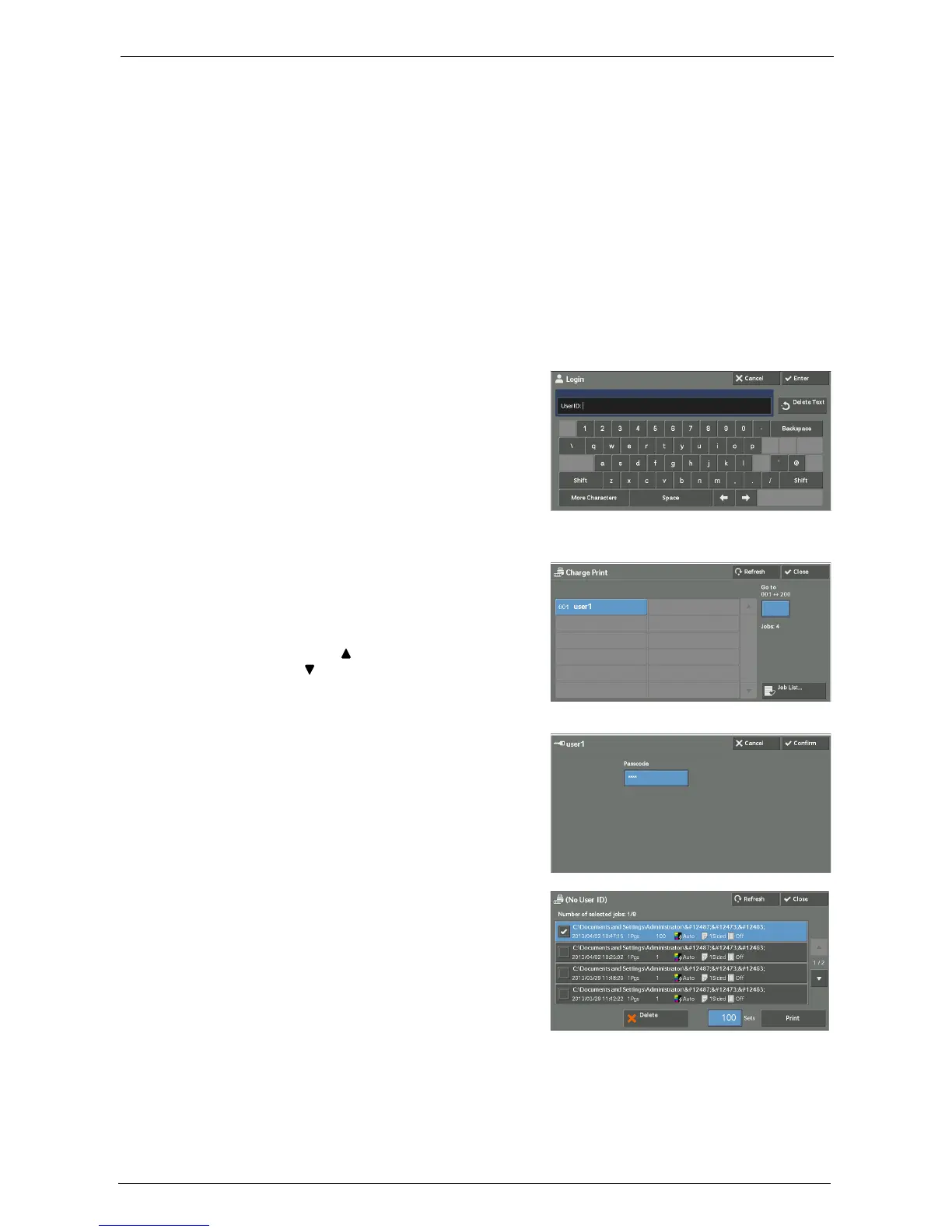
Press the <Log In/Out> button on the control panel, or select the login information field
on the touch screen.
2
Enter the user ID, and select [Enter].
Note • When the passcode is set, enter the user ID
and select [Next]. Then, enter the passcode
and select [Enter].
• While a user is authenticated, the <Log In/
Out> button lights up on the control panel.
• To log out of the machine, press the <Log In/
Out> button on the control panel.
3
Select [Charge Print].
4
Select the user to be checked, and select [Job
List].
Note • Select [Refresh] to display the updated
information.
• Select [ ] to return to the previous screen or
[ ] to move to the next screen.
• You can enter a user ID in [Go to] using the
numeric keypad to display the user ID at the
top of the list.
5
Enter the passcode, and select [Confirm].
Note • If the passcode is not set, the passcode entry
screen does not appear.
6
Select the job to be printed or deleted.
7
Select any option.
8
When printing, specify the number of print sets using the numeric keypad.











 To Next Page