Shortcut Menu Settings
759
3
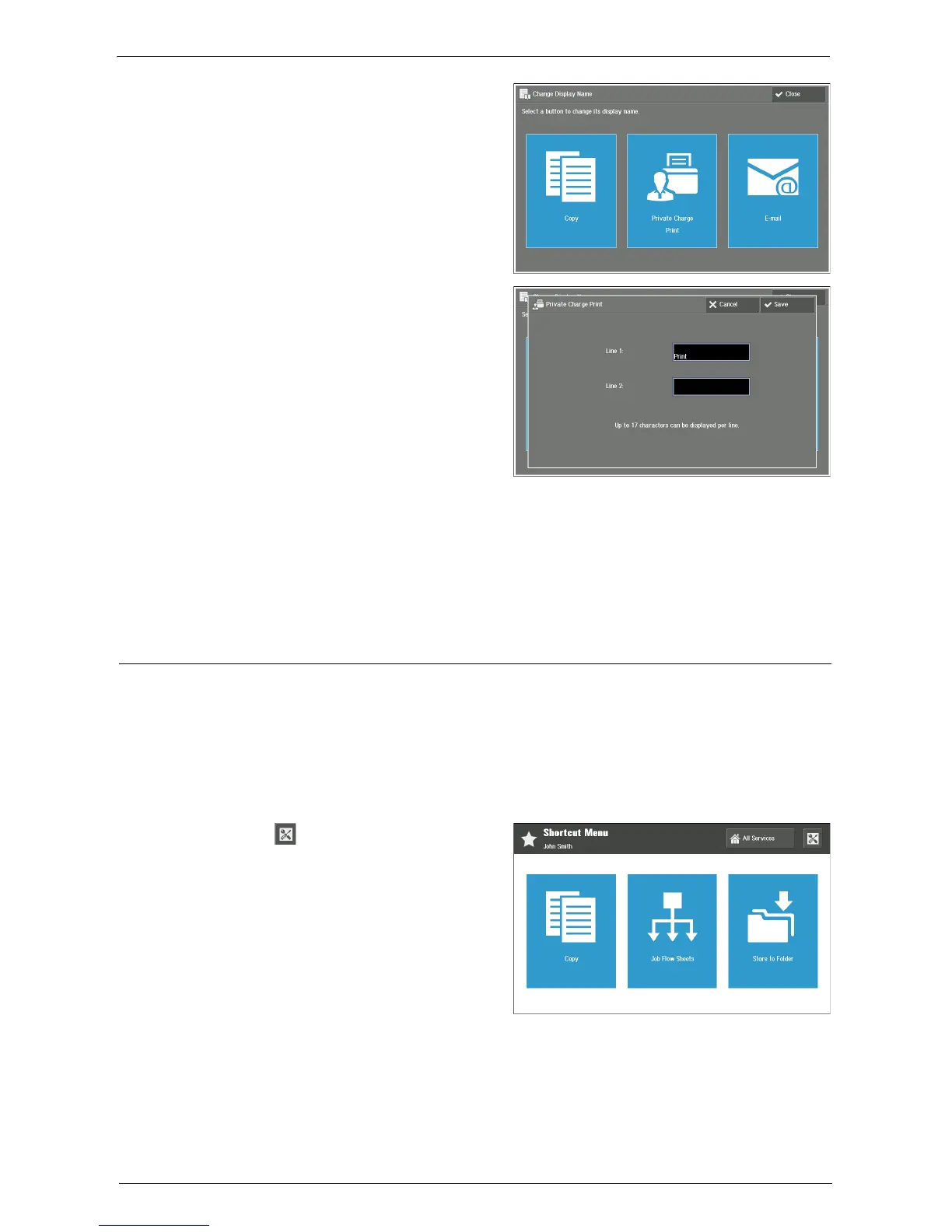
Choose the button to change its name.
4
Enter a name with the keyboard displayed
on the screen and select [Save].
Note • You can enter a name with up to two
lines (17 single-byte characters per
line) per button.
Line 1:
Enter characters for the first line of the
button name.
Line 2:
Enter characters for the second line of the button name.
5
Check the entered name and select [Close].
6
Select [Close].
Default Screen after Authentication
While using the Private Charge Print function, any Private Charge Print job you may have
can be listed as the default screen after authentication.
Note • If there is no Private Charge Print job, the Shortcut Menu screen is displayed.
• Even when the Private Charge Print screen is set as the default screen after authentication, the
Shortcut Menu screen may appear as the default screen after successive authentications by the
same user. In this case, to display the Private Charge Print screen, select the Private Charge Print
button on the Shortcut Menu screen.
1
Select [ ] (Shortcut Menu Settings) on
your Shortcut Menu screen.











 To Next Page