2 Product Overview
50
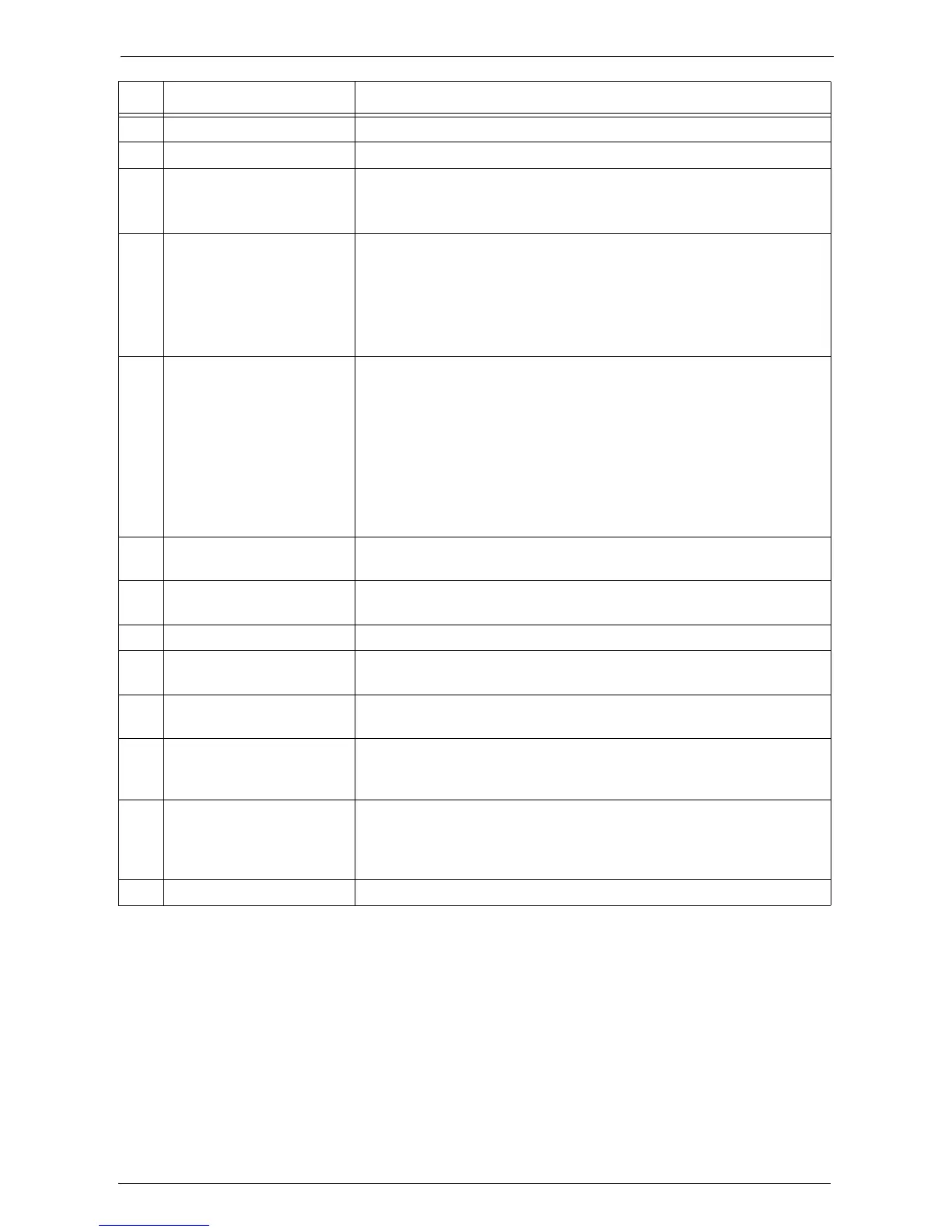
9 <Stop> button Press this button to pause the current job or communications.
10 <Start> button Press this button to start scanning a document.
11 <Main Power> indicator Lights up when the main power is switched on.
Note • If the main power is not switched on, the machine will not be powered on
even when the power is switched on.
12 <Error> indicator Blinks if a system error occurs.
This indicator lights up when a problem other than a system error occurs
with the machine, including paper jams and running out of paper or toner.
If the <Error> indicator blinks, contact Customer Support at
dell.com/contactdell.
If the <Error> indicator lights up, refer to "Machine Trouble" (P.567).
13 <Data> indicator Blinks when the machine is sending or receiving data to or from a client.
This indicator lights up when data is stored in the machine's memory, when
received faxes are waiting to be printed, or when faxes are stored in a folder.
You can check stored scan files in a Folder List. For information on the
Folder List, refer to "Folder List" (P.282).
You can check stored fax files in a Stored File List. For information on the
Stored File List, refer to "Stored File List" (P.277).
You can change the lighting pattern of the <Data> indicator. For more
information, refer to "Data Indicator" (P.347).
14 <Speed Dial> button Press this button to specify a recipient with an address number when sending
a fax or e-mail.
15 <C (Clear)> button Press this button to cancel a numerical value you have entered with the
numeric keypad.
16 <Dial Pause> button Press this button to insert a pause into a destination number.
17 Numeric keypad Use the numeric buttons on the keypad to enter the number of copies,
passcodes, and other numerical values.
18 Custom Button 1 (Copy) "Copy" is assigned to this button by default.
Press this button to display the [Copy] screen.
19 Custom Button 2 (Shortcut
1)
Press this button to call its associated service.
To the button, you can assign [Language] or any service displayed on the
[Home] screen.
20 Custom Button 3 (Shortcut
2)
"Review" is assigned to this button by default.
On the [Review] screen, you can check a list of the status of Copy, Fax, and
Scan services whose settings have been changed from the defaults. You can
also check the details of fax and e-mail recipients.
21 USB memory slot Insert a USB 2.0 memory device here.
No. Component Function











 To Next Page