Using Google Drive from the Machine
779
Creating a Job Flow Sheet
1
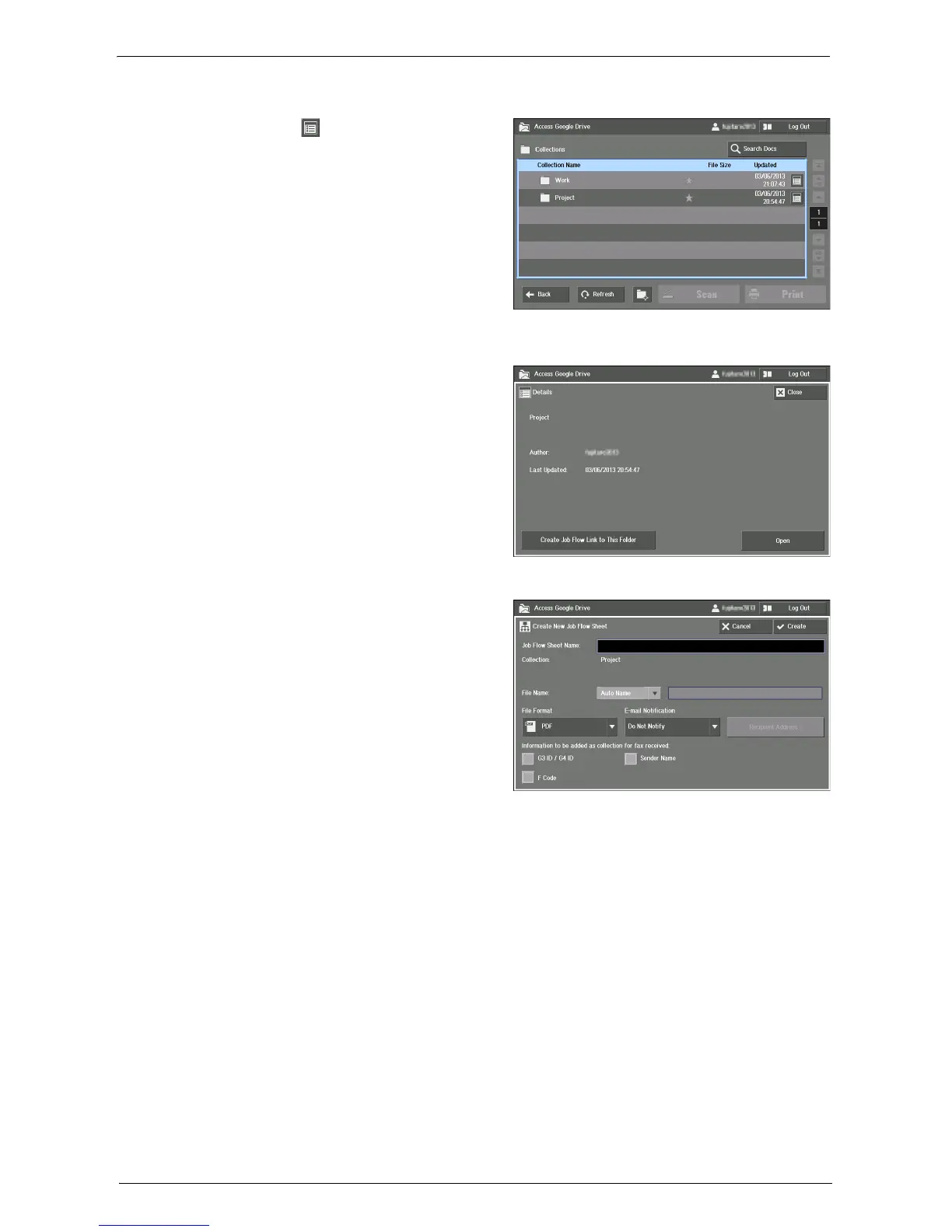
Select the [ ] button for the collection
you want to upload the data to.
Note • You cannot create job flow sheets for [All Items], [Collections], or collections with 11 or deeper layer of
directories.
2
Select [Create Job Flow Link to This
Folder].
3
Enter [Job Flow Sheet Name]. Up to 64 characters are allowed.
Note • Do not use characters from a language
other than English and the default
language (the language used in the
display when you turn on the machine).
Note • You can only check the job flow sheet name and not the content, when you link the job flow sheet to a
folder. We recommend you to name the job flow sheet with which shows what the job flow sheet is
about.
• [Collection] shows the name of the collection to which the uploaded file will be added.
4
Set the [File Name] for the uploaded data.
If [Auto Name] is selected, the file will be named as "YYYYMMDDhhmmss".
If [Enter Name] is selected, you can select the text box to enter a file name from the input
screen displayed. Up to 64 characters are allowed.
Note • The file created cannot be deleted from the machine.
• Text string "YYYYMMDDhhmmss" is automatically replaced to the date and time when the data is
uploaded.
For information on the input screen, refer to "Entering Text" (P.789).
5
Set the other items if necessary, and select [Create].
File Format
Sets the file format of the uploaded data. Select from [PDF].











 To Next Page