Operator Panel
121
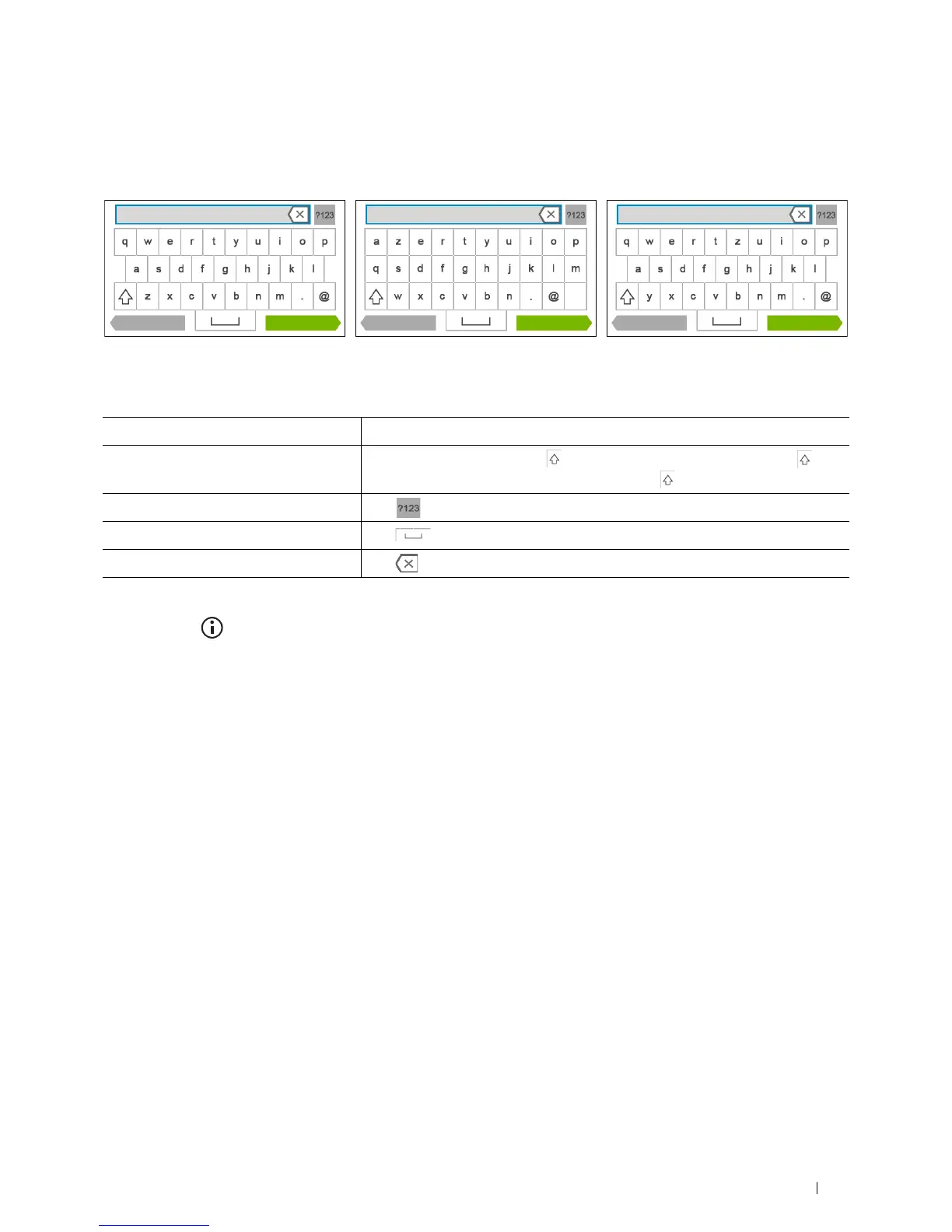
Using the Keyboard Displayed on the Touch Panel
During operations, a keyboard for entering text sometimes appears. The following describes how to enter text.
You can enter the following characters: numbers, alphabets, and symbols.
To Change the Keyboard Layout
1
Press the
(Information)
button.
2
Ta p t h e
Tools
tab, and then tap
Language Settings
.
3
Ta p
Keyboard Layout
.
4
Tap the desired keyboard layout.
5
Ta p
OK
.
Item Description
Entering alphabets To enter uppercase letters, tap . To return to the lowercase letters, tap
again. To lock to the uppercase letters, double-tap .
Entering numbers and symbols Tap .
Entering a space Tap .
Deleting characters Tap to delete one character at a time.
Back
QWERTY AZERTY QWERTZ
Done Back Done Back Done













 To Next Page