66
Connecting and Setting Up Your Printer
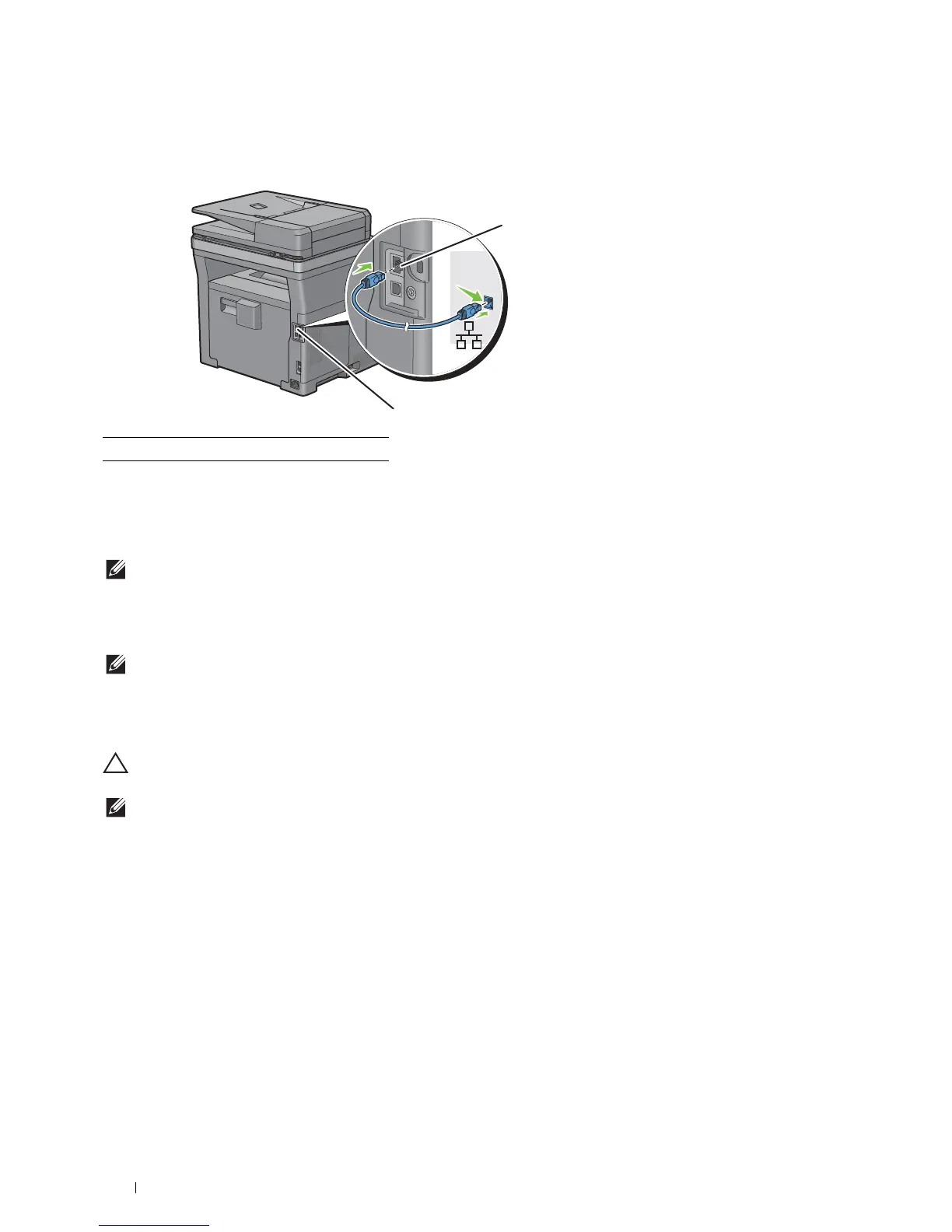
Connecting to a Network Using the Ethernet Cable
1
Connect the Ethernet cable.
To connect the printer to the network, connect one end of an Ethernet cable into the Ethernet port on the rear of
the printer, and the other end to a LAN drop or hub.
Connecting to a Wireless Network
NOTE:
The wireless network connection feature is available on the Dell Cloud Multifunction Printer | H815dw only.
You can connect the Dell Cloud Multifunction Printer | H815dw to a wireless network, using the built-in wireless
network function.
For a wireless connection setup, see "Configuring the Wireless Settings."
NOTE:
To use the Dell Cloud Multifunction Printer | H815dw through wireless connection, be sure to disconnect the Ethernet
cable and the USB cable.
Connecting to the Telephone Line
CAUTION:
Do not connect your printer directly to a Digital Subscriber Line (DSL). This may damage the printer. To use a DSL,
you will need to use an appropriate DSL filter. Contact your service provider for the DSL filter.
NOTE:
The Software and Documentation disc also contains video instructions. In the main menu window of Dell Printer Easy
Install, click Installation Video.
1 Ethernet port













 To Next Page