Copying
307
5
Ta p
Copy
.
To customize the copy settings such as
Select Tray
and
Darken/Lighten
, see "Setting Copy Options."
NOTE:
The copy options automatically return to their default status after the auto clear timer is expired.
6
Tap – or + to specify the number of copies from 1 to 99 in the
Quantity
tile.
7
Ta p
Copy
to begin copying.
NOTE:
You can cancel a copy job while scanning a document by tapping
Stop
.
Making Copies From the DADF
CAUTION:
Do not load more than 50 sheets into the DADF or allow more than 50 sheets to be fed to the document output tray.
The document output tray should be emptied before it exceeds 50 sheets or your original documents may be damaged.
NOTE:
A computer connection is not required for copying.
NOTE:
Before loading the document(s) on the DADF, straighten the edges of the stack of the document(s).
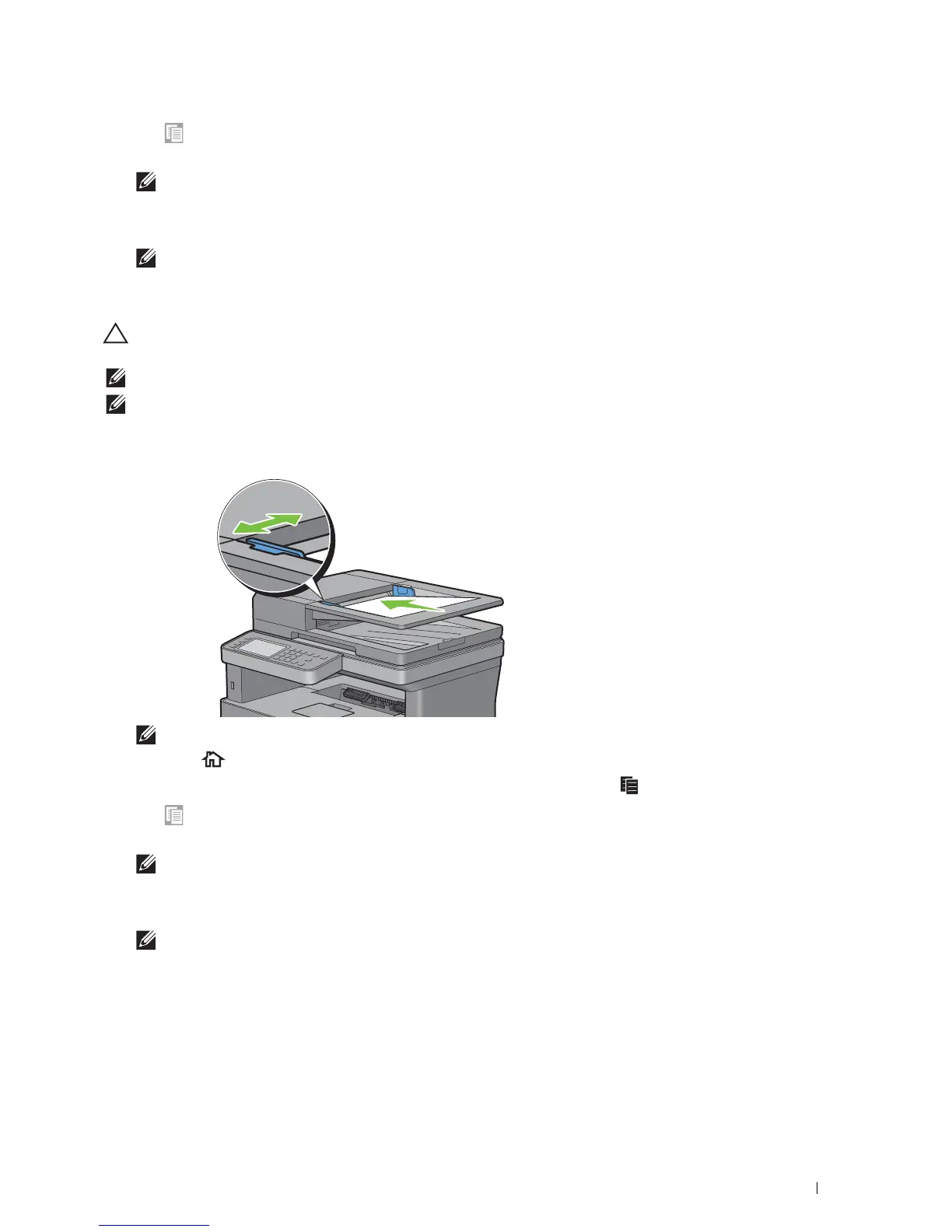
1
Load the document(s) facing up on the DADF with top edge of the documents in first. Then adjust the document
guides to the document size.
NOTE:
Ensure that you use the document stopper before copying a legal-size document.
2
Press the
(Home)
button.
To simply make a copy without changing the default copy settings, press the (
Copy
) button.
3
Ta p
Copy
.
To customize the copy settings such as
Select Tray
and
Darken/Lighten
, see "Setting Copy Options."
NOTE:
The copy options automatically return to their default status after the auto clear timer is expired.
4
Tap – or + to specify the number of copies from 1 to 99 in the
Quantity
tile.
5
Ta p
Copy
to begin copying.
NOTE:
You can cancel a copy job while scanning a document by tapping
Stop
.













 To Next Page