Scanning
329
For Windows
®
10:
1
Right-click the Start button, and then click
Settings
.
2
Click
Accounts
.
3
Click
Sign-in options
.
4
Click
Add
under
Password
and add in a password for your user login account.
For Mac OS X 10.5 and Mac OS X 10.6:
1
Click
System Preferences
Accounts
.
2
Select
Change Password
.
3
Enter a password for your user login account in
New password
.
4
Re-enter the password in
Verify
.
For OS X 10.9 and OS X 10.10:
1
Click
System Preferences
Users & Groups
.
2
Select
Change Password
.
3
Enter a password for your user login account in
New password
.
4
Re-enter the password in
Verify
.
Creating a Shared Folder (SMB Only)
Create a shared folder to store the scanned document from your printer.
For Windows Vista
®
, Windows Server
®
2008, Windows Server
®
2008 R2, Windows
®
7, Windows
®
8, Windows
®
8.1,
Windows Server
®
2012, Windows Server
®
2012 R2, and Windows
®
10:
1
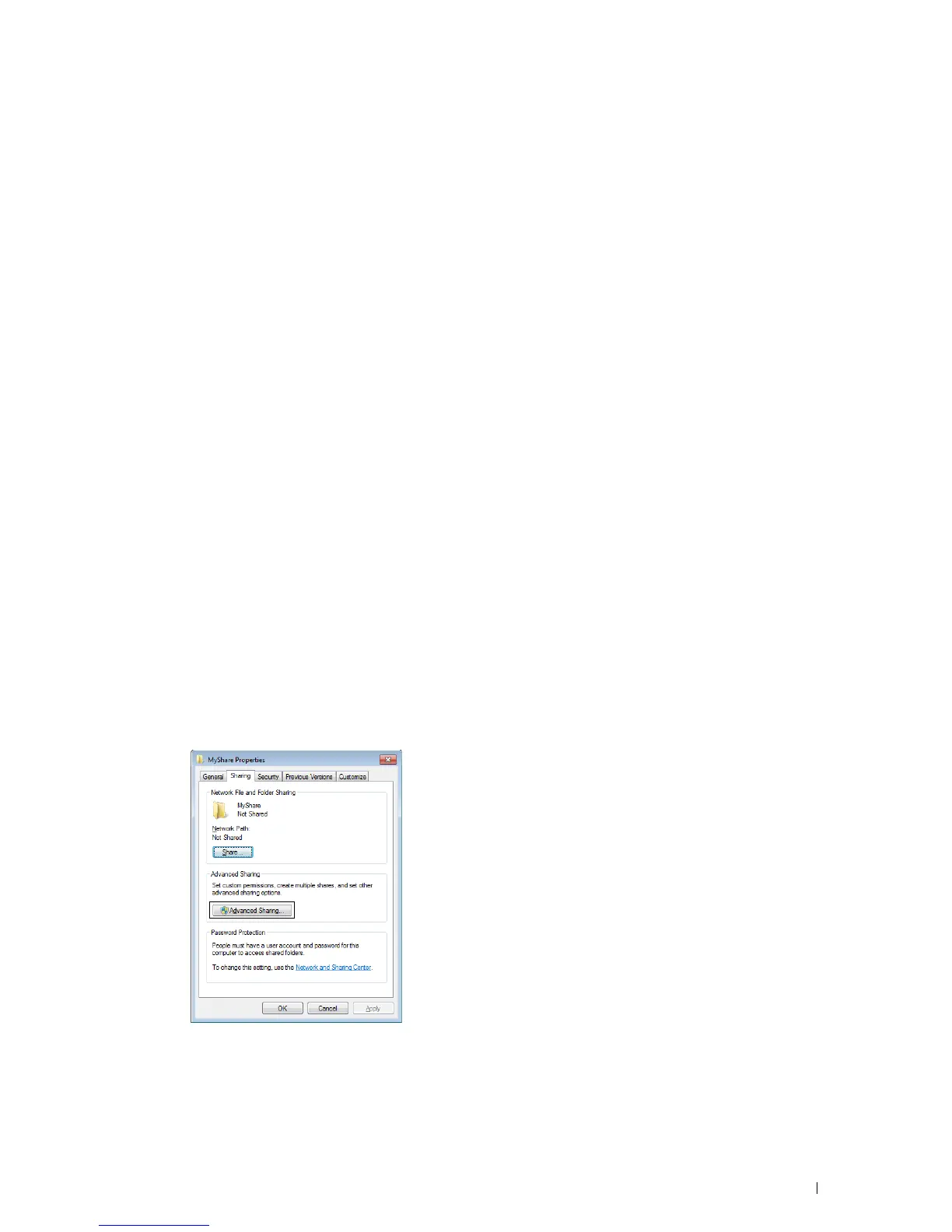
Create a folder in the desired directory on your computer (Example of folder name,
MyShare
).
2
Right-click the folder, and then select
Properties
.
The
Properties
dialog box appears.
3
Click the
Sharing
tab, and then select
Advanced Sharing
.
4
Select the
Share this folder
check box.













 To Next Page