Scanning
339
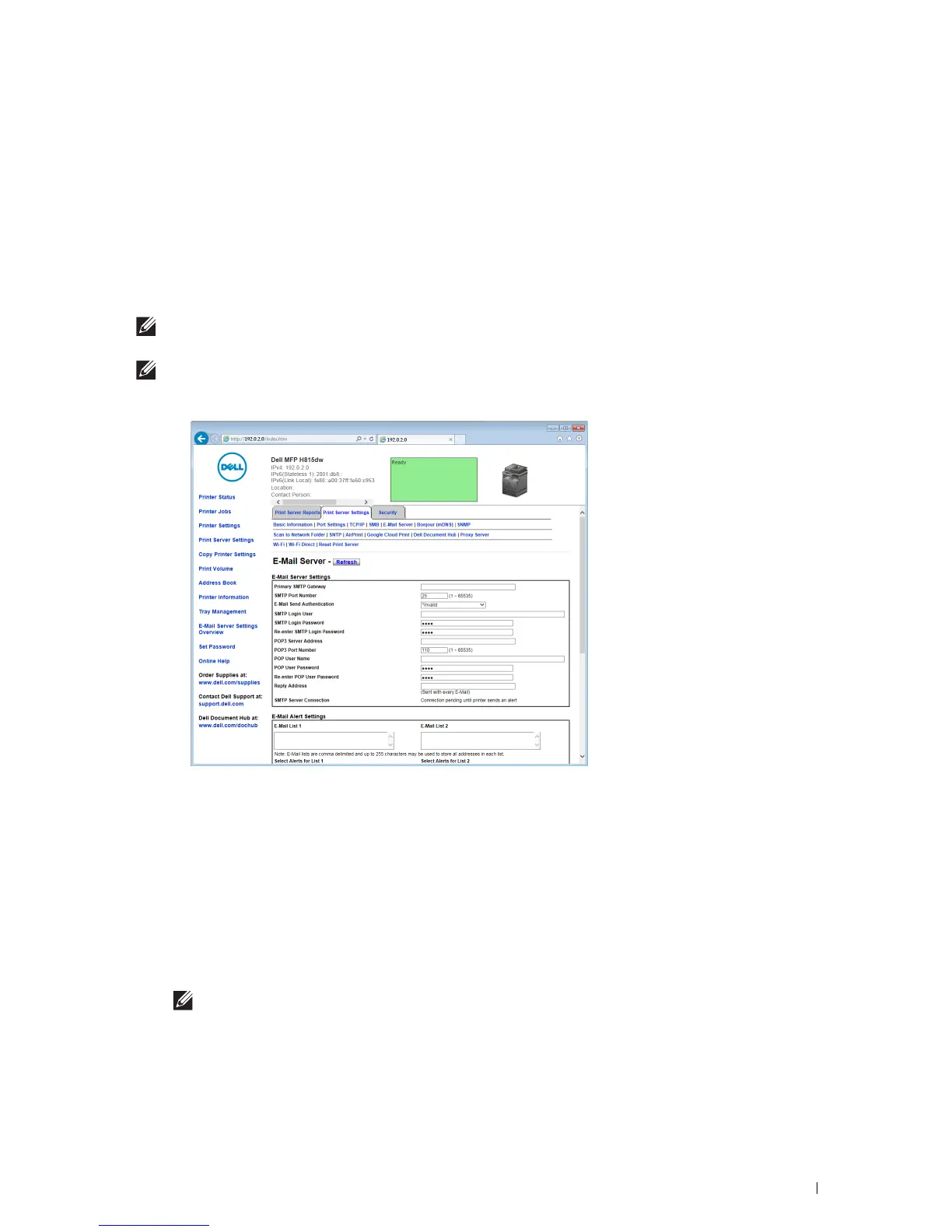
Setting the Information Necessary to Access the Mail Server
To make the printer to send an e-mail, follow the steps below:
1
Launch the
Dell Printer Configuration Web Tool
.
a
Open the web browser.
b
Enter the IP address of your printer in the web browser.
See "Dell™ Printer Configuration Web Tool."
2
Click
E-Mail Server Settings Overview
.
3
Set the mail server information under
E-Mail Server
.
NOTE:
In this procedure, the server settings for a Gmail account are used as an example. The server settings will differ for
each e-mail service.
NOTE:
Information about the Gmail account is based on the information as of October 2013. For the latest information, visit
the homepage of Gmail.
a
In the
Primary SMTP Gateway
text box, set the primary SMTP gateway.
For example:
smtp.gmail.com
b
In the
SMTP Port Number
text box, enter the SMTP port number. This must be between 1 and 65535.
c
In the
E-Mail Send Authentication
drop-down menu, specify the authentication method for outgoing e-mail.
For example:
SMTP_Auth
(
Auto
)
d
In the
SMTP Login User
text box, set the SMTP login user. Up to 63 alphanumeric characters, periods,
hyphens, underscores, and at symbols (@) can be used. If specifying more than one address, separate them
using commas.
For example:
aaaa@gmail.com
NOTE:
It is not advisable to share a personal e-mail account with others for Scan to Email function. Instead, use the
e-mail account dedicated for Scan to Email function.
e
In the
SMTP Login Password
text box, set the SMTP account password using up to 31 alphanumeric
characters.
f
In the
Re-enter SMTP Login Password
text box, enter the login password again to confirm it.













 To Next Page