72
Connecting and Setting Up Your Printer
You can select a method to configure the Wireless Connection from the following:
• Wizard Setup through Dell Printer Easy Install
•WPS-PBC
*1*3
•WPS-PIN
*2*3
•Auto SSID Setup
• Manual SSID Setup
• Dell Printer Configuration Web Tool
NOTE:
If
Panel Lock Control
is set to
Enable
, you need to enter the four-digit password to enter the
Admin
Settings
menu.
NOTE:
For details about using WPA-Enterprise-AES or WPA2-Enterprise-AES, see "Using Digital Certificates."
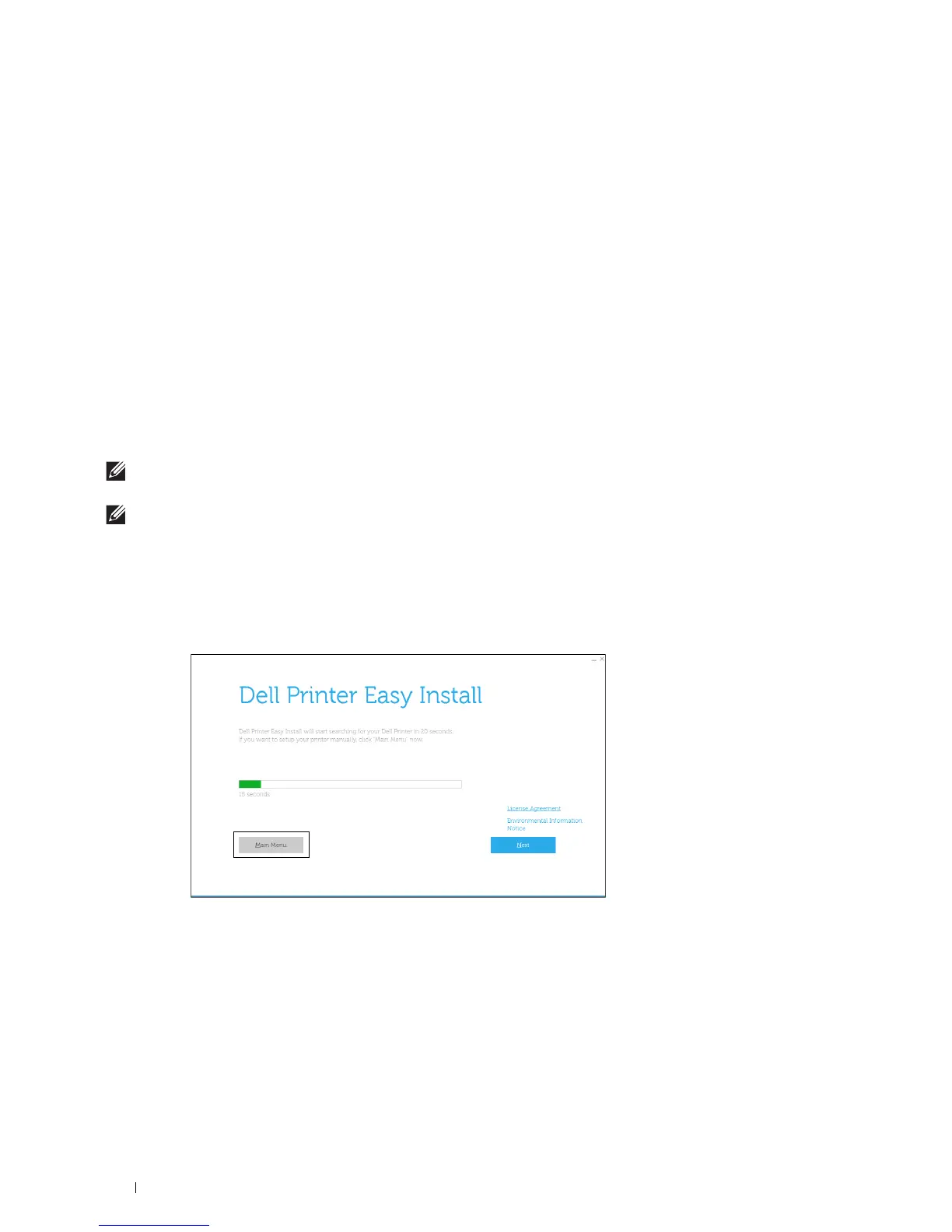
Configuring the Wireless Settings Using Dell Printer Easy Install
1
Insert the
Software and Documentation
disc provided with the printer into your computer. The
Dell Printer Easy
Install
program launches automatically.
2
Click
Main Menu
.
*1 WPS-PBC (Wi-Fi Protected Setup-Push Button Configuration) is a method to authenticate and register devices required for wireless
configuration, by pressing the button provided on the access point via wireless routers, and then performing WPS-PBC setting on the
operator panel. This setting is available only when the access point supports WPS.
*2 WPS-PIN (Wi-Fi Protected Setup-Personal Identification Number) is a method to authenticate and register devices required for wire-
less configuration, by entering PIN assignments in the printer and computer. This setting, performed through access point, is available
only when the access points of your wireless router supports WPS.
*3 WPS 2.0 compliant. WPS 2.0 works on access points with the following encryption types: Mixed mode PSK, WPA-PSK AES, WPA2-
PSK AES, WPA-PSK TKIP, Open (No Security)













 To Next Page