92
Installing Printer Drivers on Windows
®
Computers
9
Click
OK
.
10
Select your printer name and click
Next
.
11
To change the printer name, enter the printer name in the
Printer name
box, and then click
Next
. Installation
starts.
12
If you do not share your printer, select
Do not share this printer
. If you share your printer, select
Share this printer
so that others on your network can find and use it
. Click
Next
.
13
As the driver installation is completed, click
Print a test page
to verify installation. To use this printer as the default
printer, select the
Set as the default printer
check box.
14
Click
Finish
.
Network Connection Setup
NOTE:
To use this printer in a Linux environment, you need to install a Linux driver. For more information on how to install and
use these, see "Installing Printer Drivers on Linux Computers (CUPS)."
For installing PCL, PS and Fax printer driver
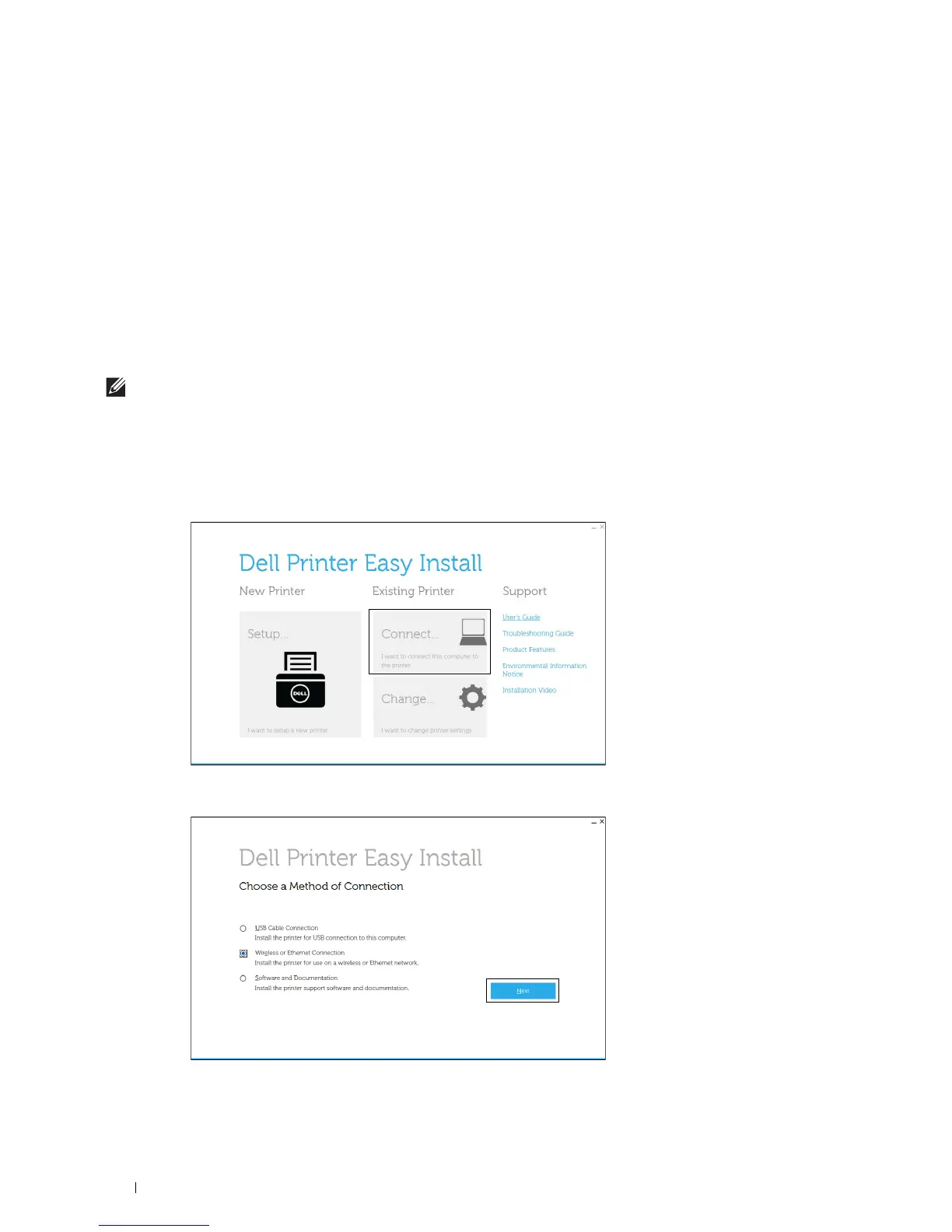
1
Start the
Dell Printer Easy Install
program, following the procedures shown in "Starting Dell Printer Easy Install."
2
In the main menu window of
Dell Printer Easy Install
, click
Connect
.
3
Select
Wireless or Ethernet Connection
, and then click
Next
.













 To Next Page