384
Printing and Scanning Directly From SharePoint
®
When you want to save the scanned data to this folder, tap
Next
and proceed to step 3.
2
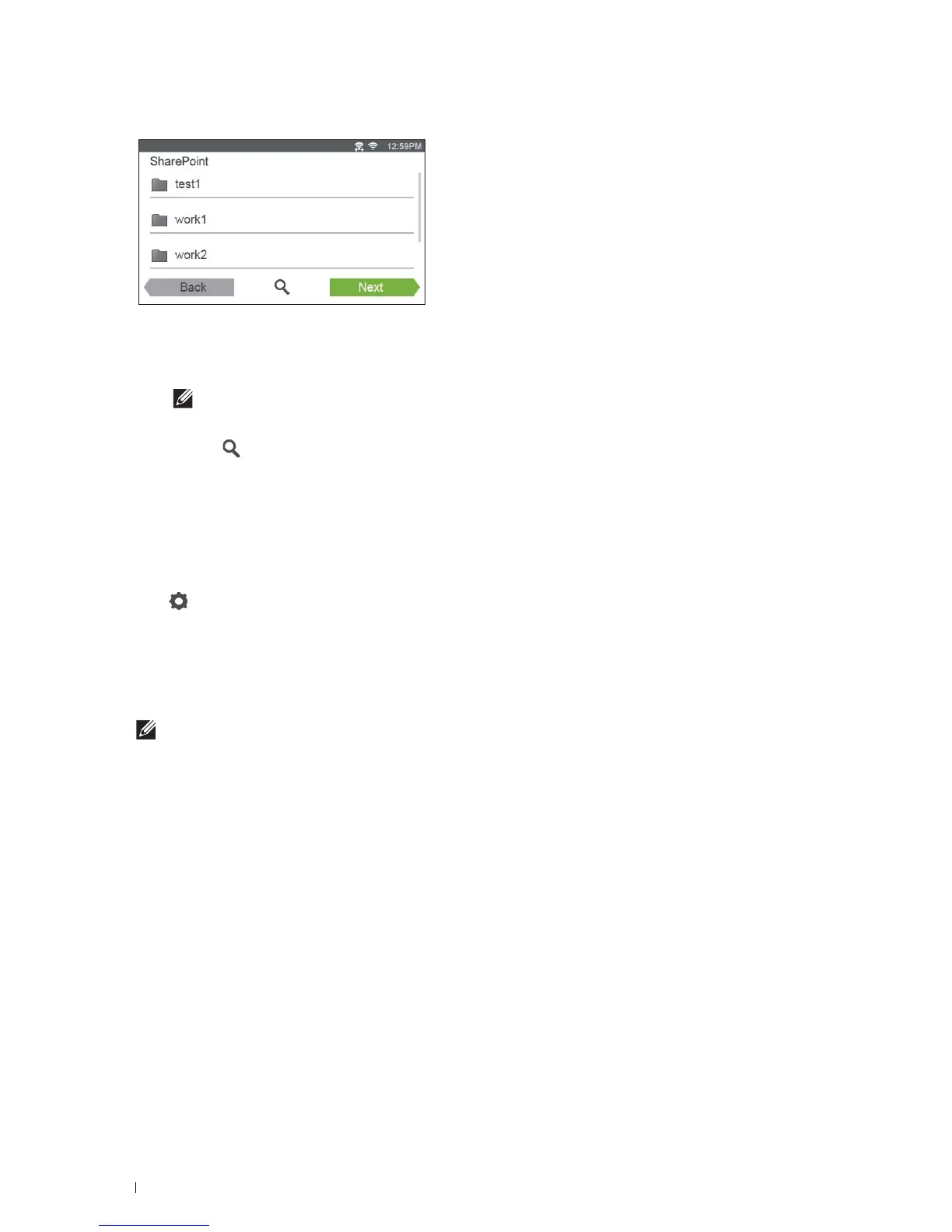
Select the folder you want to save the scanned data to by performing either of the following:
• Tap the folder you want to save the scanned data to, and then tap
Next
.
NOTE:
If the desired folder is not displayed, swipe the screen.
• Search the folder in the selected SharePoint
®
server.
a
Ta p .
b
Enter the folder name or keywords, and then tap
Search
.
c
Tap the folder you want to save the scanned data to, and then tap
Next
.
The
Scan to SharePoint
screen is displayed.
3
Ta p t h e
File Name
text box, and enter the file name.
4
Ta p t h e
File Format
box, and specify the file format to save the scanned file.
5
Tap to check or change the scan settings.
The
Scan Settings
screen is displayed.
a
To show the other tiles, flick the screen side to side.
b
To return to the previous screen, tap
Back
.
For more information on the Scan Settings, see "Scan" and "Scan Settings."
NOTE:
You cannot save your scan settings to save the scanned data in the SharePoint
®
server.
6
Ta p
Scan
to start scanning.
To cancel scanning, tap
Stop
.
When the document is loaded on the document glass, the screen prompts you for another page.
• If you want to scan another document, replace the document with a new document, and then tap
Continue
.
• When you have finished loading documents, tap
Done
.
When the scanning is completed, the
SharePoint
screen that is displayed in the step 1 returns.













 To Next Page