3.2 Network Settings
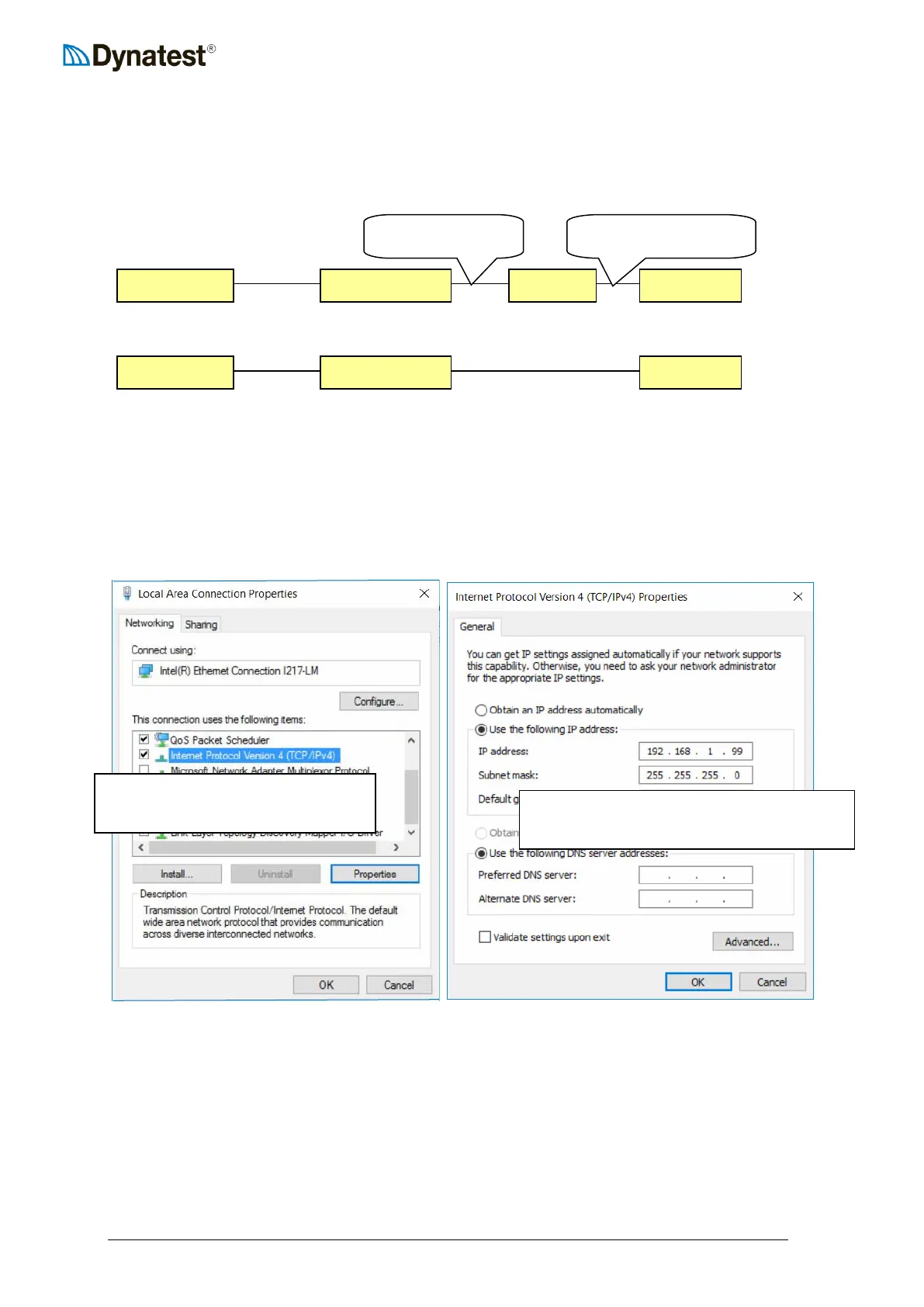
The PC communicates with the Compact15 in peer-to-peer mode utilizing the TCP/IP
protocol. System setup depends on the way Compact15 is connected to the computer, which is
either ‘Routed’ or ‘Direct’:
Routed:
Direct:
If a standard router with base address 192.168.1.1 is used, then there is nothing to configure.
The Router will provide the IP address. For a direct connection setting up the network
depends on the computer Operating System, but the Windows 10 procedure below gives the
general picture.
Right click the Windows icon (bottom left) and choose ‘Network Connections’, then right-
click the ‘Local Area Connection’, then choose Properties:
3.3 Virus Protection
AntiVirus software can significantly degrade the performance because it intercepts all file
transfers between Compact15 and the computer. This can in some cases “Stall” the computer.
To avoid this you should:
EXCLUDE the C:\Dynatest folder and all sub-folders from automatic protection.
EXCLUDE the following image/picture file types from automatic protection.
Extensions: *.JPG, *.BMP



 To Next Page