2017.06.19 FwdMan2.8.17.docx 10-75
UUOUUK
Once all of the items in the “Test Setup” screen have been modified as needed, the operator
can then click the OK button to save the data and return to the data collection screen.
UUAUUpply
The Apply button serves the same function as the OK button except that the
“Test Setup” window remains open. Note that the button shown here is “greyed out”
indicating that the button is disabled. This button is disabled by default and is only enabled
when a change is made anywhere in the “Test Setup” screen.
UUCUUancel
The “Cancel” button discards any changes made in the “Test Setup” and returns the user to
the data collection screen.
10.2 Test Section
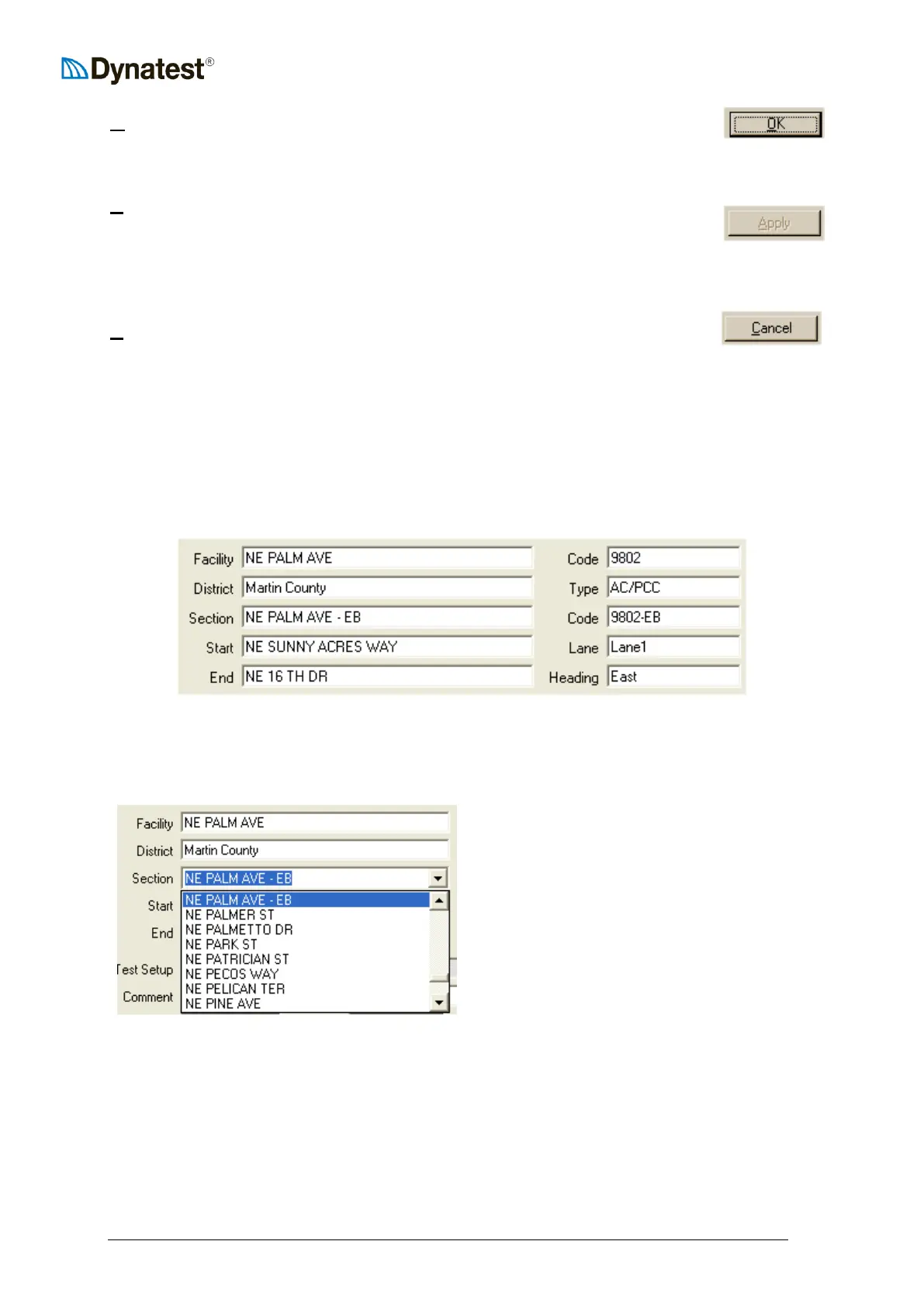
The data collection screen provides a wealth of opportunities to incorporate section
information in your data files. In addition, many attributes, such as your start location, end
location, pavement type, lane, and other useful bits of information can be included as seen
below.
All fields default to plain text entry mode, however there are a few features that make it easier
for the operator to incorporate location and other information in the data file.
Select the Section field and press Alt +
Down to get a list off all known Sections.
All fields behave like this, showing available
choices. Facility, -Code and Section, -Code
are special in that they load all fields with
data from the underlying database.
The system saves all new sections in a database. This database may also be populated through
the Network Applet or directly in MS Access.



 To Next Page