2017.06.19 FwdMan2.8.17.docx 4-33
4.3.5 Deflectors
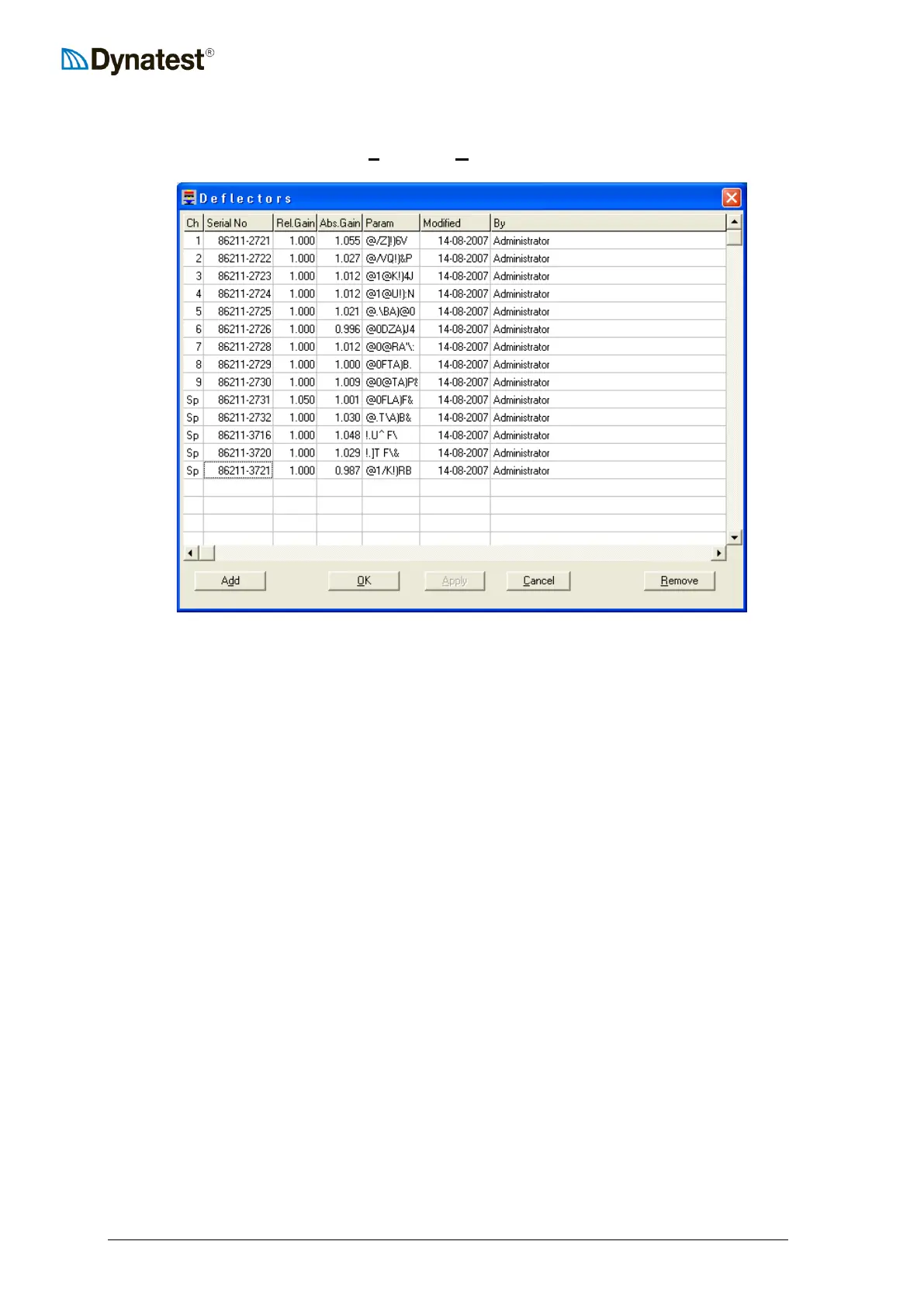
To configure the deflectors, select UUSUUetup then UUDUUeflectors from the data collection screen.
The Deflectors window shown above displays information regarding the deflectors. There
should be one row for each of the deflectors connected to the system as well as additional
rows for any spare deflectors. This information is supplied by Dynatest for new FWD/HWD
units. Changes to the values in this screen should only be performed by knowledgeable
personnel.
The first column indicates the Channel to which each deflector is connected. The deflector
situated at the centre of the load plate occupies channel 1. Deflectors situated at increasing
distances from the load plate occupy sequentially increasing channels, however this varies in
practice, especially if one or more deflectors are located behind or beside the load plate.
The Serial Number of each deflector is shown in column two. Dynatest physically label
each deflector with a serial number for easy identification. It is important that the operator
visually inspects the deflector serial numbers and channel positions on the FWD/HWD itself
to ensure that the information in the table is correct, especially after maintenance or
calibration activities. Channel numbers are labelled on the CP15 front panel next to the
deflector connection sockets.
The Relative Gain is typically updated after performing a relative or reference calibration or
installing a new deflector.
The Absolute Gain is provided by Dynatest and should not be changed without consulting a
Dynatest technician.
The Param column information is provided by Dynatest and should definitely not be changed
without consulting a Dynatest technician.
The Modified and By columns are not editable by the user. The field program updates them
automatically whenever a user makes changes in any of the other columns.
Each of the user-accessible fields can be edited by clicking in the box, then typing changes.



 To Next Page