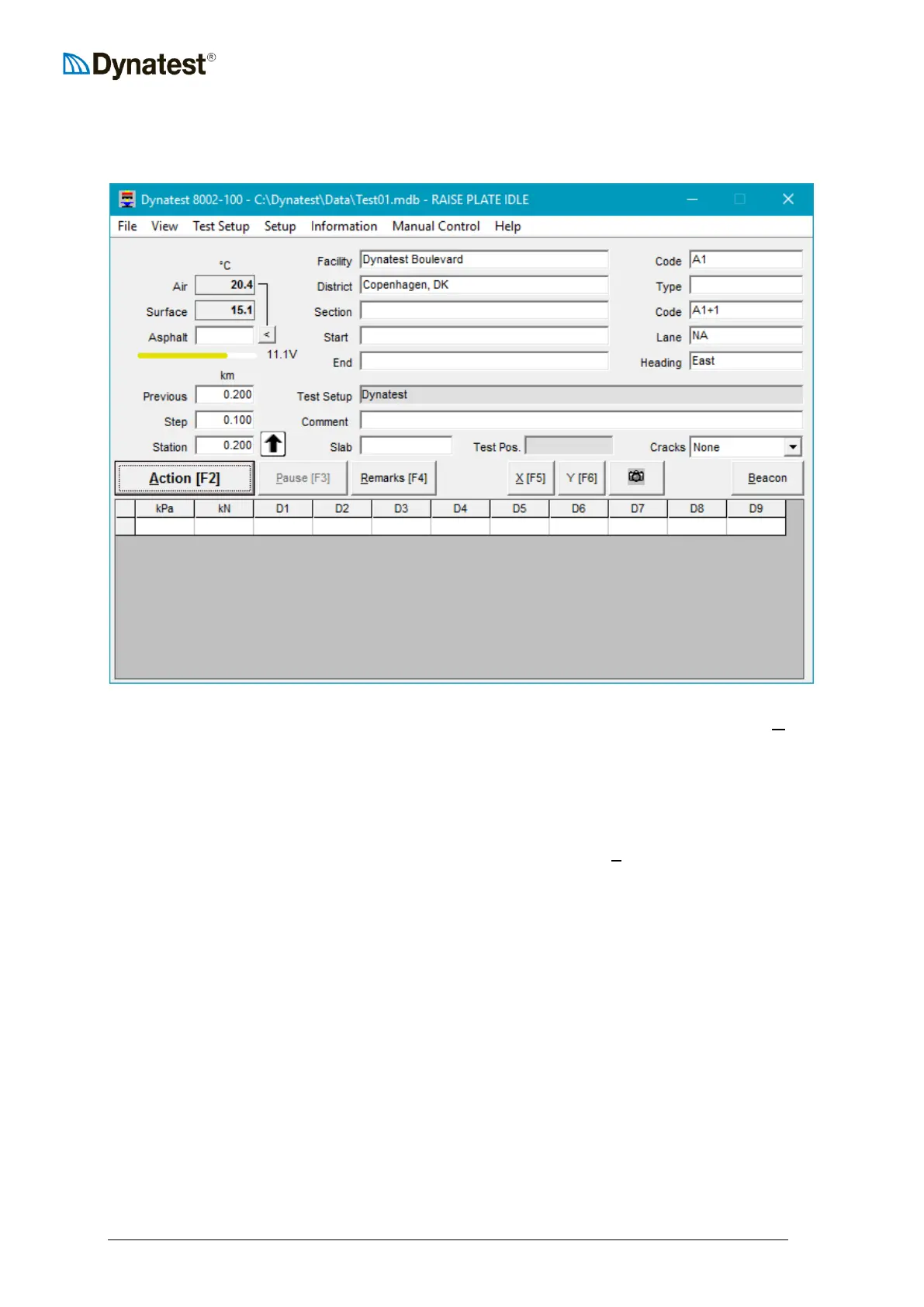
9.5 Main Window
As mentioned earlier the Main window is the “mission control” for operation of the program.
From this window the additional sub-windows can be toggled on and off by clicking the UU VUUiew
menu item on the menu bar. Applets can be turned off from their individual menus.
Greyed text boxes cannot be edited directly. Some are filled automatically (temperatures)
others may open sub-windows for data entry.
At this point, if any setup changes are required to the loading unit, the System Controller, the
deflectors, etc. they should be made now through Main Menu item UUSUUetup. Details regarding
setup changes are documented in Chapter 4.
9.5.1 Navigating with the Keyboard
Often, when using the program within a confined space (like in a testing vehicle), it is
impossible or – at its best – inconvenient to use a mouse to operate the program. Therefore it
may be a good idea for the user to brush-up the basics of navigating with the keyboard.
Actually, most of the operations you can do using a mouse (except drag-and-drop operations)
can be done using the keyboard instead. The key to navigating with the keyboard is using the
TAB () key to put the focus on a control in the active window (controls are all the items
that a window contains, like command buttons, textboxes, drop-down lists etc.).
When a control has the focus it has a focus rectangle around it as shown below (the Apply
command button has the focus):



 To Next Page