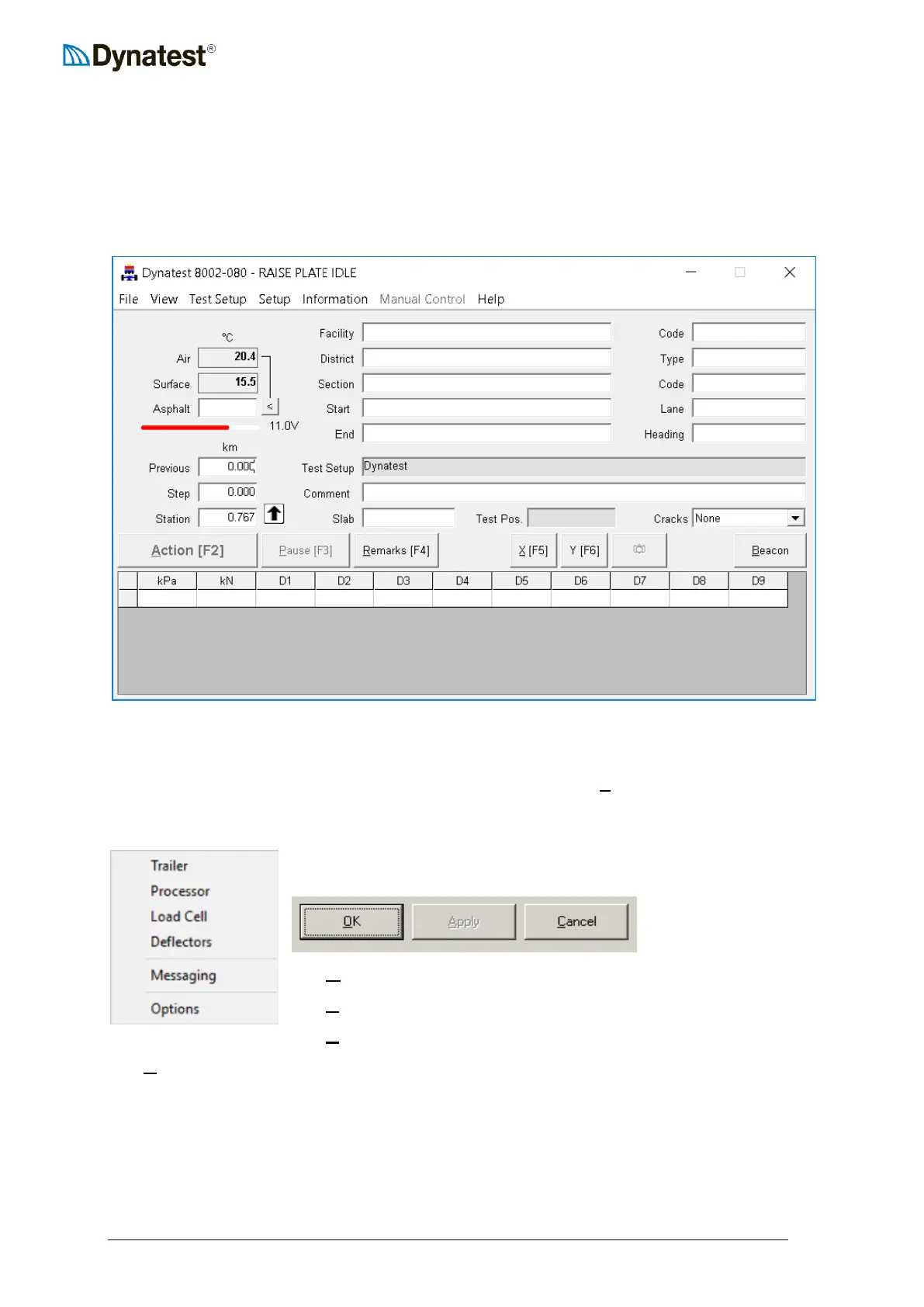
4.3.1 Entering the Data Collection Screen
Configuration of the hardware is accomplished from a menu item at the top of the data
collection screen or through the dedicated applets DMI, GPS etc. The data collection screen
opens automatically when the user clicks the Start button on the introductory screen. This
screen is the primary user interface for operating the FWD/HWD. The data collection screen
interface, in its simplest form, is shown below.
To make changes to the hardware setup, the user should click the UUSUUetup menu item along the
top of the data collection screen. A drop down list of configurable items will appear as shown
next.
Each item opens a dedicated window with options and variables and
the three common function buttons:
The UUOUUK button saves the changes and closes the window.
The UUAUUPPLY button saves the changes but leaves the window open.
The UUCUUANCEL button discards changes and closes the window.
The UUAUUpply button is disabled (greyed out) until the user makes a change to one of the fields.
4.3.2 Loading Unit
The loading unit parameters (like all other parameters) are stored in a database in order to
better manage multiple FWD/HWD setups. For example, let’s suppose you have two vehicles
each equipped with a computer for FWD/HWD data collection. Switching trailers between
the two vehicles is then only a matter of activating the right trailer in the introductory screen.



 To Next Page