Navigation
"DryExx Advanced-ETH"
ECOLAB Engineering
GmbH
releases via "Ethernet" selected,
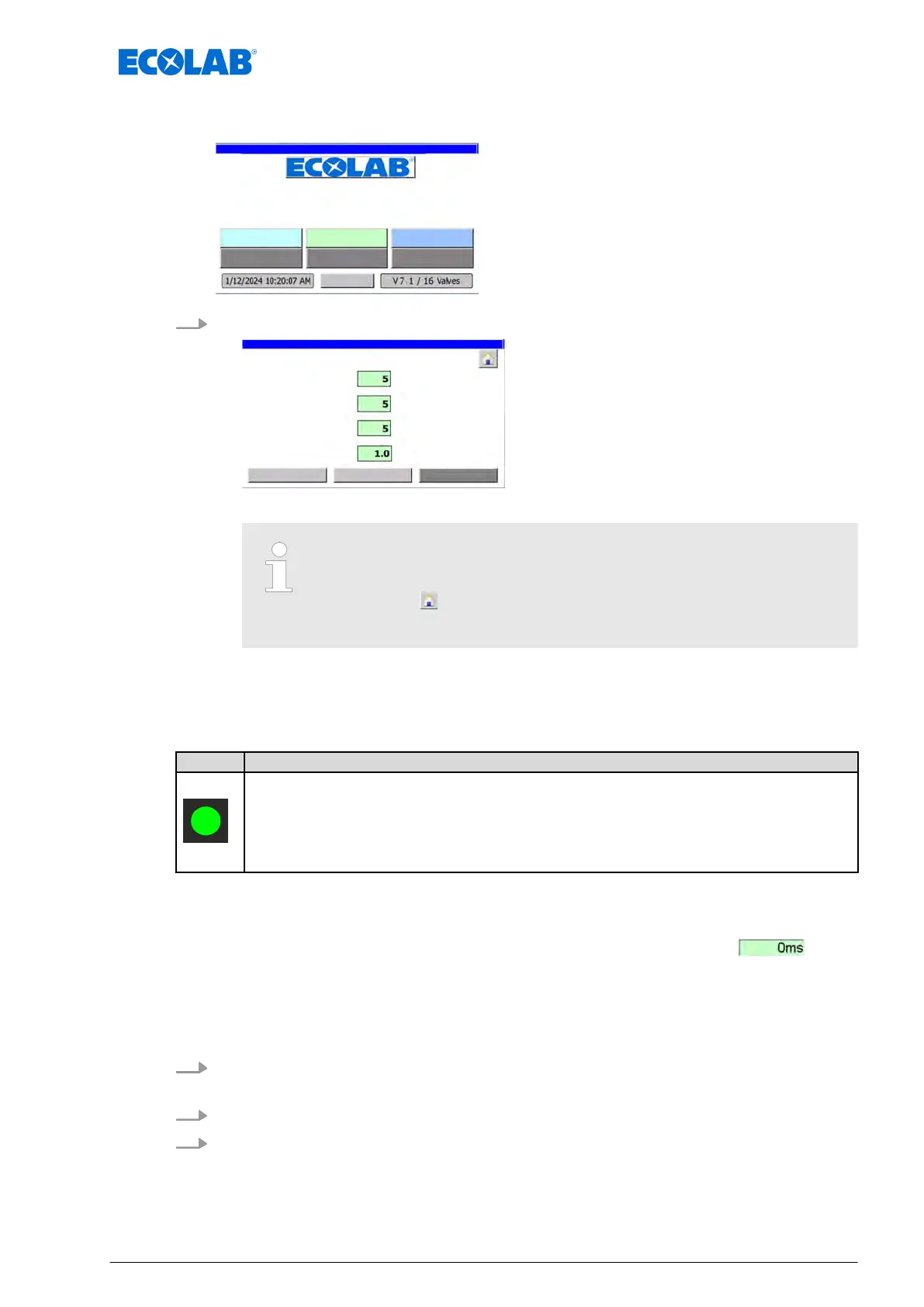
1. Press a button, for example [Param. Generally].
ð
The corresponding screen (e.g. ‘
Param. Generally’) is displayed.
For all screen displays, you can exit the screen as follows:
– Press [Return] to go back to the previous screen.
– Press the button to go back to the home screen (
Ä
Chapter
8.1 ‘Home screen’ on page 52 ).
Display information
The symbols used for system components are displayed in colour to indicate their current
status:
Colour Meaning
The display colour "Green" can have the following meanings depending on the context:
n On
n Status OK
n Activated
n Free
Enter data
The following applies to entering data in fields:
n Fields in which data can be entered are highlighted in green (example:
)
n Characters from 0 - 9 can be entered into the input fields.
n A number keypad is displayed.
n If the input is valid, the new value is transferred into the input field.
n If the input is invalid, the new value is rejected and the old value is restored.
1. T
ap an editable field on the screen.
ð
An input dialog appears.
2. Enter the desired numeric value.
3. Press [OK].
ð
The entered numeric value is applied.
Software description
55 Ver. 08-04.2024



 To Next Page