8 Software description
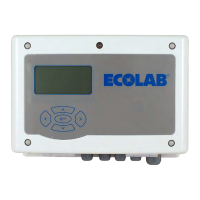
These operating instructions describe the DryExx®-Advanced-ETH control unit
with software version V7.1. The screens, fields and functions describe depend
on the equipment configuration and may not be available in older versions of
the software.
T
o update to the latest version of the DryExx®-Advanced-ETH software,
please contact your Ecolab service partner.
All of the screen/displays illustrated in this section are to be understood as
examples and in no case contain actually implemented values on the on-site
system.
8.1 Home screen
General
The home screen appears after the following actions:
n Automatically after switching on the DryExx®-Advanced-ETH
n After pressing the navigation button on any screen
The function performed by the navigation buttons depends on which user is
logged in to the DryExx®-Advanced-ETH.
Ä
‘Password levels’ on page 54
"DryExx Advanced-ETH"
ECOLAB Engineering
GmbH
releases via "Ethernet" selected,
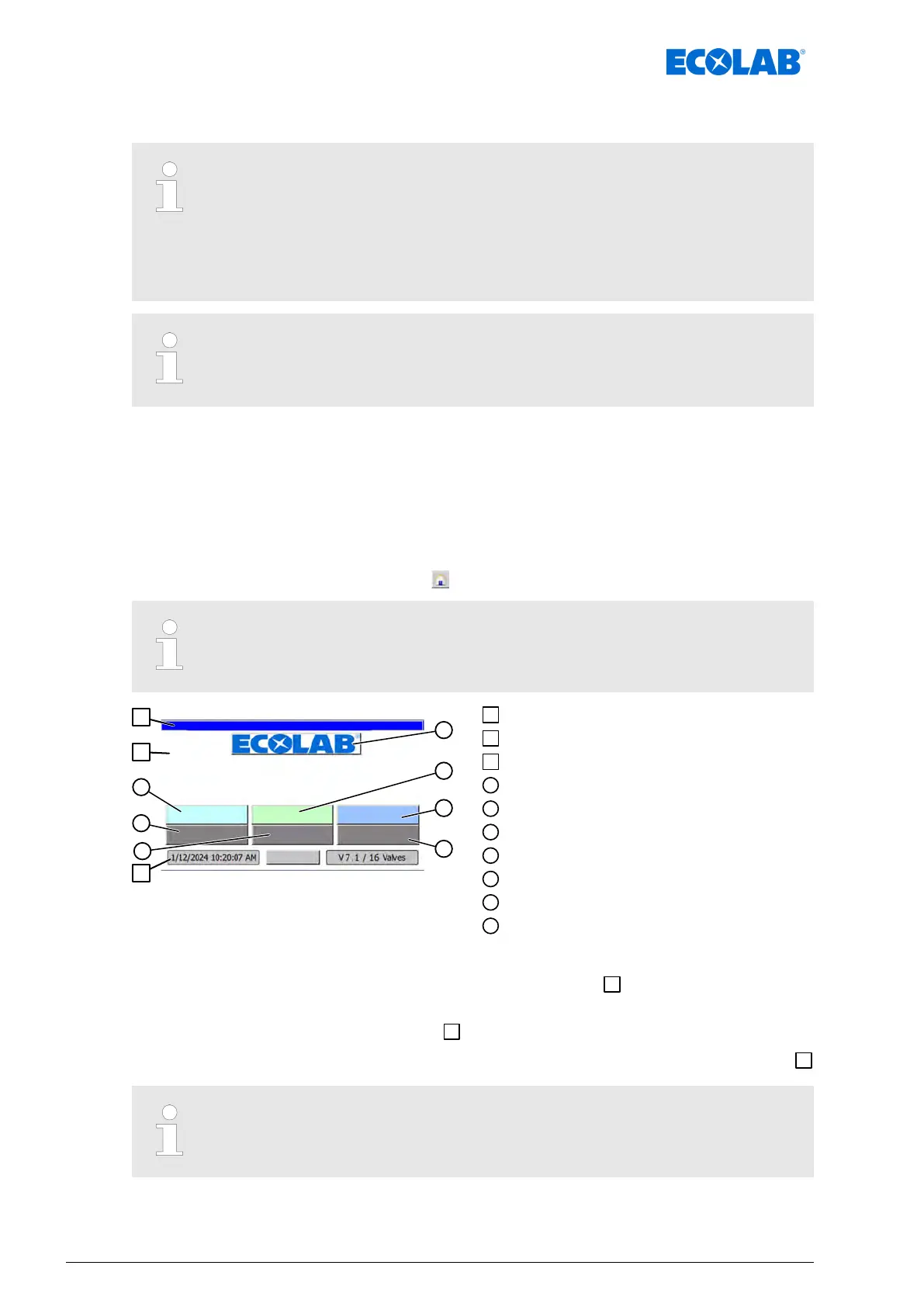
Fig. 11: Home screen
Message bar
Navigation area
Footer
System settings
Archive
Circuit parameters
General settings
Statistics
Messages
Login / Logout
The screen of the control unit consists of the following main areas:
Message list - Displays error messages and active events
Navigation area - Navigation buttons open screens for configuring, operating and
evaluating the system
Footer - Shows the date, time and number of valves configured in the system
Pressing the [LED-Test] button tests all lamps installed on the control cabinet.
Software description
52Ver. 08-04.2024



 To Next Page