4.8. User interface with the display panel [option]
NOTE
The type of interface available on your crane depends on its configuration.
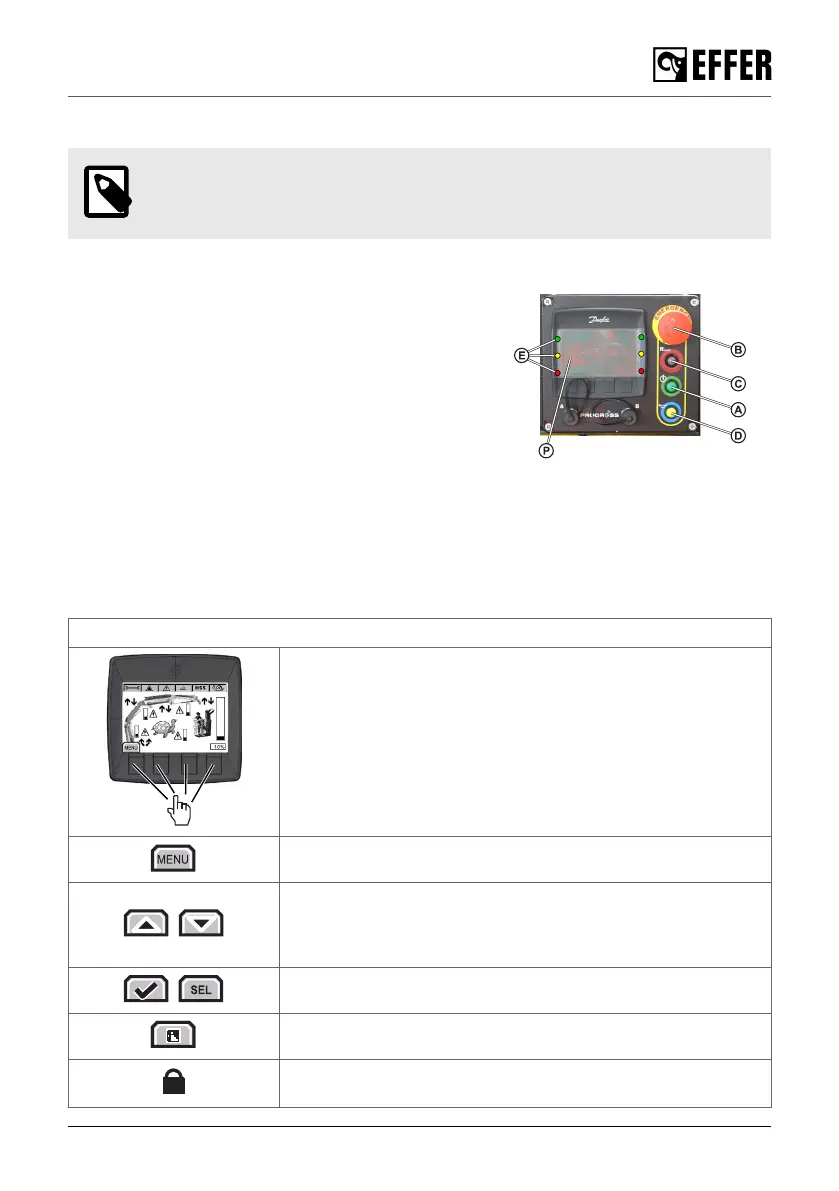
Buttons:
• (A) ON/OFF button. You hear a sound when you activate
it.
• (B) Emergency stop button
• (C) Reset LED
• (D) Horn (manual activation)
• (E) LEDs
• (P) Display panel
4.8.1. Display panel
The display panel provides the operator with information on the crane status, features active, and
errors.
How to navigate the display panel
General functions/icons
Push one of the four function buttons to start.
Every available option will appear on the top of these buttons on
the screen.
Access to the main menu display.
Toggle between options.
NOTE: A selected item appears with a darker background, while
a non-available item has a lighter colour.
Confirm or access a submenu.
Go back.
Option only available for service personnel. If needed, contact
an Effer authorised workshop.
The control system
EFFER 265-315-395-525 Progress 2.0 CE 51



 To Next Page