23.3. Keypad Partition and Keypad Partition Switch
Keypad partition determines which system partition the keypad will operate in. To identify which partition the keypad is operating in:
• EKB2 – Refer to partition name (by default – PART1) indicated in home screen view.
• EKB3W/EWKB4/EKB3 (2-partition mode) – Refer to the location of the illuminated indicator
on the keypad. The indicator will be
illuminated under section A or B, which represent Partition 1 and Partition 2 respectively.
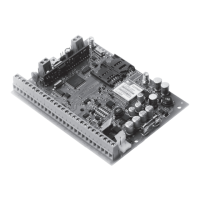
EKB3 keypad can operate in the following modes:
• 2-partition mode – This parameter determines whether EKB3 keypad can operate only in one of the rst two system partitions allow-
ing to arm/disarm them and switch the keypad partition using [1]... [2] keys. This mode is set up by default.
• 4-partition mode – This parameter determines whether EKB3 keypad can operate in one of the four system partitions allowing to
arm/disarm them, indicate arm/disarm status, partition state (alarmed/not alarmed) on [1]... [4] keys (see 32.1.2. EKB3 - LED Key-
pad) and switch the keypad partition using [1]... [4] keys.
The keypad must be assigned to the same partition as the user/master code (see 23.4. User/Master Code Partition) in order to arm/
disarm the system by the keypad. For more details on system arming/disarming by the keypad, please refer to 12.3. EKB2 Keypad and
User/Master Code, 12.4. EKB3 Keypad and User/Master Code and 12.5. EKB3W/EWKB4 Keypad and User/Master Code.
Set EKB3 partition
mode as 2-partition or
4-partition
ELDES
Cong-
uration
soft-
ware
This operation may be carried out from the PC using the ELDES Conguration software.
Set keypad partition
EKB2
Menu path:
EKB2 partition: OK → iiii → OK → PRIMARY SETTINGS → OK → KEYPAD PARTITION → OK →
KEYPAD PARTITION → OK → [k] EKB2 → OK → PARTITION 1... 4 → OK → DISABLE | ENABLE → OK
EKB3 partition: ... → KEYPAD PARTITION → OK → [k] EKB3→ OK → PARTITION 1... 4 → OK
EKB3W partition: ... → KEYPAD PARTITION → OK → EKB3W PARTITION → OK → EKB3W wless-id
→ OK → PARTITION 1... 2 → OK
EWKB4 partition: ... → KEYPAD PARTITION → OK → EWKB4 PARTITION → OK → EWKB4 wless-id
→ OK → PARTITION 1... 2 → OK
Value: iiii – 4-digit installer code; k – keypad slot, range – [1... 4]; wless-id – 8-character
wireless device ID code.
EKB3/
EKB3W/
EWKB4
Enter parameter 51, keypad slot and partition number:
EKB3 partition: 51 kk p #
EKB3W/EWKB4 partition: 51 kw r #
Value: kk – EKB3 keypad slot, range – [01... 04]; kw – EKB3W/EWKB4 keypad slot, range –
[05... 08]; p – EKB3 partition number, range – [1... 4]; r – EKB3W/EWKB4 partition number,
range – [1... 2].
Example: 51062#
ELDES
Cong-
uration
software
This operation may be carried out from the PC using the ELDES Conguration software.
ATTENTION: 4-partition mode must be enabled in order to assign EKB3 keypad to Partition 3 or Partition 4.
NOTE: EKB2 keypad can operate in multiple partitions, while EKB3 keypad can operate only in a single partition.
NOTE: EKB3W/EWKB4 keypad assignment is restricted to Partition 1 and Partition 2.
NOTE: The slots for EKB3W/EWKB4 keypads are automatically assigned to the paired keypad in the chronological order, hence the earliest
paired keypad would acquire slot 5, while the latest paired keypad would acquire slot 8.
Keypad partition switch allows to quickly change the EKB3/EKB3W/EWKB4 keypad partition. When the keypad partition is changed and
when 1 minute after the last key-stroke expires, the keypad will return to the assigned keypad partition. Typically, this feature is used for
viewing arm/ disarm status and alarms of a dierent partition or when arming/disarming a dierent system partition by EKB3/EKB3W/
EWKB4 keypad than the keypad is assigned to.
By default, keypad partition switch is disabled. To enable/disable this feature, please refer to the following conguration methods.


 To Next Page