27
CHAPTER 1: Assembly and Startup
THREE DISPLAYS
One display will stay fi xed at the instrument panel, one
display will stay fi xed at the Map screen, the third display will
default to the Control screen and can be switched between
the Meteo, Confi guration, and Modifi cation screens.
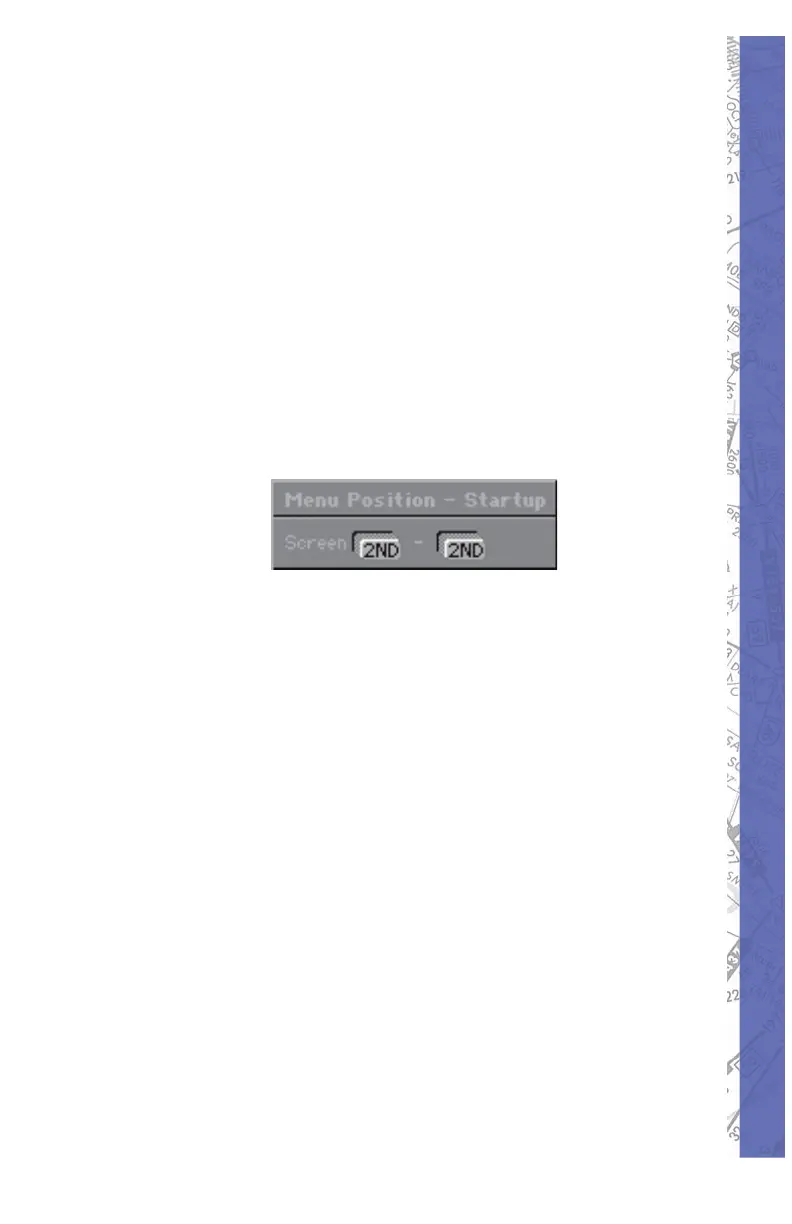
NOTE: The fi rst time starting the program with multiple
displays, you should go to the Confi guration screen to set
the position of the menu to either the second screen or
third screen, using the Menu Position button and to set the
Startup screen to either the second screen or third screen,
using the Startup button. Then quit and restart the program
for the change to take effect.
TIPS FOR USING MULTIPLE SCREENS
There are a few rules that should be known for using
multiple screens.
Anytime the menu is selected with the mouse 1.
the simulator will freeze momentarily. If you
wish to switch screens while a student is fl ying
without interrupting the fl ight, use the key
board short cut commands to switch between
the Map, Control, and Meteo screens.
The simulation will freeze if one of the 2.
secondary displays is switched to the
Confi guration or Modifi cation screens.
Clicking anywhere inside the Map display 3.
area (to obtain informa tion about a facility)
will freeze the simulation.


 To Next Page