61
CHAPTER 2: Instructor / Operator’s Station (IOS)
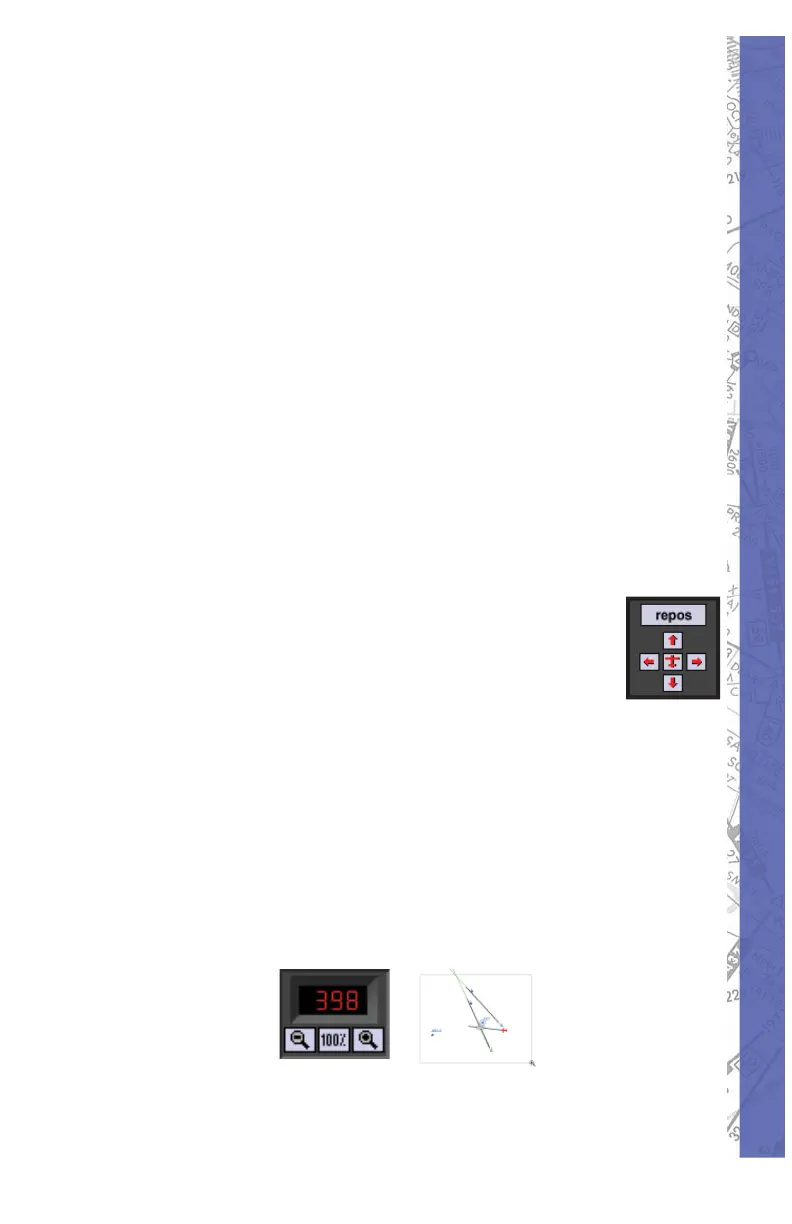
Storing custom ZOOM Level:
You can store one custom ZOOM Level in addition to the
preset ZOOM Levels (1, 5, 25, 50, 100, 250, 800, 1250).
To store a custom ZOOM Level:
Select the area you would like to ZOOM on 1.
by hold ing down the ALT key and drawing a
marquee around the desired area.
CTRL-Click in the ZOOM level window to 2.
store the custom ZOOM level created in
previous step.
To ZOOM to this stored level again simply 3.
click in the ZOOM Level display window.
This custom ZOOM Level can be changed anytime by
simply following the procedure above to over write with a
new value.
NOTE: ZOOM level cannot be in creased beyond
1250% maximum. With ZOOM level at maximum
you will NOT be able to marquee a se lec tion
area to ZOOM in further. Mar quee selection
and ZOOM IN are dis abled when max i mum ZOOM level
is reached. The ZOOM func tion is screen cen tered, NOT
air craft cen tered. If the air craft is not in the center of the MAP
page and you ZOOM IN, the aircraft may be tem po rari ly
“lost.” To “fi nd” the air craft and re-cen ter the MAP page to
it, click on the red air craft sym bol lo cat ed near the bottom-
right of the dis play.
SHOW FACILITIES
Click on the SHOW but ton for the “Show Fa cil i ties”
dialog box. Specifi c map details are dis played de pen dent


 To Next Page