59
CHAPTER 2: Instructor / Operator’s Station (IOS)
The navaid databox will display showing the 4.
ILS is now enabled.
AIRCRAFT SNAPPING
Bring the aircraft symbol near any runway thresh old to
“snap” to it. This will instantly place the air craft on the runway
threshold (at fi eld elevation) of the runway “snapped” to.
This is especially use ful for quick re po si tion ing from any
location, al ti tude, head ing, air speed etc., to any specifi c
airport runway. Al though avail able at all ZOOM lev els, this
feature is much eas i er to use at HIGH (close-in) ZOOM
lev els, where the run way lay out is clearly visible.
Map Scrolling:
Similar to the MAP scrolling described
above while dragging the aircraft symbol,
it’s also pos si ble to scroll the MAP view
without dragging the air craft sym bol. This is
accomplished by clicking any where on the
MAP page NOT occupied by a facility or MAP element,
and dragging the cursor (fi ngertip) toward the edge of the
visible display. Scroll speed is controlled by vary ing the
distance of the cursor to the edge of the screen and is
de pen dent on the amount of data to be moved. The four
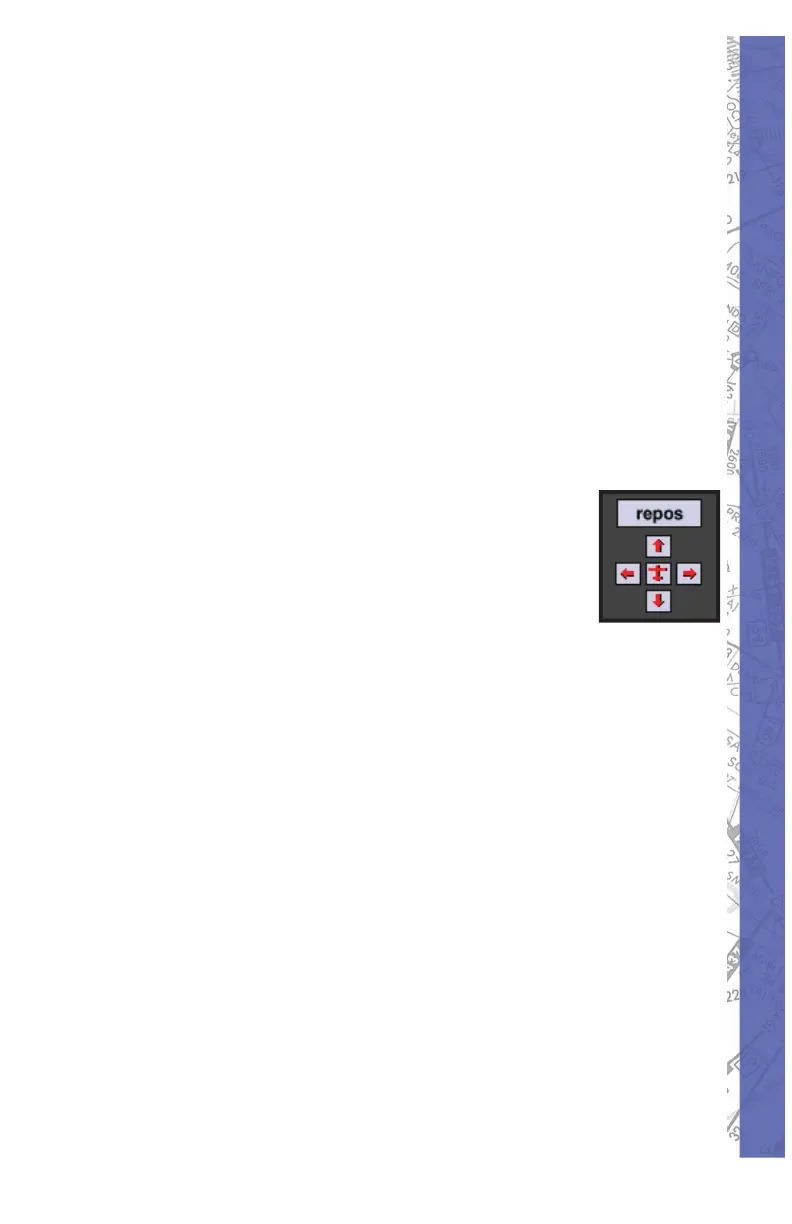
“ar row but tons” (UP, DOWN, LEFT, RIGHT) lo cat ed at
the bot tom-right of the dis play, and the cur sor keys on
the key board can also be used to scroll the vis i ble MAP
view. If your scroll ing takes you away from the current
air craft po si tion (i.e. to explore the sur round ing area) and
the air craft is no longer vis i ble, you can quick ly locate the
air craft and re-center the MAP to it by click ing the red
air craft sym bol sur round ed by the four ar row but tons or
press ing the “c” key on the key board.


 To Next Page