47
4-2. Basic Operation on the Front Panel
This section describes the basic front panel operation and how to set and execute various
functions.
4-2-1. Buttons
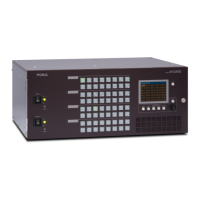
1) Assign functions to buttons (change assignments)
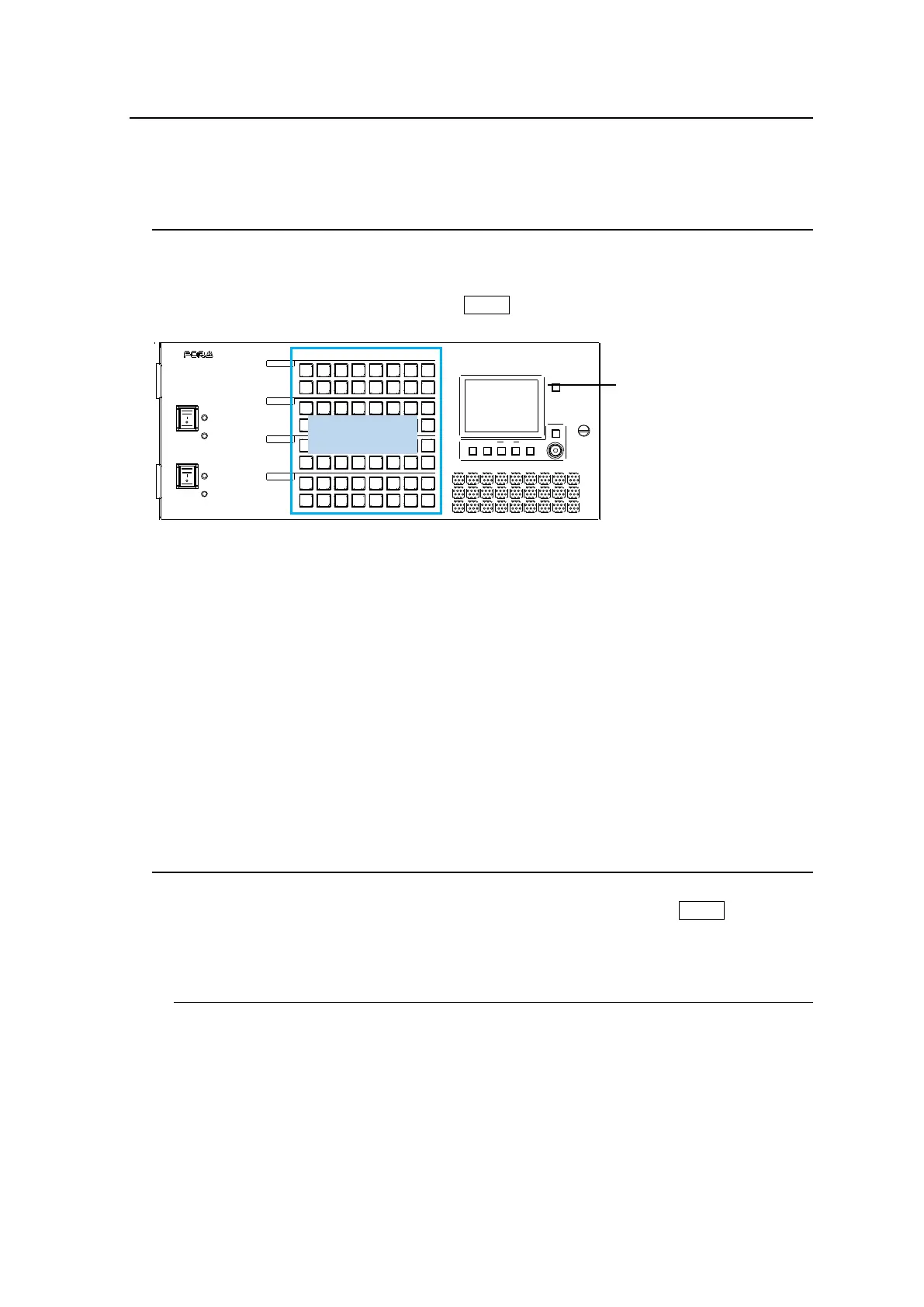
To use buttons on the front panel, assign functions to the buttons in the Web-based Control:
Assign Function page]. Any function can be assigned to any buttons (see the figure below).
Only lock functions can be assigned to the LOCK button.
POW ER 2
ROU TING SWITC HER
ON
OFF
OFF
ON
ALARM
ALARM
MFR-30 00
POW ER 1
DEST SR C
CAN CEL
ASSIGN SETTINGGR OUP
LOCK
BUT TON
Button Assign Procedure
(1) In the Web-based Control, click to open the MFR-3000 menu tree at the left side. Click to
select 30FP Assign Function to display the menu page.
(2) Set the page, button and function respectively to assign functions to buttons. Buttons can
be selected by specifying Button IDs or clicking on button icons.
(3) After selecting a function, set the function specific settings.
(4) After all settings are completed, click Send to apply the settings.
The front panel menu display can also assign functions.
► See Sec. 4-4-4 “Button Assign Menu”
2) Press buttons to execute functions
Press a button to execute the assigned function. The button LED indication, NAME
DISPLAY, and MENU display change according to the assigned function.
4-2-2. Page Function
By managing a set of front panel buttons as a page, page-assigned functions can be
performed by a single button press. Pages can be changed by using the PAGE button (see
Sec. 4-3 “Function Buttons”).
4-2-2-1. Group Page Changes
Pages can be changed per a button group. Groupings from A to E can be freely changed
using the Web-based Control menu.
►See Sec. 4-4-5. "Button Group Menu" for more details on grouping.


 To Next Page