11.10 Clipping Images
This option is available only in GPS TrackMaker Professional®.
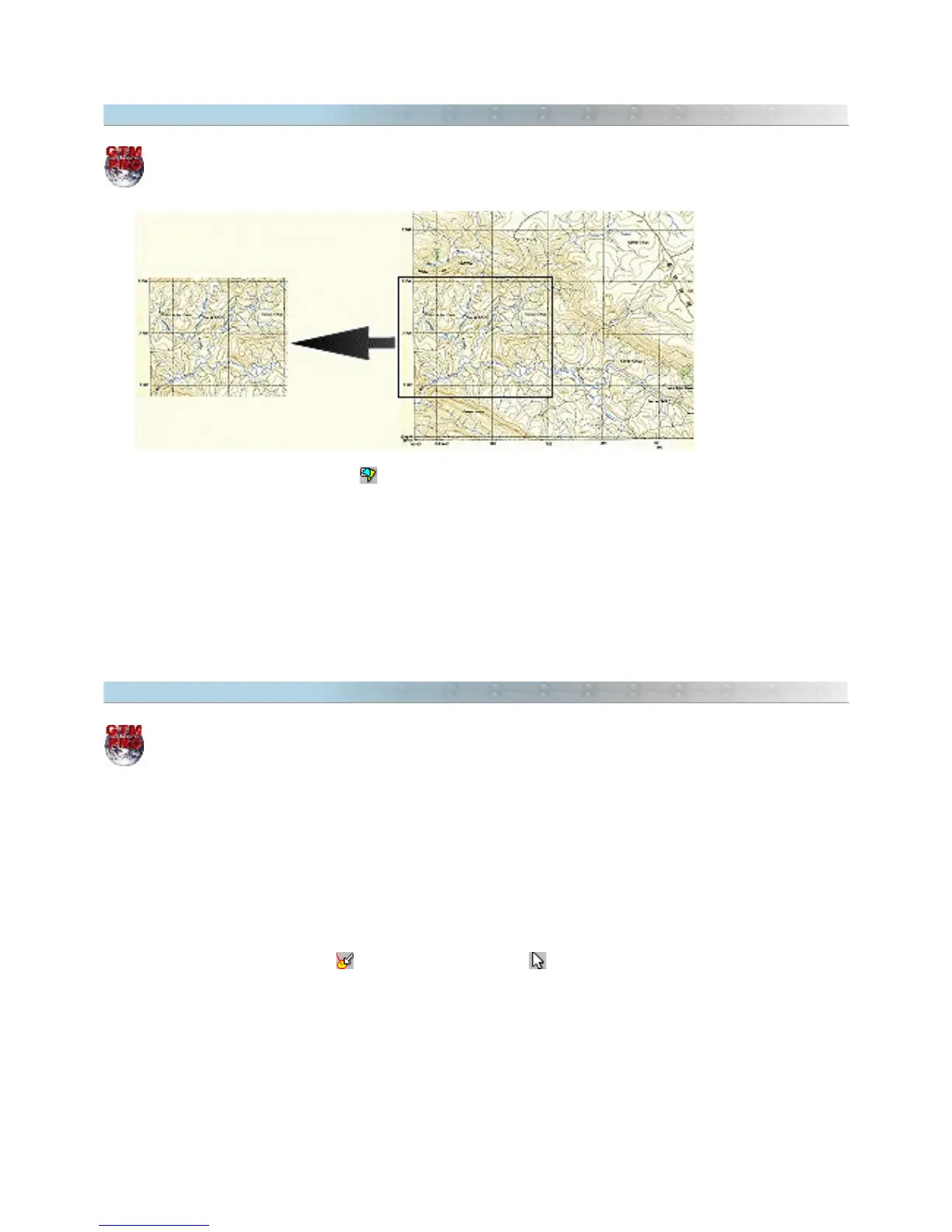
To clip a background image, press the button, click with the left button and drag the mouse maintaining the
button pressed. To finish the clipping rectangle, release the left button. The image will be clipped, remaining on
screen only the area of the rectangle.
The calibration parameters of the image will be preserved.
To undo the clipping, press CTRL Z.
Note: Only raster images are clipped. Vector images such as WMF and EMF and icons cannot be clipped.
11.11 Restoring the Aspect Ratio of the Image
This option is available only in GPS TrackMaker Professional®.
The restoration of the image aspect ratio must be accomplished before rotating it, removing eventual angle
deformations of grid lines contained in the image.
This resource is used for images that were not calibrated correctly and need a new rotation to be later recalibrated
with two points.
To restore the aspect ratio, follow the steps below:
• Press the
Detect Elements
button and the Selection Tool button.
• Click with the left button on the image.
• A pop-up menu will appear close to the pointer of the mouse.
• Choose
Restore Aspect Ratio.
140



 To Next Page