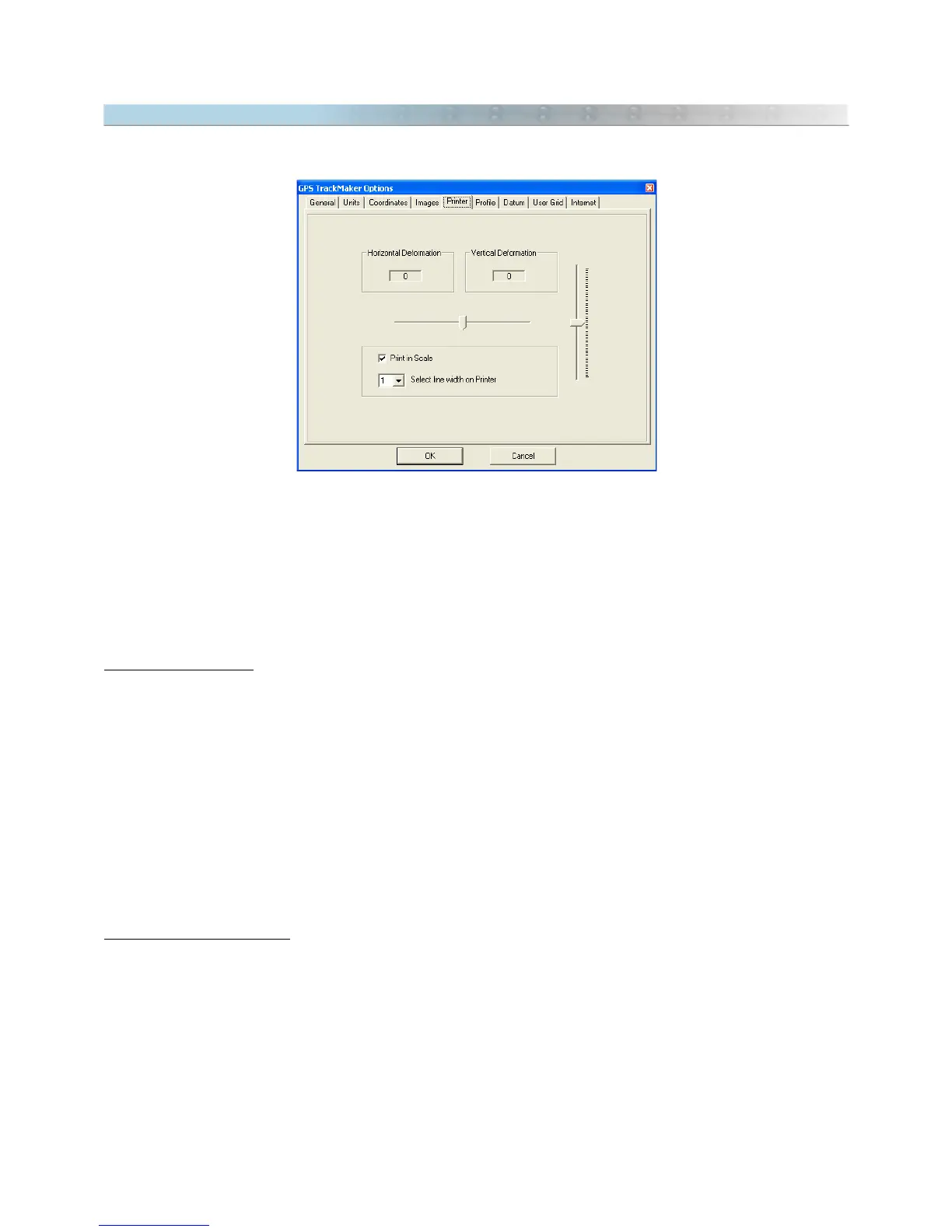
14.4 Configuring Printing
To configure the printer, choose
Tools > Options > Printer.
Printing with no Scale
This kind of printing is for Users that only want to have the contents of the screen on paper, not depending on
scale. The drawing size will depend on the paper size and not the map’s scale.
To print the entire screen on the paper, disable the
Print in Scale
option. When using this option the scale
indicated must not be considered.
Printing in Scale
To print in scale, just enable the
Print in Scale
option.
The different models and types of printers available in the market can bring small variations in printing to scale.
These variations or deformations can occur horizontally or vertically. To minimize this effect, the User should
adjust the
Horizontal Deformation
and
Vertical Deformation
controls, right after doing the necessary print tests, to
verify if scale is really correct.
To facilitate the printer adjustment, is recommended that you modify the coordinate system to UTM and enable
grid visualization. With these settings you can measure the distance between horizontal and vertical grid lines with
a ruler (indicated in meters), comparing the print to scale.
For more information about print in scale, see Showing Scale on Screen and Printing in Scale.
Line width on Printer
High-resolution printers can present problems in Tracklog thickness when printing. This option allows to define the
Tracklog thickness up 10 times the normal thickness, allowing better print quality.
Any modification in
Line width on Printer
field will result only in modifications to the printout, it will have no effect
on the screen configurations in the program.
155



 To Next Page