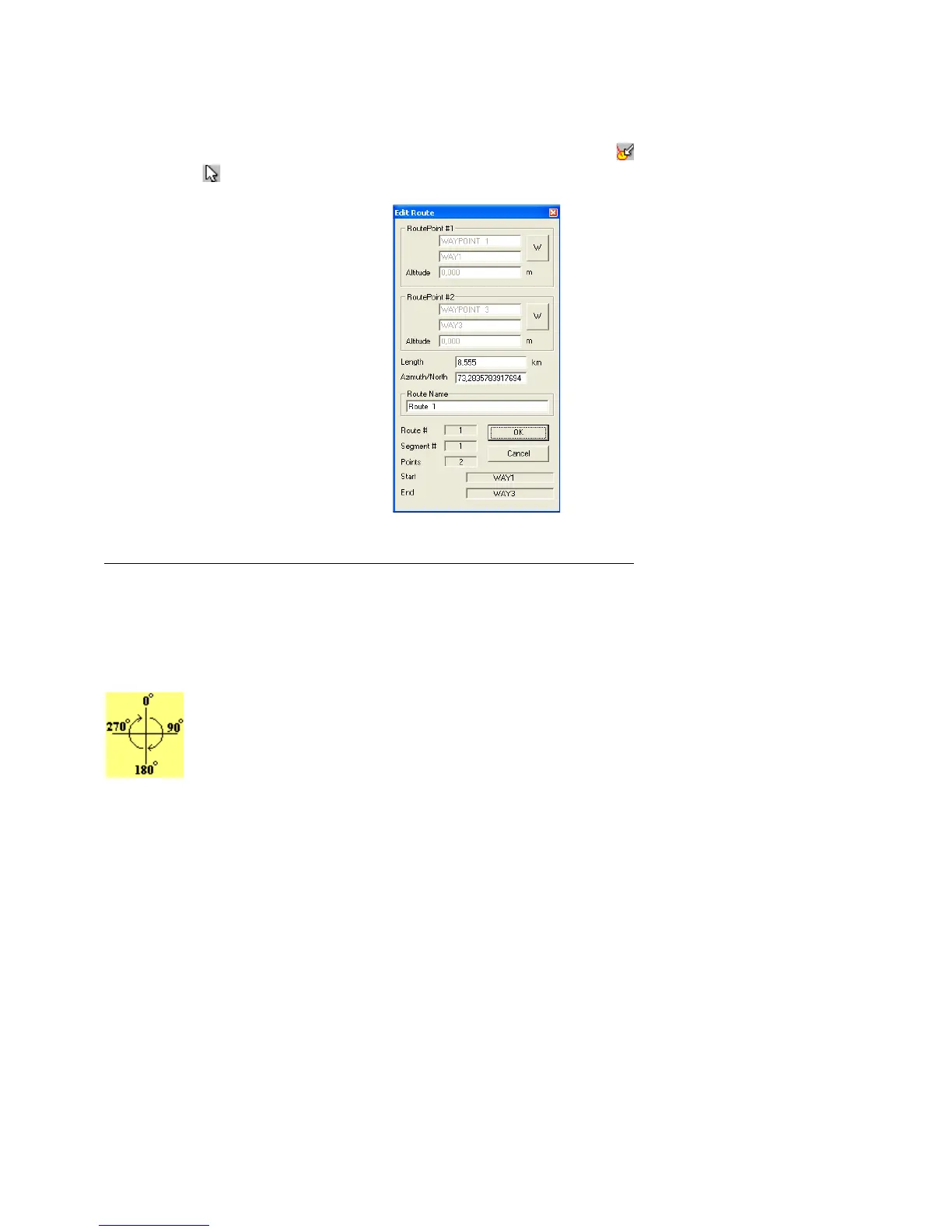
Editing a Route
Route editing is done only on isolated segments. Press
Detect Elements
button and Selection Tool and move
mouse pointer close to a Route segment and wait until its color changes. Then, press the right mouse
button so the editing window will appear.
In this window, the following data related to the Route can be changed:
• Length of the segment
Changing the length causes the change of the geodesic coordinates of the second point of the segment, which is
done automatically by the program. Verify the Length Unit of Measurement defined under
Options
in the
Tools
menu
• Azimuth of the segment (Bearing)
The azimuth can be defined by the User and must be between 0º and 360º (as shown). The
reference will be the true axis North-South when the program is configured for geographic
coordinates (Azimuth/North). In rectangular systems such as UTM systems, if the segment is
contained in only one zone, the reference will be the North-South axis of the grid (Azimuth/Grid). A
change of the angle will necessarily imply the modification of the geodesic coordinates of the second
point of the segment.
To change the notation of the azimuth, see Configuring Azimuth Angle.
Route name
Each Route has a name to identify it. When a new Route is created, the program automatically creates a name like
Route #1, #2, #3..
. The Route name can be changed, observing the maximum of 30 characters.
58



 To Next Page