15 Catalog of Images
15.1 Creating a Catalog of Images
Introduction
The manipulation of big map images that occupy a large amount of memory is not always so simple. Especially in
computers with insufficient memory or low capacity graphic cards, you can spend too much time loading and
viewing map images (or photos).
To avoid problems with big images, GPS TrackMaker® offers the
Images Catalog
resource, that is a registration
of all inserted images in the User’s GTM files. This way, the User can create several small maps of relatively
reduced size, which will be shown on the screen as needed, eliminating the use of a large amount of memory or
video resources.
Basically, with the Images Catalog, the User can have only the contour of all inserted maps on the screen of the
computer, without the need to load them. The Images Catalog is also useful in real time navigation. Through the
Autoload
option, enabled in the configuration window of
RTN
mode, it is possible to automatically load just one
map, when the ship is passing through the area of that map.
Important
: after the catalog has been created, GTM files that are in it can’t be modified, without damaging the
Catalog data. It would then be necessary to create a new Catalog. It is good procedure to store GTM files from the
Catalog in an exclusive directory, creating a Backup of the original files.
Creating a Catalog
First, it is necessary to have GTM files with inserted images. Image Catalogs will not be created if the GTM file
contains only Waypoints, Tracklogs or Routes.
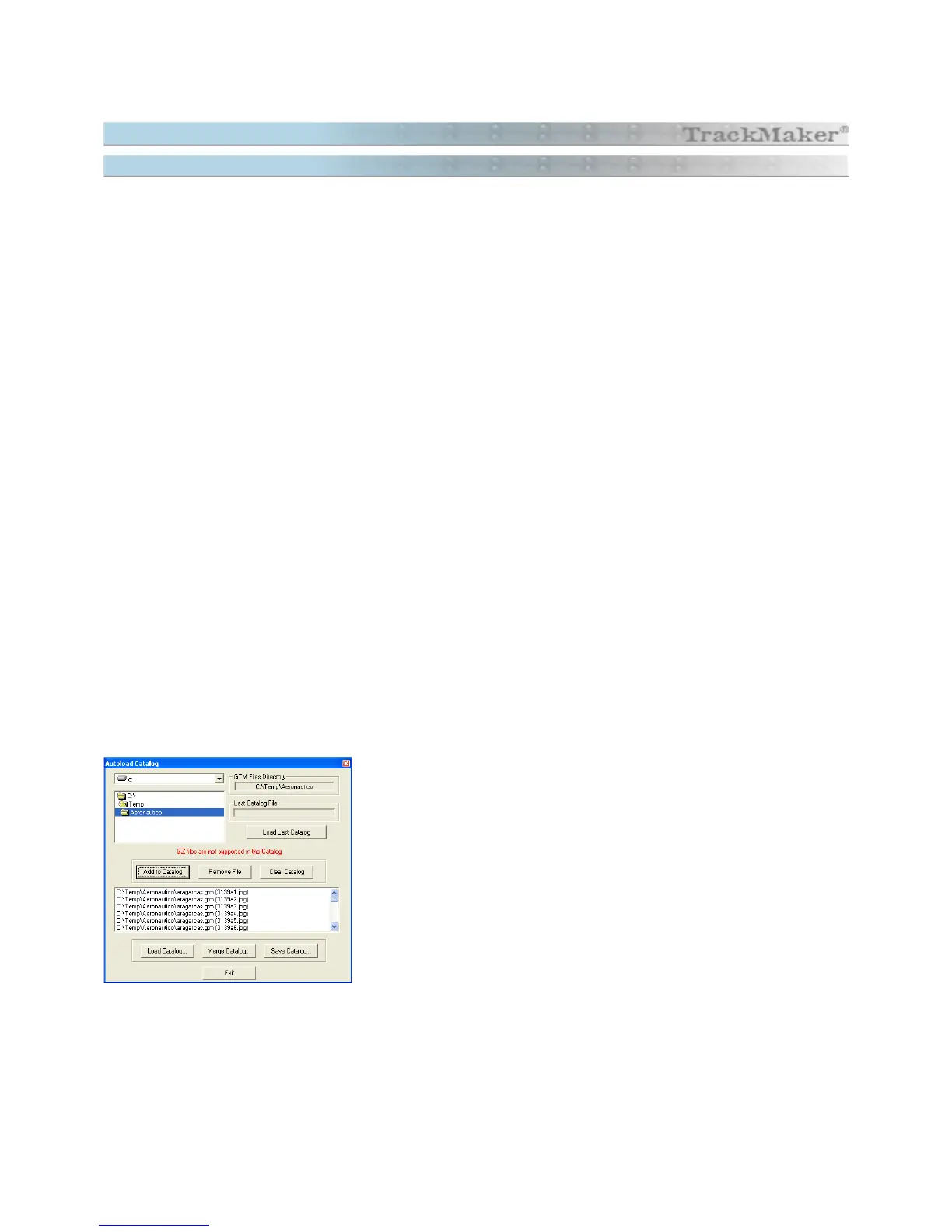
To create an Image Catalog, choose the
Autoload Catalog
in the
Tools
menu. The Catalog Window will immediately open.
Select the drive and the directory where the GTM files with the inserted
images are stored. Then, press the <
Add to Catalog>
button and the
program will seek all GTM files containing images in the directory.
The User can see the list of all GTM files with its respective maps. This
information is stored in the memory of the program and can be saved to
disk, in
CTG
format.
To save the new Catalog in disk, see Saving Catalog in Disk.
157



 To Next Page