6.6 Creating and Registering Projects of Maps
A Map Project is a file with PJC extension that registers the sequence of MAP files that will be shown on screen.
The PJC file can be registered in GPS TrackMaker®, being shown in the listing box of toolbar 2.
Once the project is registered, the access to the maps will be available as soon as the program is opened. Just
click on the project to visualize the maps on screen.
The PJC file must be in the same directory of the MAP files. The free version of GPS TrackMaker® allows only to
register PJC files. The PRO version has complete support for creation and edition of PJC files.
Registering a Project with PJC Files
- Click on
Maps -> Register New Project.
- Click on the
button -
Open Project or Map Directory.
- Click on the PJC file and press
Open.
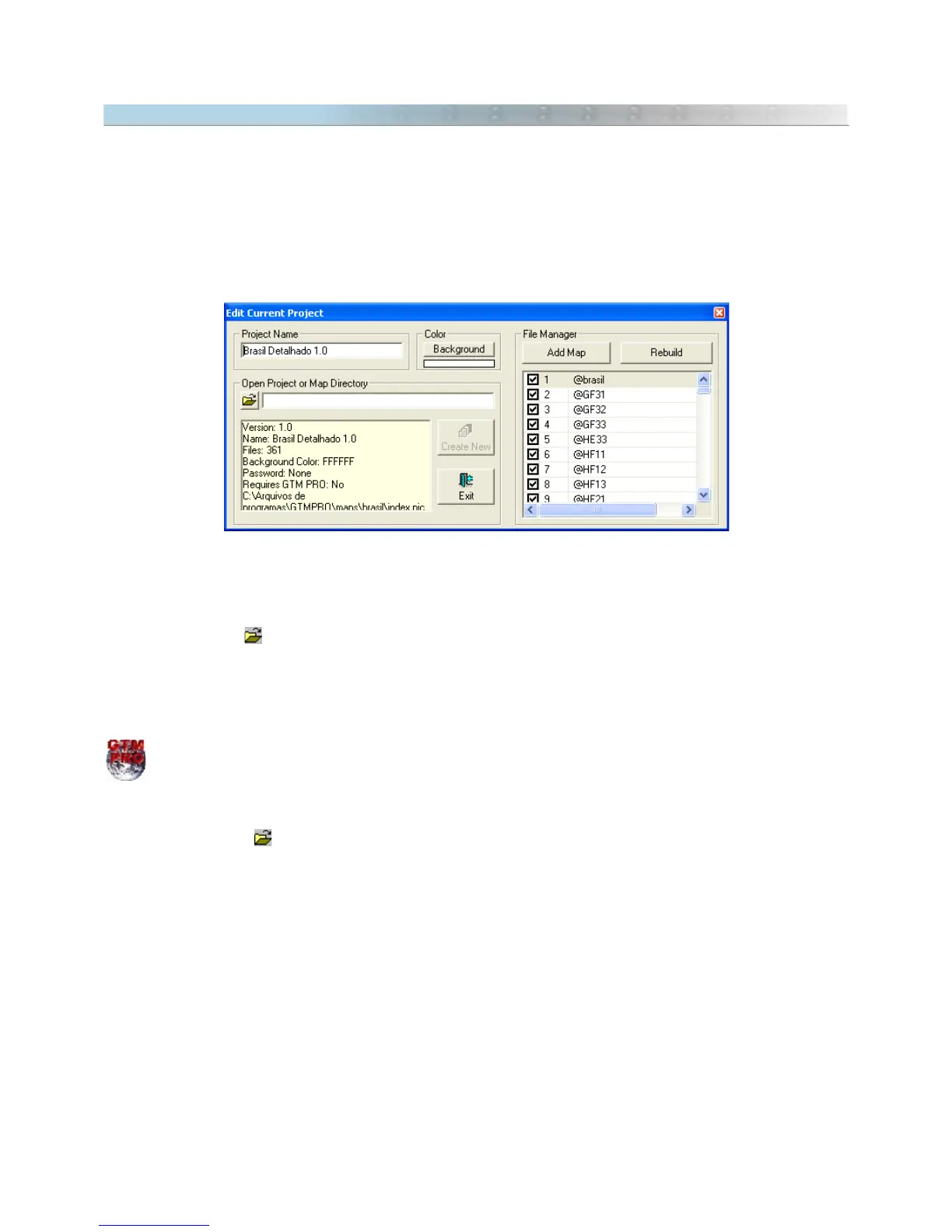
- The list of maps will appears in the
File Manager
and the maps will appear on screen.
Creating a Project with MAP Files
This option is available only in GTM PRO®.
- Be sure that all MAP files are in a same directory.
- Click on
Maps -> Register New Project.
- Click on the button –
Open Project or Map Directory.
- Click on any MAP file and press
Open.
- Type a name for the project.
- Choose the background color for the project. White is the color default.
- Press
Create New
button to create the new project.
- The list of maps will appears in the
File Manager
and the maps will appear on screen.
To edit or delete files in the
File Manager
, see Editing Projects of Maps.
67



 To Next Page