12.3 Sending and Receiving Waypoints, Tracklogs and Routes
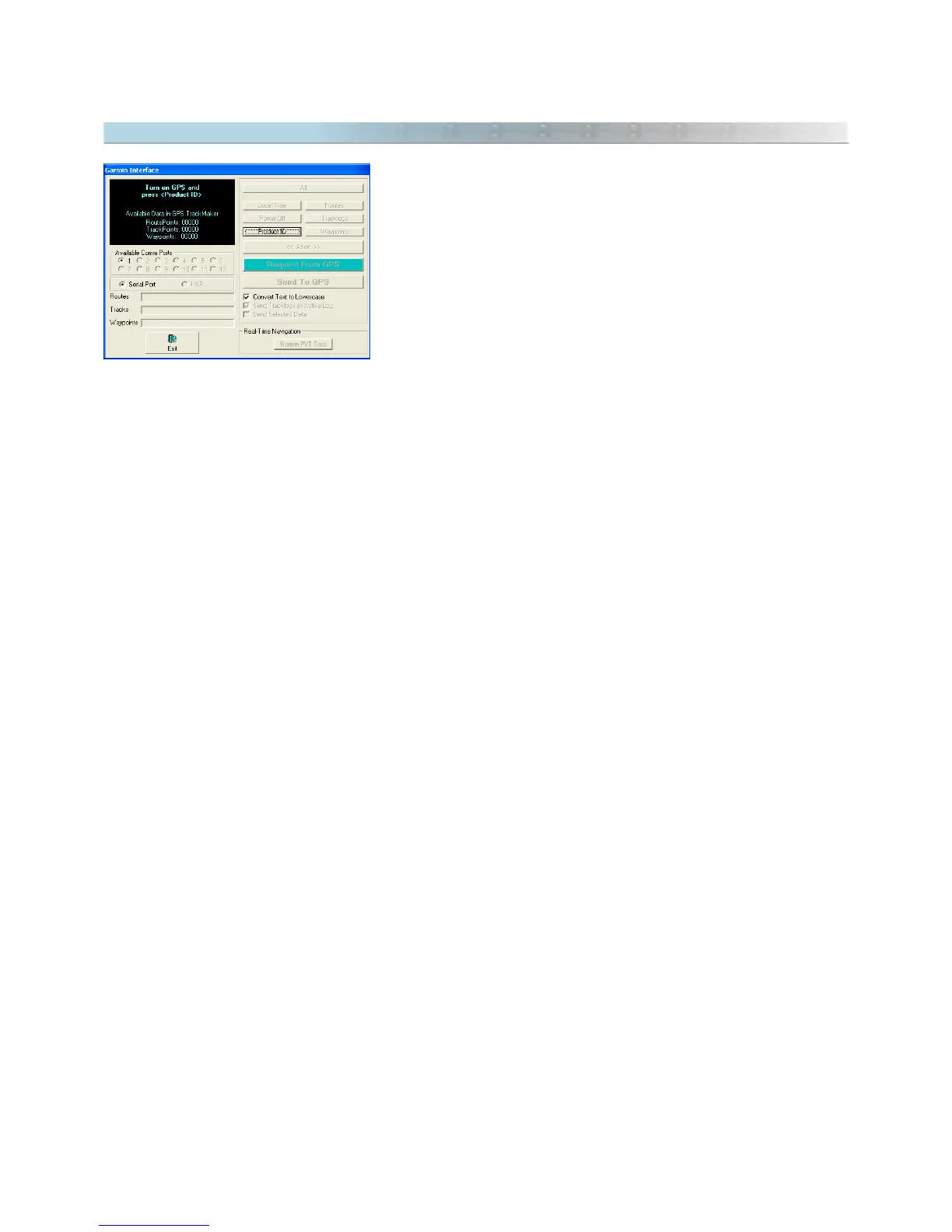
The communication between the PC and the GPS is very easy with the
GPS TrackMaker®. Just open the specific window for your GPS
model, clicking on the
Interface
menu. Then, turn on the GPS.
The first step to initiate the communication is to inform the computer
which GPS model is connected to the serial port. To do this, press the
<Product ID> button. If communication is established, the program
will indicate the GPS model name and the software version and will
enable the send/receive data buttons.
If the communication cannot be established, the message
Acquiring ID
will remain on the screen, and you should
review the cable connections and the GPS configuration. If the program does not support the GPS, the message
Unknown GPS
will be displayed.
Once the GPS is detected and the send/receive buttons are enabled, the User can choose the send/receive
function that they want to use.
Sending data to GPS
To send data to the GPS click on the <Send to GPS> option and choose one of these options: <Waypoints>,
<Tracklogs> and <Routes>. You can also click on the <All> button to send all data.
When sending Waypoints, the program changes all lowercase into uppercase and removes all accents. This
procedure is necessary because the GPS does support lowercase or accents in storing names and comments of
Waypoints.
To send only the selected data to the GPS, mark
Send Only Selected Data
option. To learn more about how to
select data, see Selecting Data. Selected Tracklogs and Routes will be completely sent, even if only some
segments are selected. If no data is selected when opening the Interface window, the
Send Only Selected Data
option will be disabled.
For Lowrence® models, it is possible to send the icons. The GPS TrackMaker® program sends the Waypoints as
icons.
Receiving data from GPS
To receive data from GPS, click on the <Request from GPS> option and choose one of these options:
<Waypoints>, <Tracklogs> and <Routes>. Click on the <All> button to receive all data.
For Lowrance® models, it is possible to receive the icons stored in GPS’ memory. The program receives the icons
from GPS, transforming them to Waypoints.
Stopping the communication
To stop sending or receiving data, just click on the <Abort> button . The communication will be stopped at that
point.
Turning off the GPS through PC (Garmin® Models Only)
Clicking on the <Power Off> button will power off the GPS receiver.
144



 To Next Page