Editing an existing Waypoint
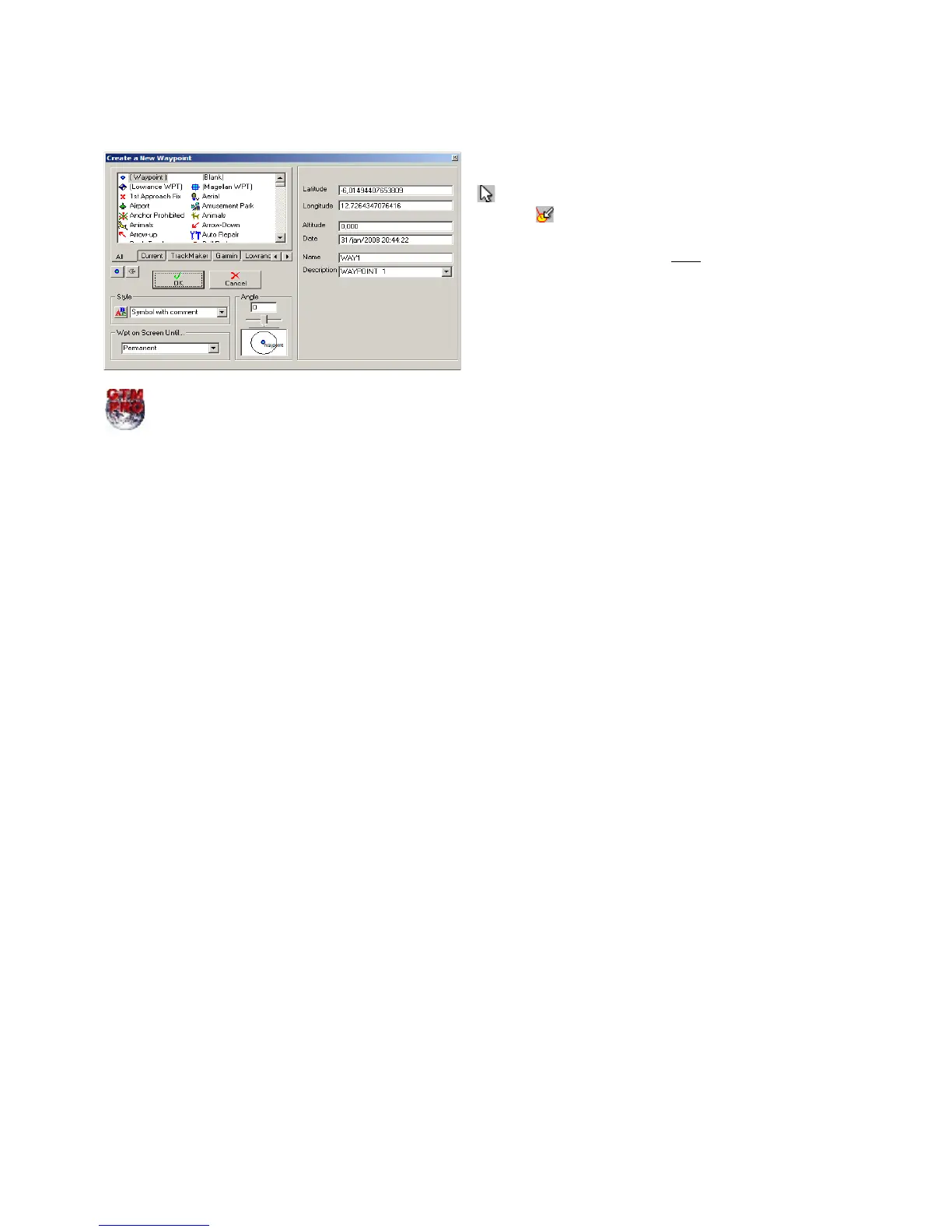
To Edit a Waypoint is as easy as creating it. First, press
located on
Drawing Toolbar
. With the
Detect
Elements
button pressed, place the mouse pointer
over the Waypoint icon until a small circle appears around
the icon. Then click with the right mouse button until a
Waypoint Edit window is displayed. Do the necessary
changes and press OK.
Waypoint edition can be made easily through spreadsheets of GTM PRO®. See the topic Data Edition in
Table.
Deleting a Waypoint
To delete a Waypoint, first select it. For that, see Selecting Data.
Once the Waypoint is selected, press DEL to delete it from the memory.
34



 To Next Page