7.4 Pasting an Image on Screen
In the same way that the image in GPS TrackMaker®'s screen can be pasted to the Windows® Clipboard Area
(refer to Pasting Data), an image in Clipboard can be pasted to GPS TrackMaker®'s screen.
For that, choose
Edit > Copy Image
menu or press <CTRL INS>. BMP, ICO, WMF and EMF images are
supported.
This function is useful to copy images directly from another program or Internet maps to GPS TrackMaker®'s
screen.
Georeferencing an Image of the Screen
Pressing <CTRL C> (Copy Data) and then pressing <CTRL INS>, you will get a copy of the screen in BMP
format that will be automatically georeferenced in the same position in that the original started in.
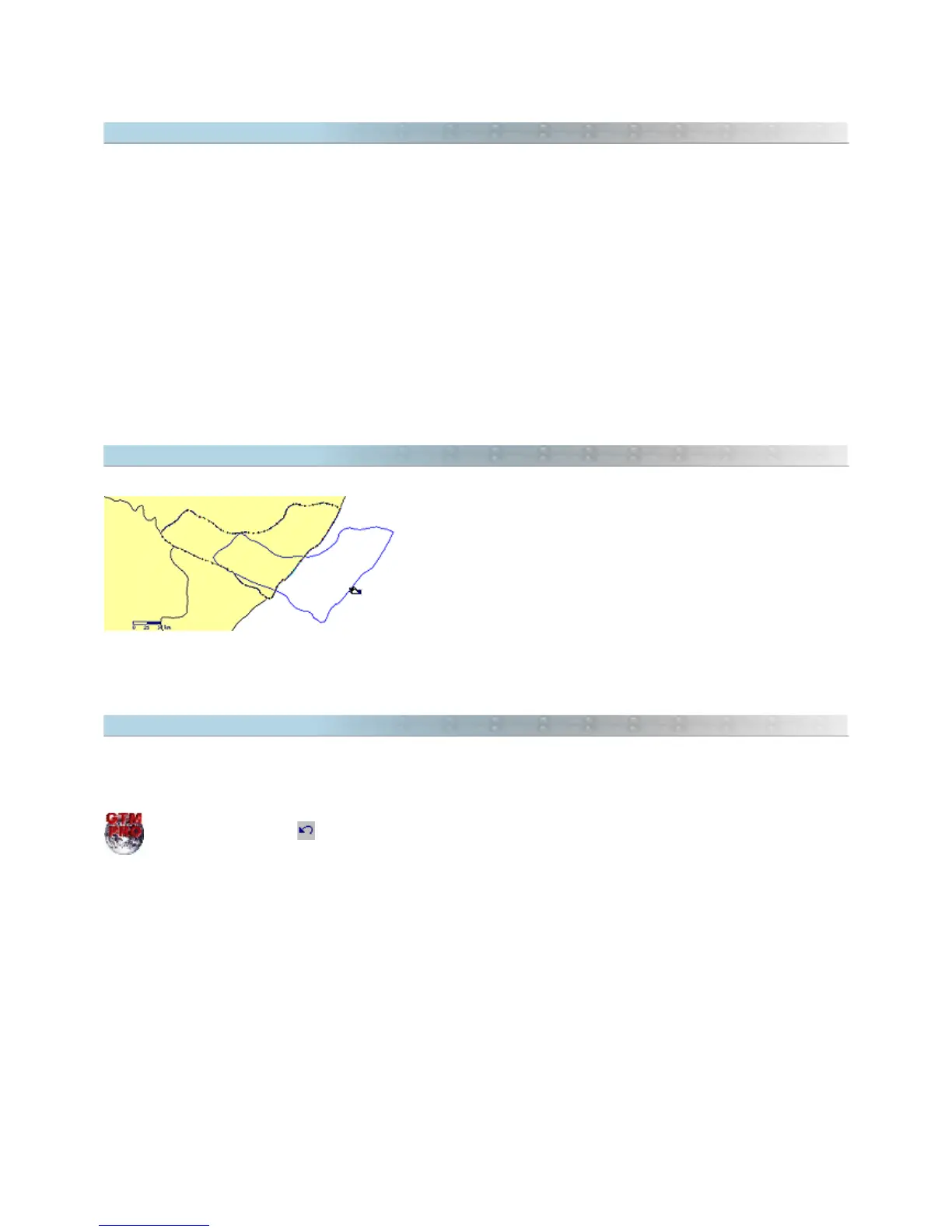
7.5 Dragging Tracklogs, Routes and Waypoints with the Mouse
To drag Tracklogs, Routes or Waypoints with the mouse, first select
the data through one of the selection tools written in Selecting
Data. Then, place the arrow of the mouse on one of the segments
of the Tracklog or Route or on one of the selected Waypoints, press
the left button and drag the data where you want to place it.
To drag vertexes of Tracklogs and Routes, see Dragging Vertexes
and Waypoints.
7.6 Undo the Last Action
To undo the last action, press <CTRL Z> or click on the
Undo
option in the
Edit
menu. To return to the initial
situation, press <CTRL Z> again.
In GTM PRO®, press .
71



 To Next Page