7.7 Finding and Replacing Data
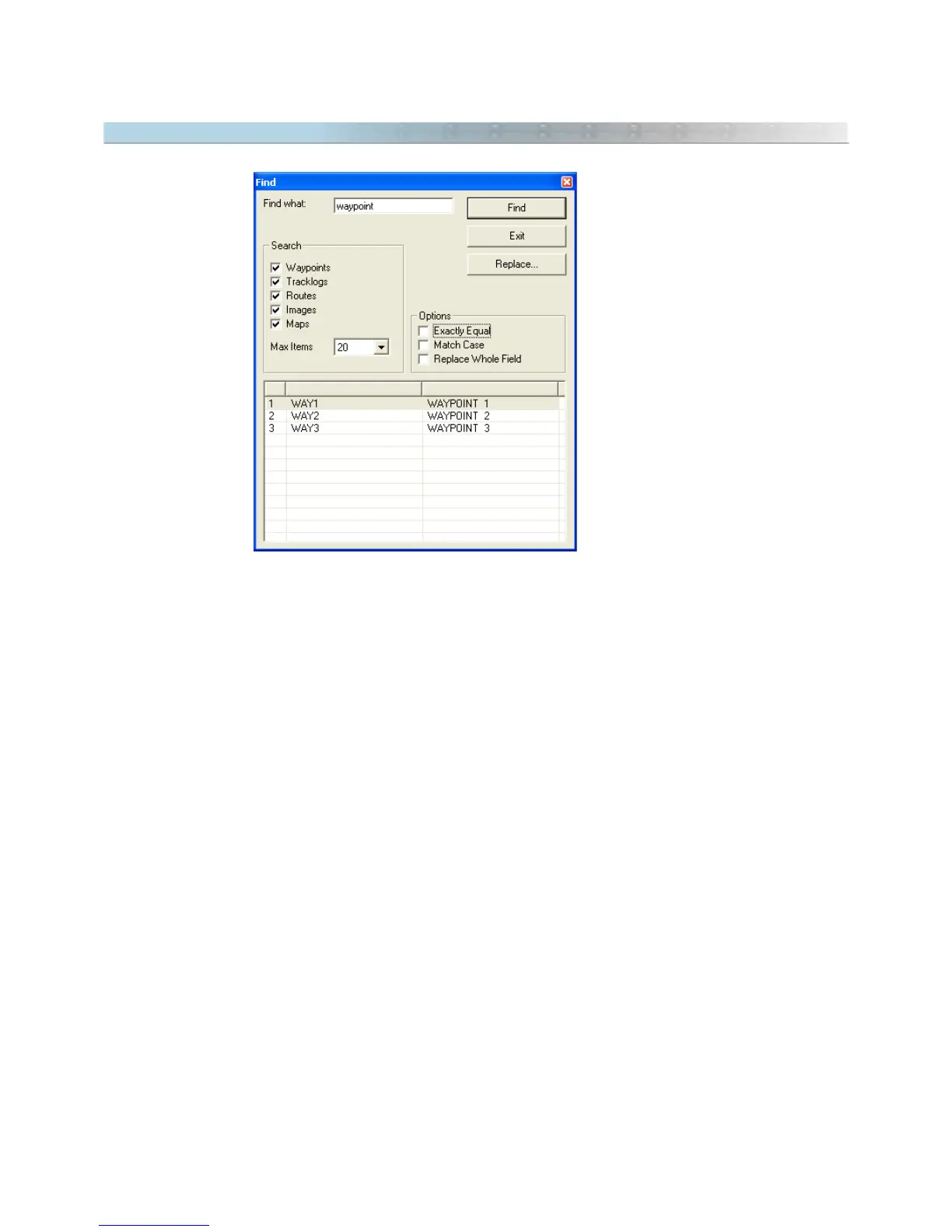
Finding Texts
Click on
Edit -> Find
or press CTRL F to locate texts in Waypoints, Tracklogs, Routes, Images and Maps. As soon
as the search results is shown, click on the element in the listing box to see it on screen.
Replacing Texts
Click on
Edit ->Replace
or press CTRL H to replace texts in names and comments of Waypoints, names of
Tracklogs, names of Routes and comments fo images.
Search Options
Search
: mark the elements where you want to search the text. Also indicate the number of items that will be
shown in the list box.
Exactly Equal
: if checked, only the elements that have the entire text equal to the search text will be shown.
Match Case: if checked, case will be considered significant when comparing text of the elements with the search
text. Otherwise, case will be disregard.
Replace Whole Field
: if checked, the entire field contents will be replaced with the replacement text regardless
of how much of the field matches the search text. Otherwise, only the matching text is replaced.
Important: texts of background maps cannot be replaced or modified.
72



 To Next Page