3.3 Selection of Waypoints Through Icons
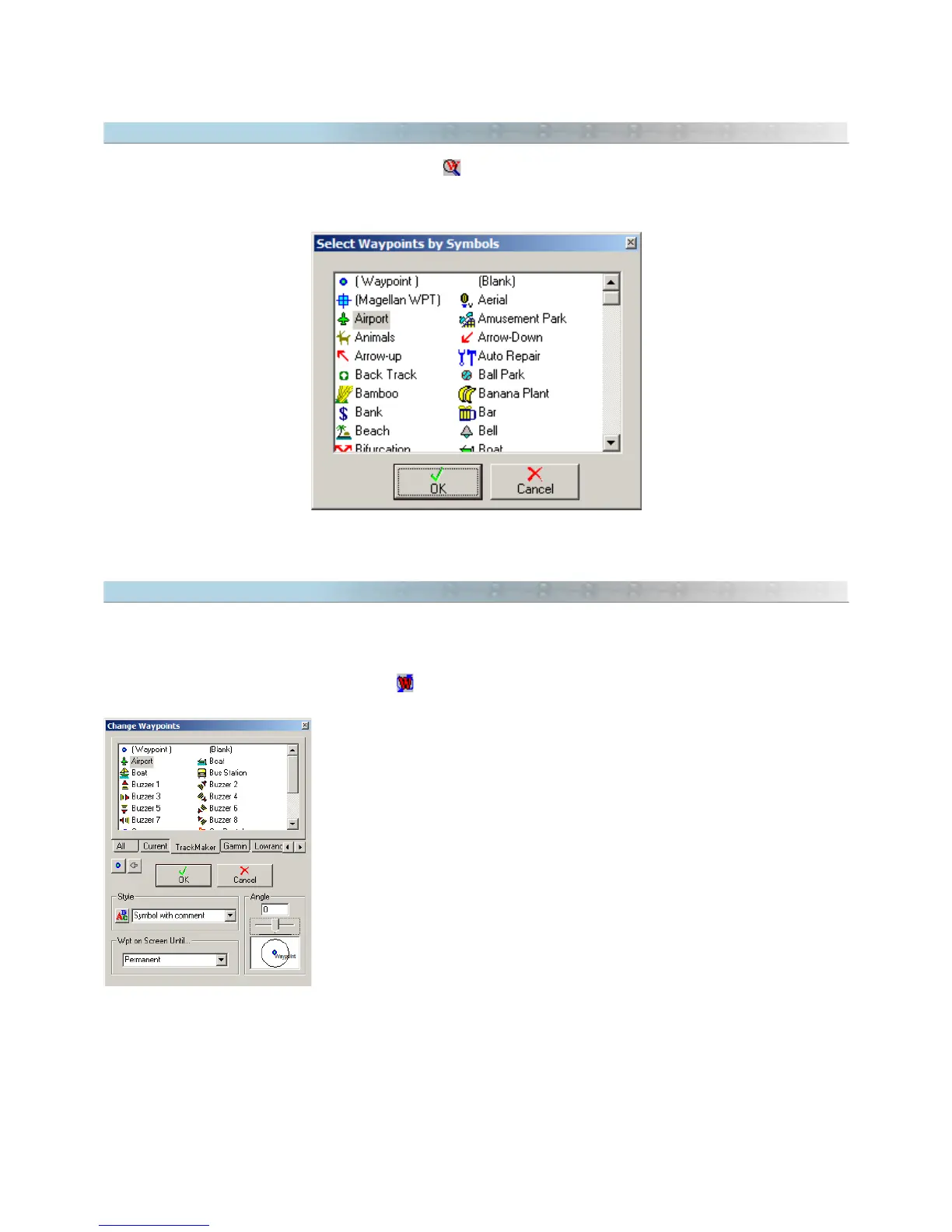
To select Waypoints through icons, press the button located on the Tool Bar. A window indicating only the icons
used in the file will appear. Just click on one of the icons and the program will select all the Waypoints that have
that same icon.
3.4 Modifying Several Waypoints at the Same Time
To change the icon and the view mode of several Waypoints at the same time, first select the desired Waypoints
through selection tools already described in Selecting Data.
With Waypoints selected, press the button on the Tool Bar, and choose a new icon or a new visualization
mode. Press <OK> and all selected Waypoints will have that chosen icon or chosen view mode.
The available view modes are:
• Symbol with Name : shows the icon with Waypoint name
• Symbol by Itself: it shows only the icon
• Symbol with Comment : it shows the icon with Waypoint comment
• Text Box: it shows the icon with Waypoint comment in special text
configured in
Options
in
Tools
menu
37



 To Next Page