4 – 6
4.3.5 Setting Cutting Conditions in THICK MODE
Select the THICK MODE setting when you will be cutting either thick media (such as masking rubber for
sandblasting or thick paper for apparel patterns) or thin but hard media (such as acrylic film).
NOTE
For more information about the THICK MODE parameter, see Section 6.4, “Enabling the THICK
MODE Setting.”
Setting Procedure
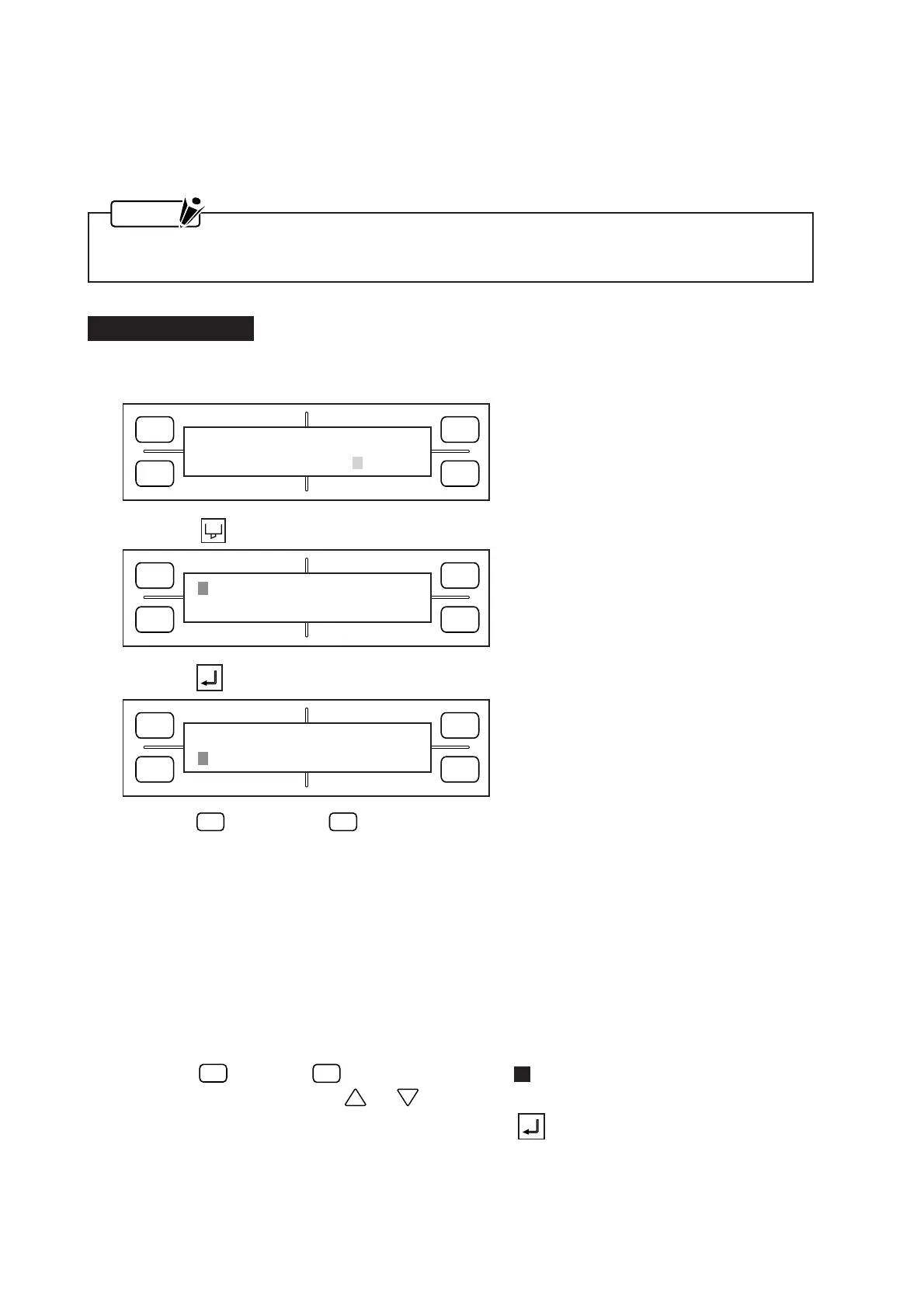
(1) When the THICK MODE setting has been enabled for the currently selected COND No., the display
appears as follows.
(2) Press the CONDITIONS key to display the menu below for specifying the cutting conditions.
(3) Press the ENTER key to display the THICK MODE menu shown below.
(4) Press the
F1
(MODE 1) or
F3
(MODE 2) key to move the asterisk symbol and select MODE 1 or
2.
MODE 1 : Overcutting is performed at the starting and end points of cutting as well as at corners with
a sharp angle in order to prevent incomplete cut areas of the medium. Moreover, because
the blade is moved across the medium’s surface in one stroke when the cutter’s blade must
rotate by a wide angle, this mode allows you to cut thicker media or perform more detailed
cutting than is possible in MODE 2.
MODE 2 : Overcutting is only performed at the starting and end points of cutting. Because MODE 2
performs simpler blade control of the travelling cutter blade than MODE 1, the overall cut-
ting time is shorter.
Press the
F2
(STR.) or
F4
(END) key to move the blinking cursor next to the STR. or END
setting. In this status, press the or POSITION key to specify the overcut distance.
(5) When the displayed conditions are satisfactory, press the ENTER key. To exit this setting opera-
tion without registering your new setting(s), press the NEXT PAGE key before pressing the ENTER key.
FORCE
SPEED
OFFSET
QUALITY
F1 F3
F4
F2
12 COND1 09U 0
30 CHANGE PEN1 4
FORCE
SPEED
OFFSET
QUALITY
F1 F3
F4
F2
*
MODE1 THICK MODE2
STR. 0mm END. 0mm
FORCE
SPEED
OFFSET
QUALITY
F1 F3
F4
F2
12 COND1 09U 0
30 READY PEN1 4








 To Next Page