5 – 9
5.6 Specifying the Pen Conditions
The SELECT PEN function allows you to assign four different sets of pen conditions (COND Nos. 1 to 4) to
Pen holder 1 and Pen holder 2.
NOTE
Before using a Change Pen command, such as the “J” or “SP” command, you must first set the “SP,
J COMMAND” setting to ENABLED (for instructions, see Section 8.2, “Specifying the Special Func-
tions”).
Setting Procedure
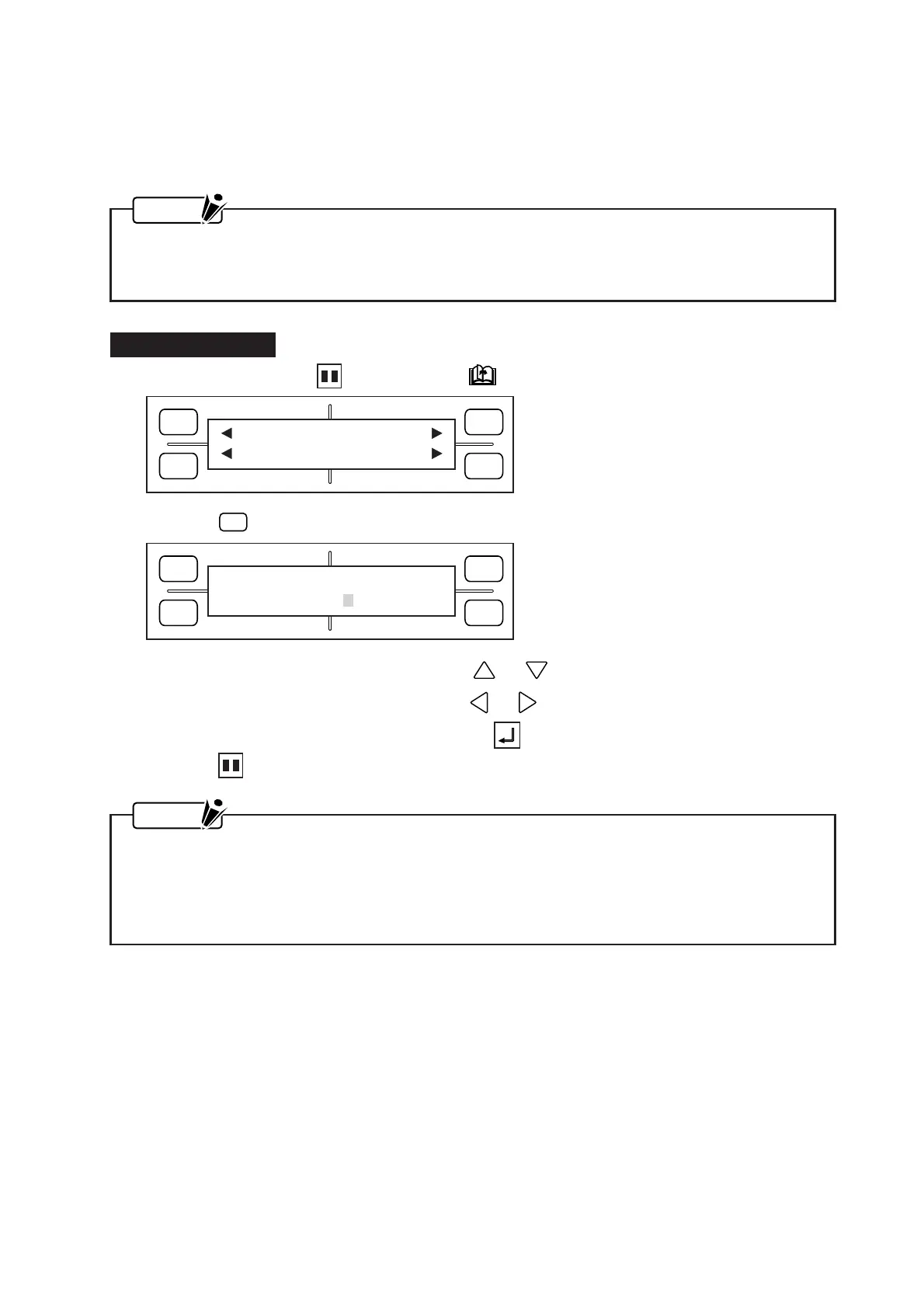
(1) Consecutively press the PAUSE key and NEXT PAGE key to display the menu below.
(2) Press the
F4
(SELECT PEN) key to display the menu below.
(3) To switch between Pen Nos. 1 and 2, press the or POSITION key.
To change the position of the cursor, press the or POSITION key.
When all of the settings are satisfactory, press the ENTER key.
(4) Press the PAUSE key to return the plotter to READY status.
NOTE
• Pen No. 1 is always mounted in Pen holder 1, whereas Pen No. 2 is always mounted in Pen holder
2.
• Pen holder 2 is specially designed for holding a plotting pen and cannot be used to mount a cutter
pen. When you have set a COND No. for use with PEN No. 2, you cannot switch the pen type
setting from PEN to a blade type.
FORCE
SPEED
OFFSET
QUALITY
F1 F3
F4
F2
MARK PEN U/D
CLEAR SELECT PEN
FORCE
SPEED
OFFSET
QUALITY
F1 F3
F4
F2
COND No. 1 2 3 4
PEN No. 1 1 1 1









 To Next Page