Fluent Pro Fluid Management System
English Procedure Setup 17
2.5 Turning on the Fluent Pro Fluid Management System
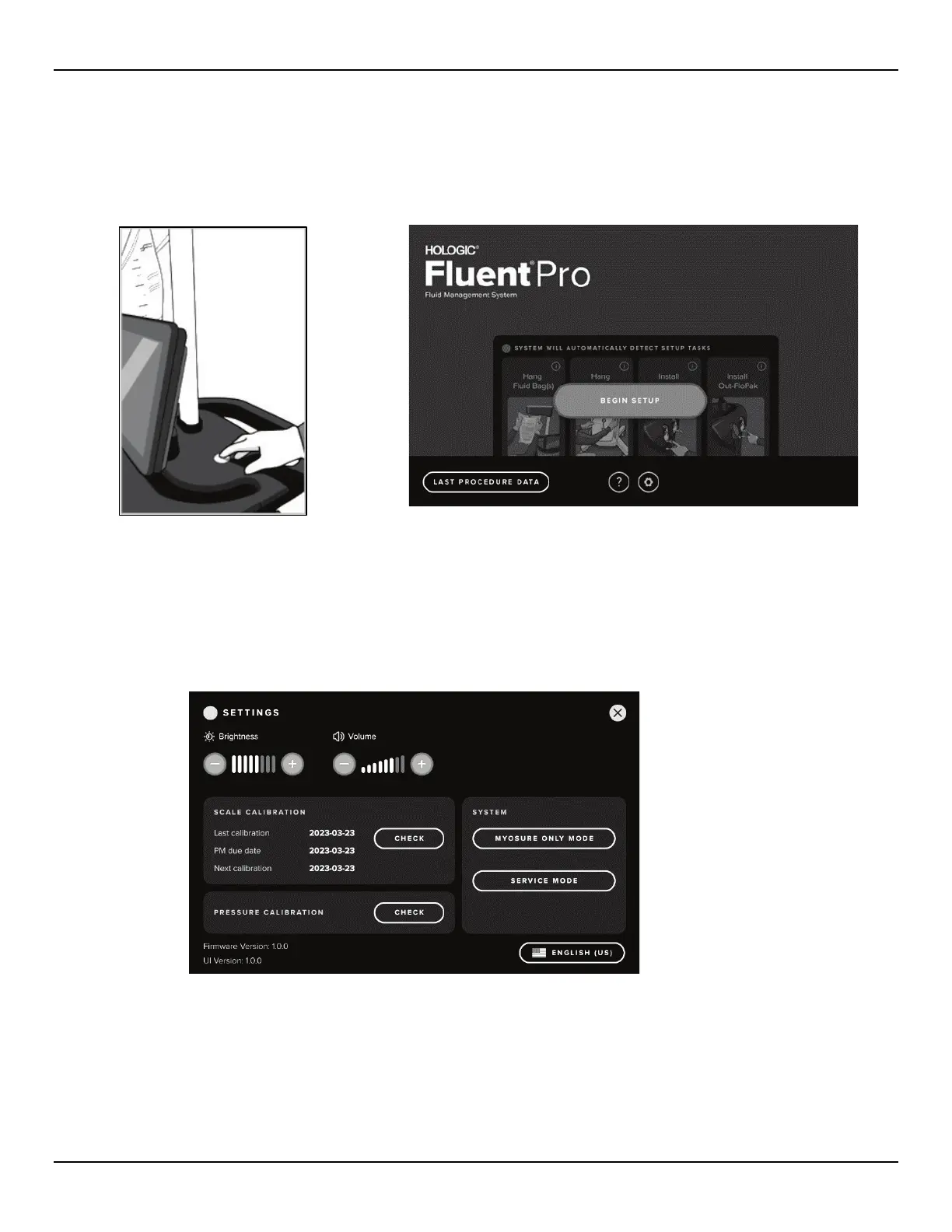
Press the Power Button on the top of the system to power on the system. The system performs a setup routine and then displays the
System Launch screen. The Power Button will illuminate green when the system is on.
Figure 13a: Power Button
Figure 13b: Launch Screen
2.6 Configure System Settings (Required for Initial Setup)
2.6.1 To configure the system settings, touch the ‘SETTINGS’ icon. The Settings screen is displayed.
2.6.2
Settings:
Figure 14: Settings Screen
• To choose the display language: Touch the ‘LANGUAGE’ icon and select your language.
• To adjust the display brightness: Touch the Down ‘(-)’ or Up ‘(+)’ icons to increase or decrease brightness.
• To adjust the speaker volume for alerts: Touch the Down ‘(-)’ or Up ‘(+)’ icons to increase or decrease alert volume.
• To perform Pressure Calibration: Select the Pressure Calibration ‘CHECK’ icon to launch the Pressure Calibration
check. Refer to Section 6.1.2 for details.
• To perform Scale Calibration: Select Scale Calibration ‘CHECK’ icon to launch the Scale Calibration check. Refer to
Section 6.1.1 for details.














 To Next Page