ThinPrep™ 5000 Processor with AutoLoader Operator’s Manual
6.51
USER INTERFACE
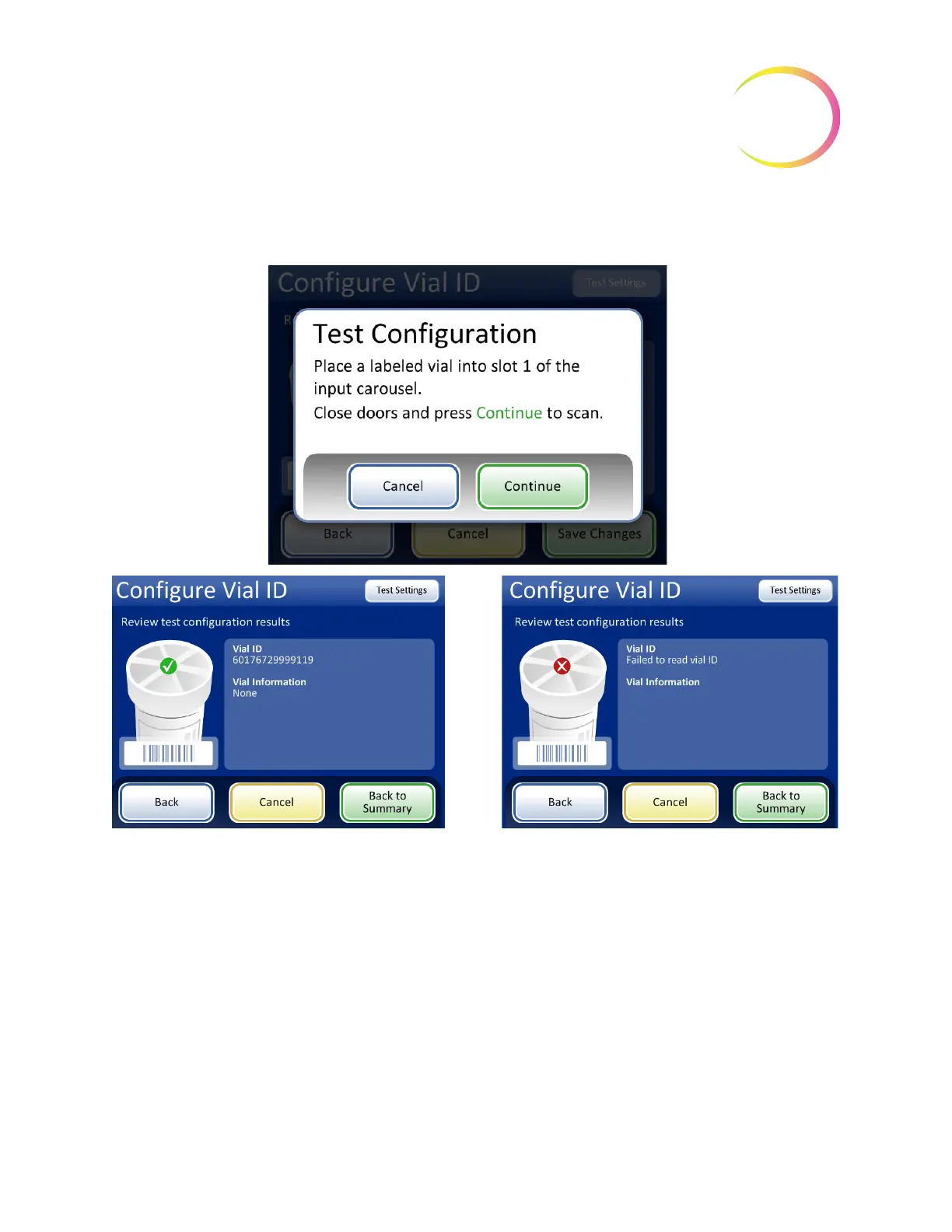
The instrument removes the vial from slot 1 of the carousel and scans the vial ID to check that the
scanned ID matches the vial ID barcode configuration set up on the instrument.
Figure 6-66 Test vial ID settings
When the vial ID is properly configured, return to the summary screen and save the changes.
Configure Slide ID
Note:
Particular components, available through Hologic Technical Support, are required to etch the
EAN-13/JAN and Codabar 1-D barcode types and the QR Code 2-D barcode type.
If the vial ID on the vial does not match the criteria
configured for the vial ID, the screen display
reports that the instrument failed to read the vial
ID. Correct the vial ID on the label or correct the
vial ID configuration before processing samples.
Successful Vial ID configuration. The vial ID con-
figuration information matches the vial label that
was scanned. In this example, the vial ID has an
accession ID is “60” and there are two additional
fields in the vial ID besides the accession ID. This
configuration matches a vial printed with
“60|7672999|9” on the vial label.



 To Next Page