USER INTERFACE
6.56
ThinPrep™ 5000 Processor with AutoLoader Operator’s Manual
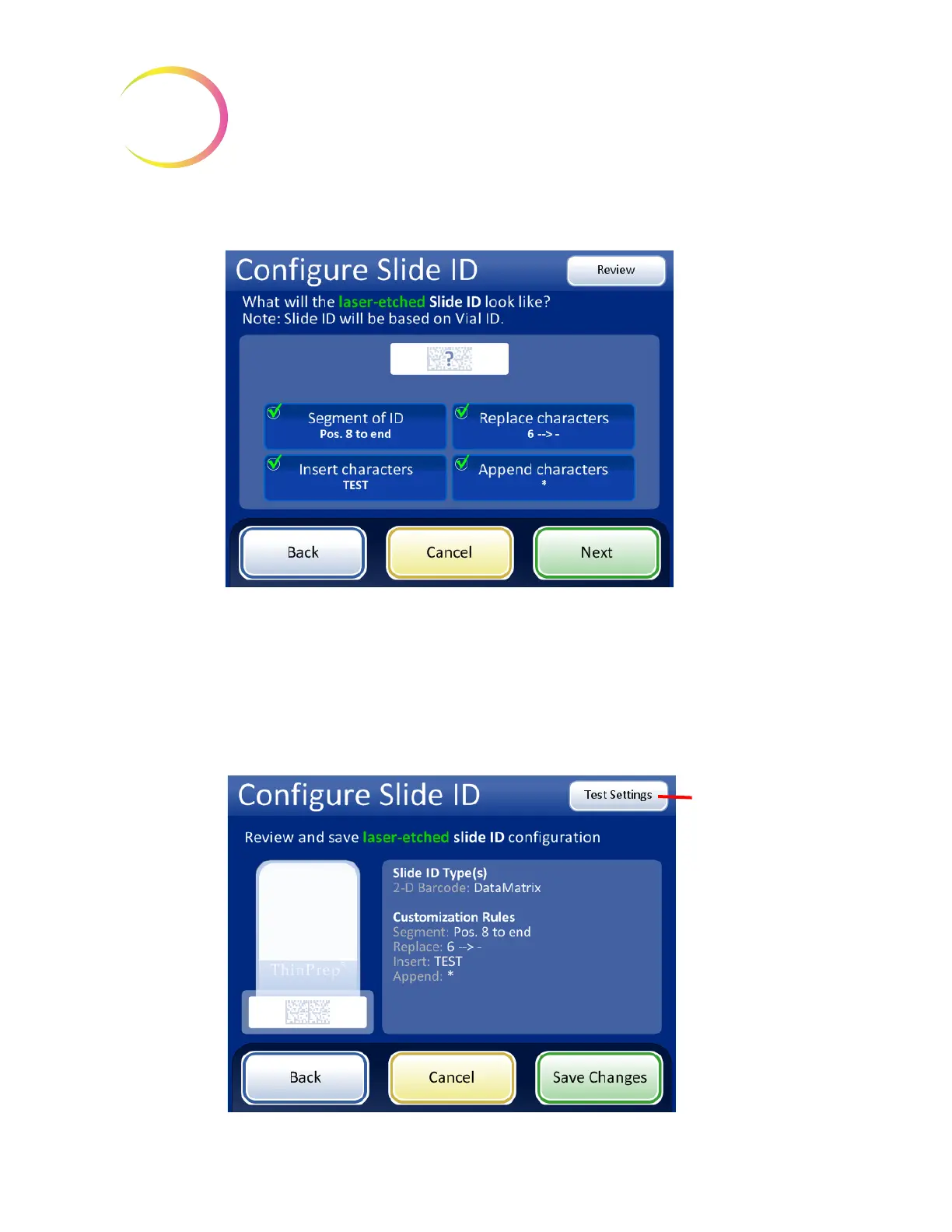
The screen display shows a summary of the Slide ID custom settings.
Figure 6-69 Configure laser-etched slide ID - summary screen
Review the summary of the slide ID configuration. To save the configuration, press
Save Changes
.
To change a setting, use the
Back
button.
The OCR and 1-D barcode types often require shorter slide IDs than 2-D barcode types. If the barcode
configuration settings for the slide ID are likely to create a slide ID that is too long for the barcode
type to be laser-etched on the slide, a yellow caution sign is displayed in the summary screen. Touch
the yellow triangle on the screen display to see the message.
Figure 6-70 Summary screen for configuring laser-etched slides
Use the
Test
Settings
button to
check the vial ID and
slide ID
configuration by
scanning a vial label



 To Next Page