EasyManua.ls Logo

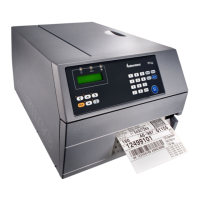
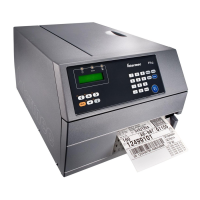
Intermec EasyCoder PX4i - User Manual

Intermec EasyCoder PX4i
186 pages
Print Icon
To Next Page IconTo Next Page
Loading...
Users Guide
EasyCoder PX4i
Bar Code Label
Printer
(Fingerprint Version)

Table of Contents

Other manuals for Intermec EasyCoder PX4i

Questions and Answers

  • J
    Jessica ParkerJul 31, 2025
    What to do if a media jam occurs in my Intermec Barcode Reader?
    • K
      Krista MitchellJul 31, 2025
      If a media jam occurs in your Intermec Barcode Reader, follow these steps: 1. Always switch off the power before starting to clear the jammed media. 2. Raise the printhead and pull out the media. 3. If the media has wound up or stuck on the platen roller, carefully remove it by hand, avoiding sharp tools that can damage the platen roller or printhead. Avoid rotating the platen roller. 4. If you must pull away the media by force causing the platen roller to rotate, ensure the power has been off for at least a minute. 5. Cut off any damaged or wrinkled parts. 6. Check for adhesive in the print mechanism; clean with a cleaning card or cotton swab soaked in isopropyl alcohol. 7. Switch on the power. 8. Readjust the media feed by pressing the key.
  • W
    Willie AndersonAug 5, 2025
    Why is my Intermec Barcode Reader producing an overall weak printout?
    • M
      Michael BakerAug 5, 2025
      An overall weak printout from your Intermec Barcode Reader can be caused by several factors: * **Wrong Paper Type:** Change the parameter to match the paper type. * **Wrong Printhead Voltage:** It may be necessary to replace the CPU board, consider calling service. * **Uneven Printhead Pressure:** Adjust the arm alignment. * **Foreign Particles on Media:** Clean or replace the media. * **Quality of Media or Ribbon:** Match the media ribbon quality. * **Worn Platen Roller:** Check and potentially replace the platen roller; consider calling service.
  • S
    Shannon WalkerAug 11, 2025
    Why is my Intermec Barcode Reader printing too dark?
    • J
      John ClarkAug 11, 2025
      An overall dark printout from your Intermec Barcode Reader can result from: * **Wrong Paper Type:** Change the parameter. * **Wrong Printhead Voltage:** Replacing the CPU board might be needed; consider calling service. * **Faulty Energy Control:** Replacing the CPU board might be needed; consider calling service.
  • L
    Laura MarquezAug 17, 2025
    How to fix missing dot lines on Intermec Barcode Reader printouts?
    • H
      hughesjefferyAug 18, 2025
      A large part of a missing dot line on Intermec Barcode Reader printouts can be due to: * **Wrong X-start or Width Parameter:** Change the parameter. * **Failing Strobe Signal:** Check the CPU-board; consider calling service. * **Bad Energy Control Adjustment:** Adjust the energy control; consider calling service.
  • J
    Jeffery BrownAug 23, 2025
    How to resolve no thermal transfer printout on Intermec Barcode Reader?
    • T
      Tracy DavisAug 25, 2025
      If your Intermec Barcode Reader has no thermal transfer printout, it might be because the ink-coated side of the ribbon does not face the media. Reload the ribbon to correct this.

Summary

Before You Begin

Safety Information

Provides essential safety information before handling and operating Intermec equipment.

Introduction to the EasyCoder PX4 i Printer

Printer Overview and Features

Details the printer's industrial design, printhead resolution, and key features.

Safety Precautions

Highlights critical safety warnings including electrical hazards and handling.

Installation Guide

Connecting the Printer

Details connecting power, computer interfaces (RS-232, USB), and optional boards.

Starting Up the Printer

Loading Media

Loading Ribbon for Thermal Transfer Printing

Setting Up the Printer

Setup Overview and Methods

Explains setup controls, modes, and configuration methods.

Default Settings

Lists the default configuration parameters for the printer.

Serial Communication Settings

Configures parameters for serial ports like baud rate, parity, and flow control.

Feed Adjustments

Controls media feed before and after printing, including start and stop adjustments.

Media Settings

Defines parameters for media size, type, and related settings.

Paper Type Settings

Provides settings for direct thermal and thermal transfer paper types.

Factory Default Reset

Procedure to reset all printer setup parameters to factory defaults.

Setup Mode

Entering Setup Mode

Methods for accessing Setup Mode during initial installation.

Navigating Setup Mode

Explains keyboard usage for navigating setup menus.

Serial Communication Setup

Configuration options for optional serial communication ports.

Network Communication Setup

Configuration options for the optional network communication port.

Intermec Shell Startup Program

Starting and Selecting Applications

Procedure for entering Intermec Shell and choosing applications.

Intermec Shell Overview

Visual overview of the Intermec Shell program's structure and functions.

Printer Options

Troubleshooting Printer Issues

Ready-to-Work Indicator and Errors

Explains the Ready-to-Work indicator and general error messages.

Print Quality Troubleshooting

Diagnosing and resolving weak or uneven printout quality.

Print Issue Troubleshooting

Resolving issues like dark printouts, bleeding, and lines.

Maintaining the Printer

Printhead Maintenance

Procedures for cleaning and replacing the printer's printhead.

Printer Adjustments

Printhead Pressure Adjustment

Adjusting the printhead pressure for optimal print quality.

Intermec EasyCoder PX4i Specifications

General IconGeneral
Print technologyDirect thermal
Maximum resolution300 x 300 DPI
DisplayLCD
Product colorSilver
Keyboard layoutNumeric
Standard interfacesRS-232, USB 2.0
Internal memory16 MB
Media thickness2.4/10 mm
Maximum label width120 mm
Maximum label length2.7 m
Maximum roll diameter213 mm
Supported network protocolsTCP/IP, LPR/LPD, FTP, BOOTP, DHCP, HTTP, SNMPv3, SMTP, SNMP-MIB II
Power requirements90 - 265 VAC, 45 - 65Hz
Power consumption (standby)20 W
Power consumption (printing)125 W
Storage temperature (T-T)-20 - 70 °C
Operating temperature (T-T)40 - 104 °F
Operating relative humidity (H-H)10 - 90 %
Weight and Dimensions IconWeight and Dimensions
Depth482 mm
Width238 mm
Height275 mm
Weight12850 g

Related product manuals