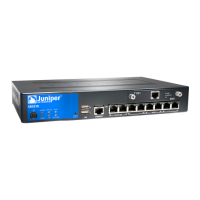
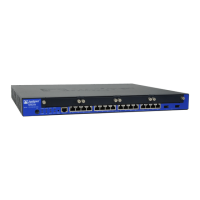
Using the Reset Config Button on the SRX100 Services Gateway
If a configuration fails or denies management access to the services gateway, you can
use the RESET CONFIG button to restore the device to the factory-default configuration
or a rescue configuration. For example, if someone inadvertently commits a configuration
that denies management access to a services gateway, you can delete the invalid
configuration and replace it with a rescue configuration by pressing the RESET CONFIG
button.
NOTE: The RESETCONFIG button is recessed to preventit from being pressed
accidentally.
The rescue configuration is a previously committed, valid configuration. You must have
previously set the rescue configuration through the J-Web interface or the CLI.
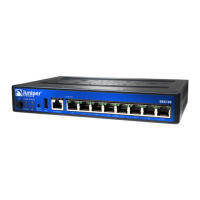
To press the RESET CONFIG button, insert a small probe (such as a straightened paper
clip) into the pinhole on the front panel.
•
By default, pressing and quickly releasing the RESET CONFIG button loads and commits
the rescue configuration through the J-Web interface or the CLI. The Status LED is solid
amber during this time.
•
By default, pressing and holding the RESET CONFIG button for 15 seconds or more—until
the Status LED is solid amber — deletes all configurations on the device, including the
backup configurations and rescue configuration, and loads and commits the factory
configuration.
For details about factory-default settings, see Viewing Factory Default Settings of the
SRX240 Services Gateway.
For details about performing initial software configuration, see the following topics:
•
Performing Initial Software Configuration on the SRX240 Services Gateway Using the
J-Web Interface
•
Performing Initial Software Configuration on the SRX240 Services Gateway Using the
CLI
Related
Documentation
Changing the Reset Config Button Behavior on the SRX100 Services Gateway on
page 103
•
• Monitoring the SRX100 Services Gateway Chassis Using the CLI on page 95
• Monitoring the SRX100 Services Gateway Components Using LEDs on page 97
• Monitoring the SRX100 Services Gateway Using Chassis Alarm Conditions on page 99
• Monitoring the SRX100 Services Gateway Power System on page 101
• Juniper Networks Technical Assistance Center on page 103
Copyright © 2015, Juniper Networks, Inc.102
SRX100 Services Gateway Hardware Guide for B and H Model Numbers


 To Next Page